Admin
The Admin section is where partner administrators configure their organization, manage who has access, and pay Selflane invoices. Sales agents do not see this section.
Settings
Open Admin > Settings to update your organization’s profile.
- Logo — upload a square image (PNG or JPEG). Shown on customer-facing invoices and estimates.
- Name — the organization name shown to restaurants and on documents.
- Contact information — primary email and phone for customer correspondence.
Click Save after changes.
Users & Access
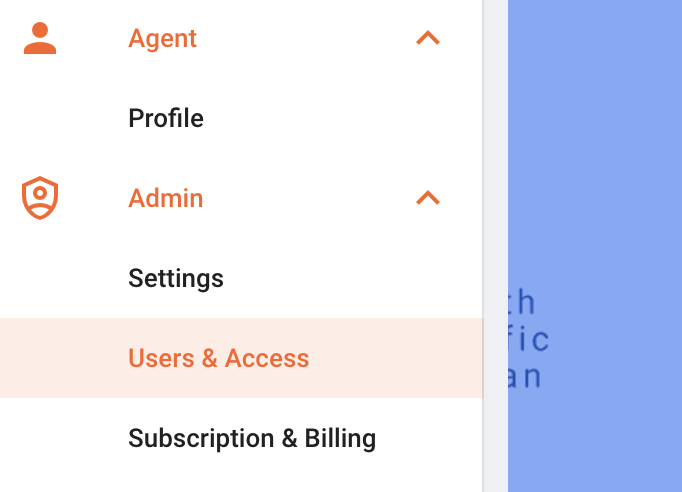
Add, edit, and remove the people who can log into your partner organization. This page is limited to administrators.
Access Levels
- Administrator — full access to settings, billing, agent management, and CRM.
- Sales Agent — CRM and personal-profile access only. No billing, no user management.
Add a User
- Click
+ Addin the upper-right. - Enter the user’s name and Selflane account email. The user must already have a Selflane account — if they don’t, ask them to sign up first.
- Select the access level.
- Click
Save.
Remove a User
Select a user and click Remove. They lose access immediately. Their CRM history (leads, opportunities, edits) stays attached to their name for audit purposes.
Subscription & Billing
Selflane bills your partner organization monthly in arrears. Charges for one month are invoiced on the first day of the next month.
Payment Method
- Click
Editin the upper-right of the Payment Method box. - Enter the card number, expiration date, and CVC.
- Click
Save.
If a valid card is on file, invoices charge automatically. Otherwise pay each invoice manually.
Bills
Bills are listed by month for the selected year. Use the date dropdown in the upper-left to view a different year.
For each bill row:
- Click
PDFto download or print. - Click
Payto settle the bill manually. You can apply any available balance or charge your card on file.
Related
- Agent — what each sales agent sees in their own profile.
- Service Desk — file an issue with Selflane support.