Close Batch
Close your PAX payment batch after adjusting tips so you can compare its totals with your bank deposit.
This action closes only the PAX terminal connected to this iPad. Repeat it at other PAX terminals as needed.
Close the PAX batch
- Finish tip adjustments and check for unpaid orders.
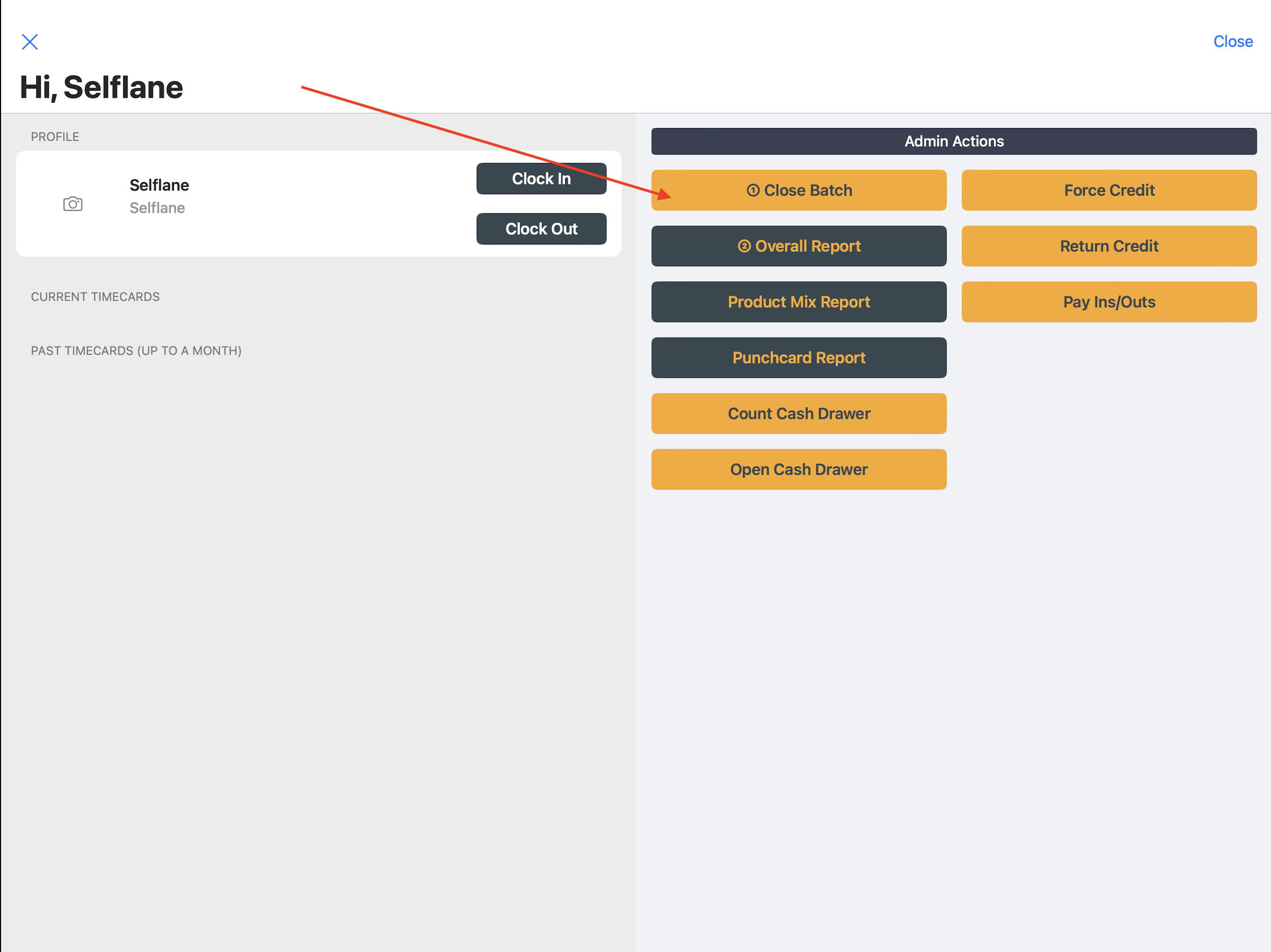
- Open
Staff Self Serviceand sign in with a staff account that hasAdvanced Access. - Under
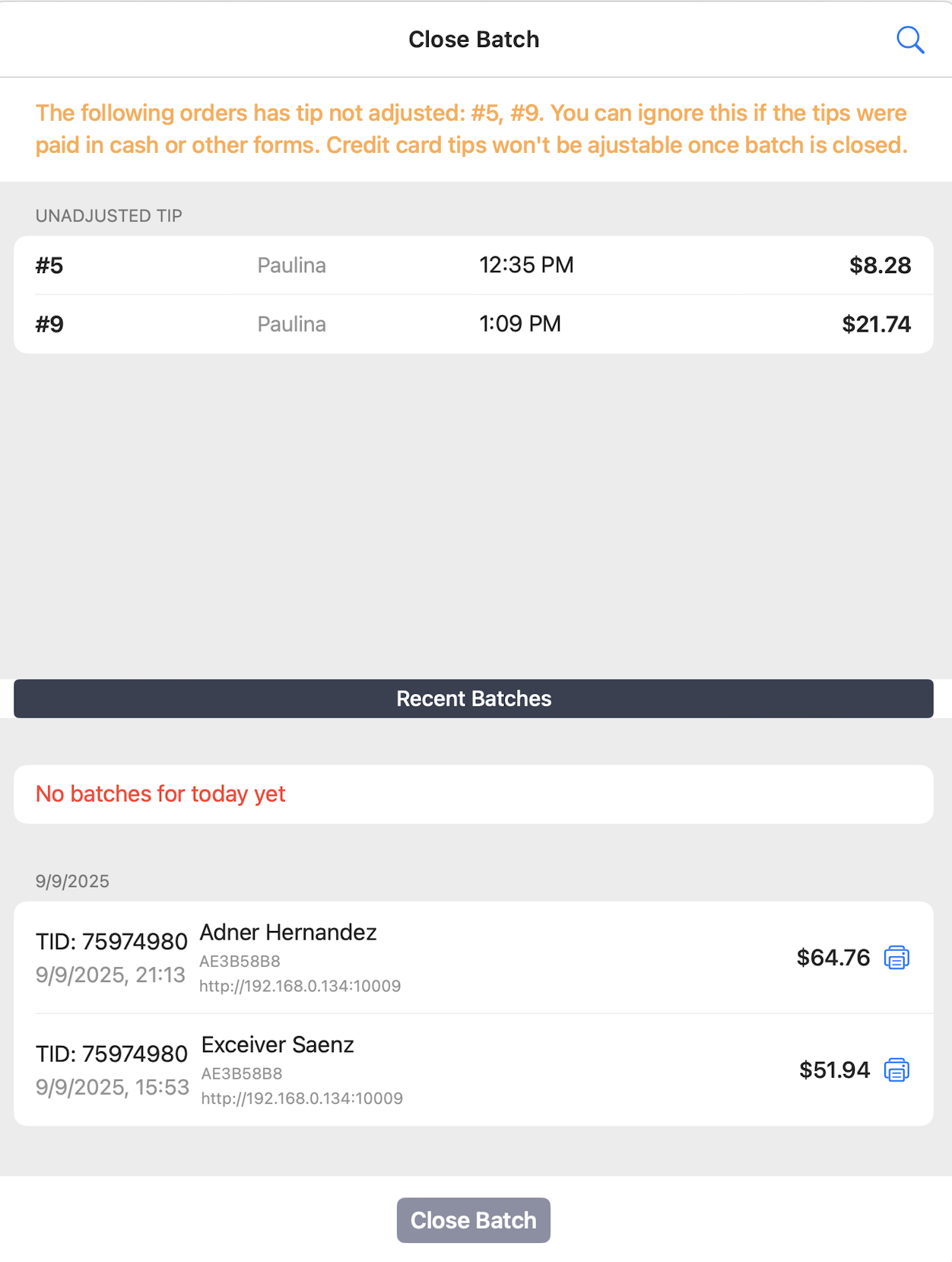
Admin Actions, tap① Close Batch. - Review the orders and terminal status.
- Tap
Close Batchwhen it is available. From this screen, closing starts immediately, without a confirmation dialog. - Check the result before leaving the screen.
You can also close the batch from the Close Shift screen. That path asks you to confirm with Yes, Close Batch.
Review or print a batch report
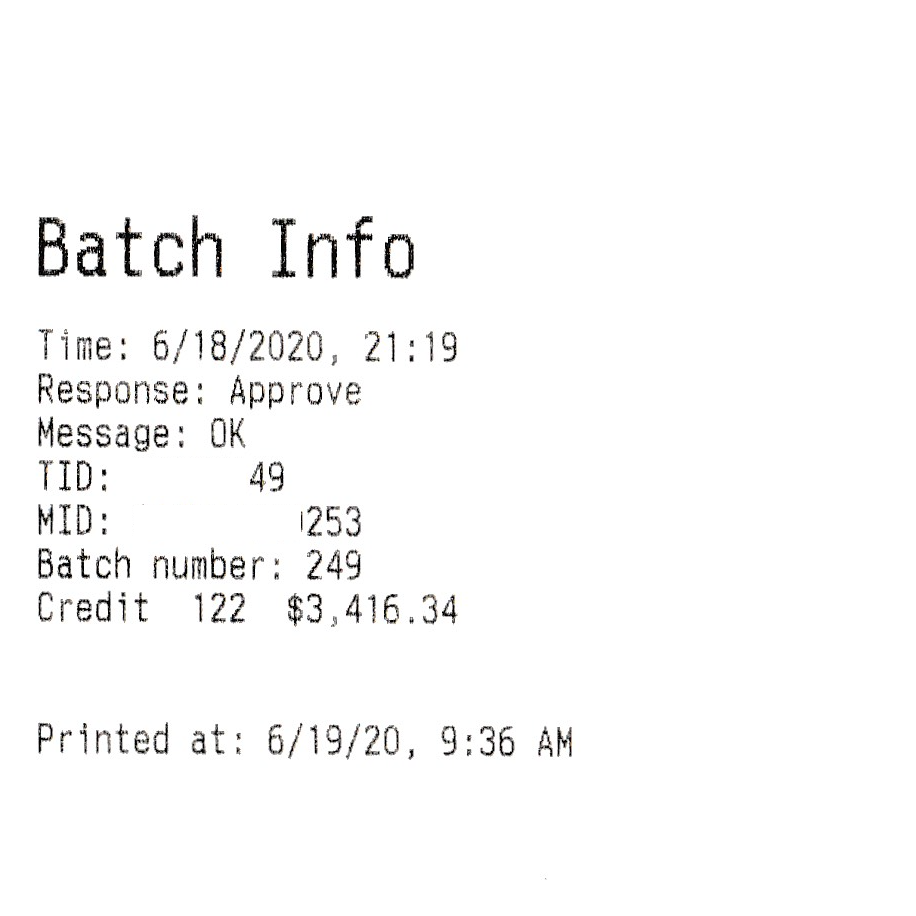
Open a recent batch to review it and print its report. The POS loads recent batches from up to one week ago. The Back Office keeps the full history of manually closed batches.
MagTek and Stripe payments
- MagTek batches close at the processor. Review them through MagTek Payments.
- Stripe payments have no POS batch-closing step.
What if Close Batch is unavailable?
Admin Actions appears only for staff with Advanced Access. Ask a manager to close the batch if you don’t see it.
Otherwise, review the message on the screen and resolve unpaid orders or terminal connection problems before trying again.
Related links
Last updated on