Combo
Combo lets you bundle multiple dishes with rule-based pricing. It is commonly used for meal deals, bundles, and BOGO-style offers.
What You Can Configure
- Combo name and description
- Out of Stock status
- Optional combo image
- Multiple groups per combo
- Group Name for each group
- Applicable dishes per group
- Group pricing type per group
Group Pricing Types
Each group has its own pricing rule.
- No Change
- Fixed Price
- Percentage Discount
- Amount Discount
- Custom Price (set a different price per selected dish)
Pricing is applied at the dish level inside each group.
Sortable Combo List
Combos are sortable in Back Office.
- Drag and drop combo cards to reorder display order.
- The saved order controls the list sequence for staff use.
Group Naming
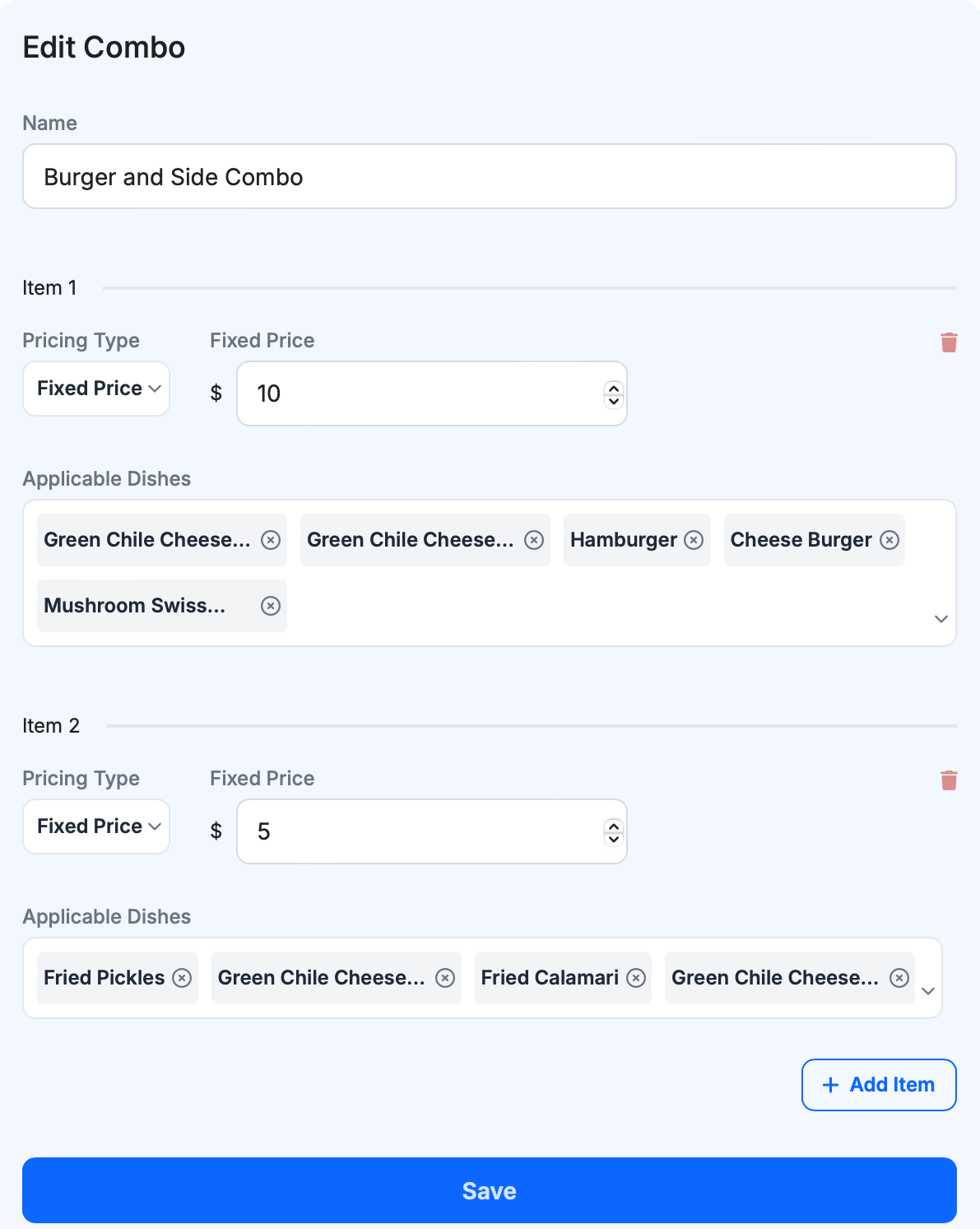
Each combo item row is now a group and can be named.
- Use Group Name to make intent clear, for example
Main,Side,Drink,2nd Taco. - If left blank, the UI falls back to
Group 1,Group 2, and so on.
Typical Build Flow
- Click
Add. - Enter combo Name and optional Description.
- Add at least two groups.
- Set Group Name and choose applicable dishes for each group.
- Set pricing type and value for each group.
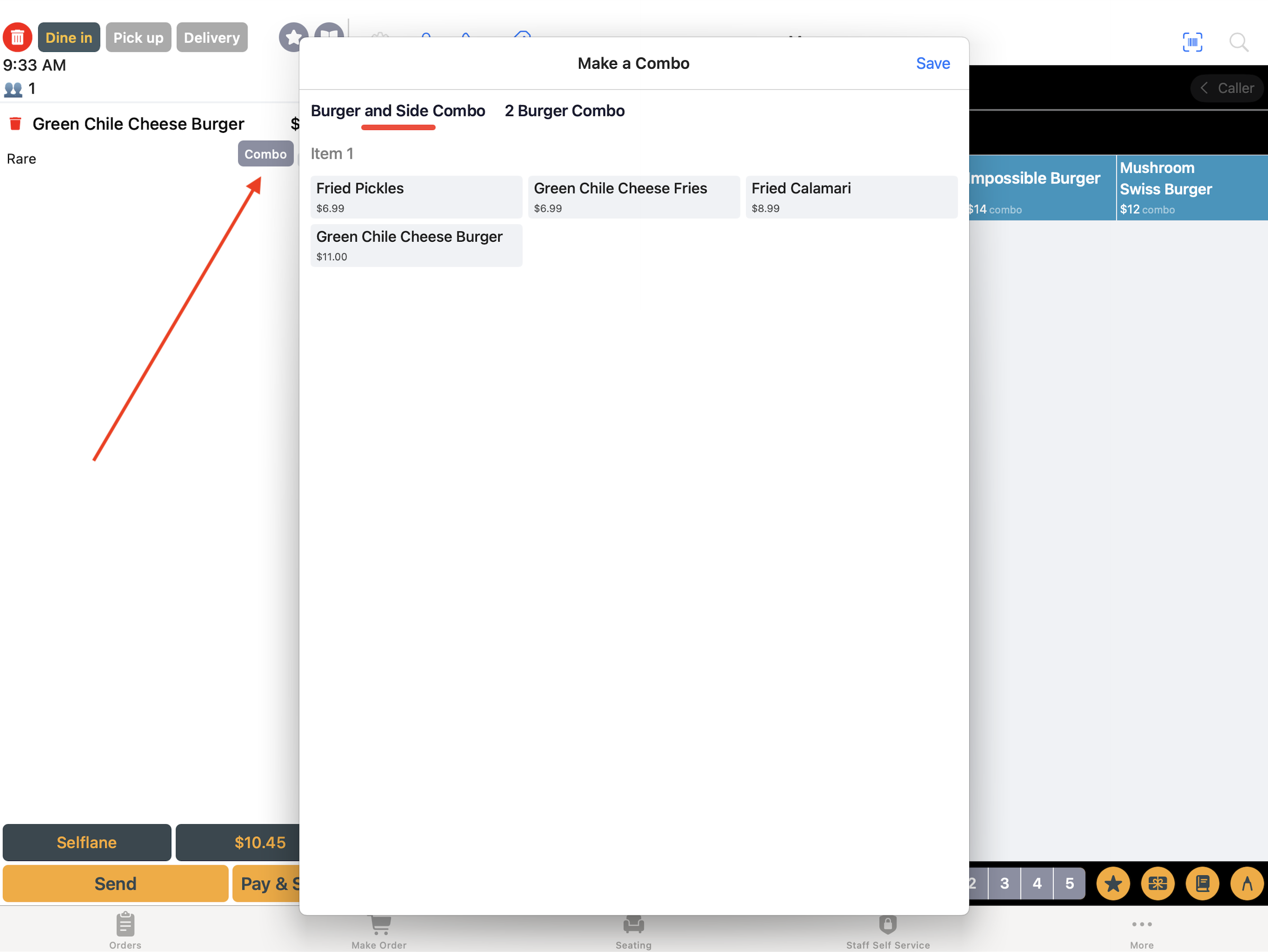
- Save and test in POS.
Examples
Example: Burger Meal for $10. Burger + Fries + Soda. One setup approach: Group Main fixed price $8, Group Side fixed price $1, Group Drink fixed price $1.
Example: Buy one taco, get second taco 50% off. One setup approach: Group 1st Taco no change, Group 2nd Taco percentage discount 50%.
Best Practices
- Keep groups small and explicit for easier cashier selection.
- Use clear group names so staff can apply combos quickly.
- Test edge cases when using custom pricing.
- Mark unavailable combos as Out of Stock instead of deleting when temporary.
Last updated on