Stripe Terminal
Stripe Terminal lets the Selflane POS accept in-person card payments alongside online orders. If you’ve already set up your Stripe Account, you can pair a reader and start charging today.
Prerequisites
- A completed Stripe Account.
- A Location on the Stripe account for the store where the reader will be used.
- Latest Selflane POS installed on your iPad or iPhone.
Reader Options
Stripe Terminal supports three reader types. The right choice depends on whether you need portability, a fixed counter device, or no hardware at all.
Bluetooth Reader
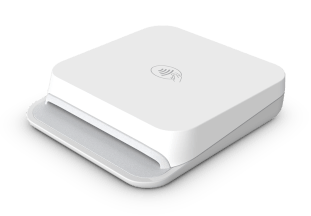
Stripe Reader M2 — compact, Bluetooth-paired to one iPad at a time. Best for businesses that want a portable reader at a single station.
Internet-Connected Reader
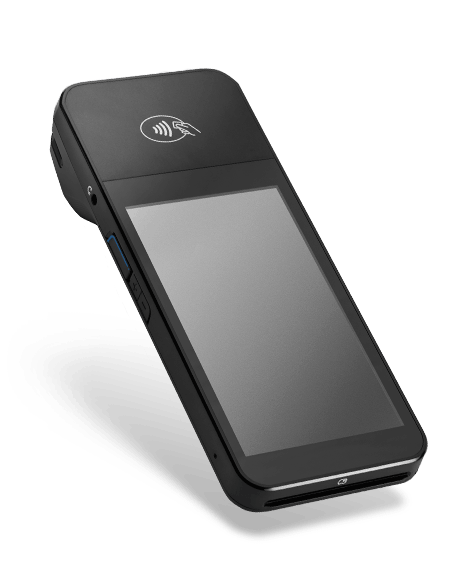
BBPOS WisePOS E — Wi-Fi reader with its own screen. Recommended for most businesses: durable, can pair with multiple iPads, and works without a host iPad in the same room. Does not support manual card entry (MOTO).
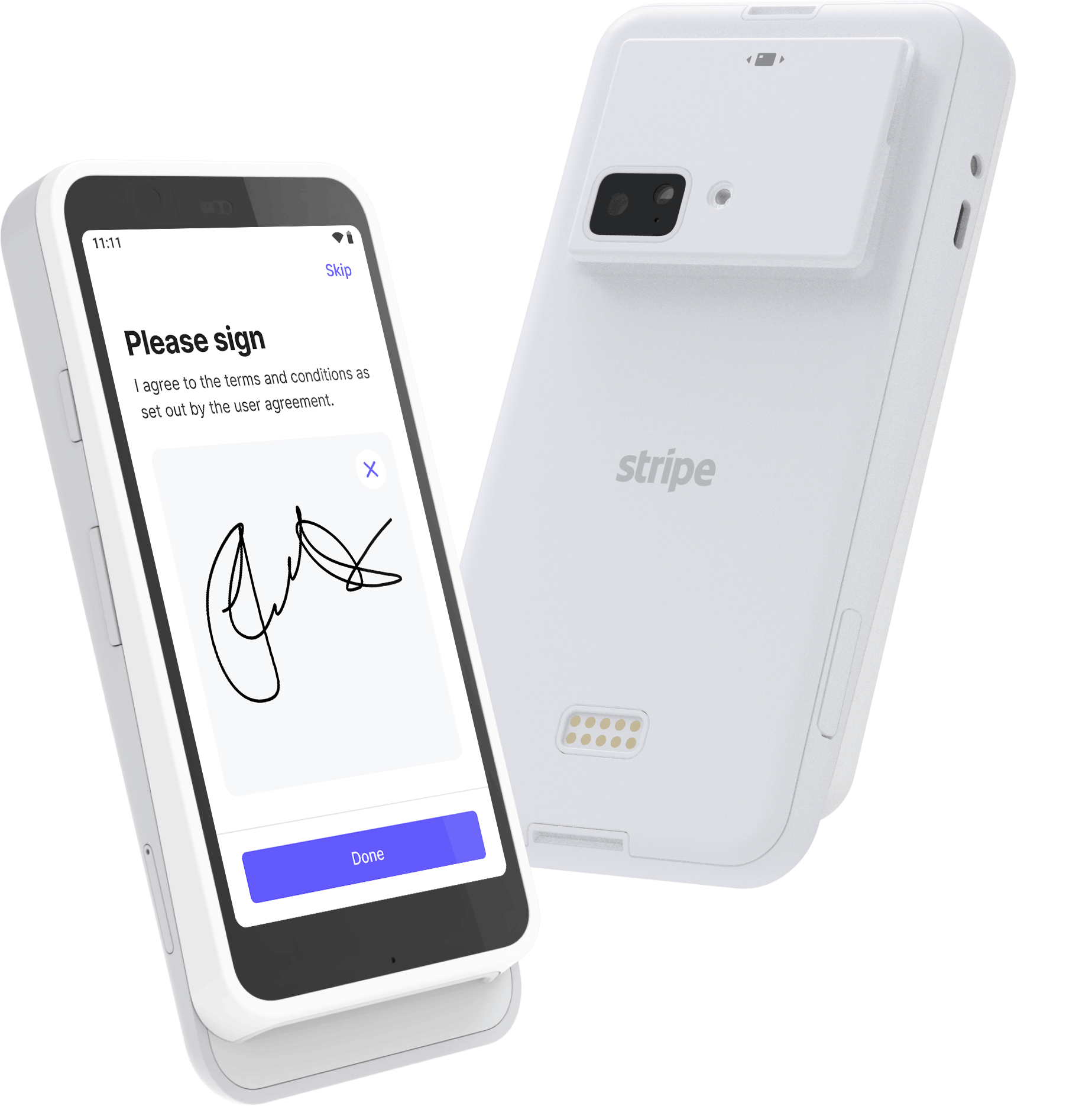
Stripe Reader S700 — also internet-connected, similar functionality to the WisePOS E at a higher price. Use this only if you already own one; otherwise pick the WisePOS E.
Tap to Pay on iPhone
Accept contactless payments directly on an iPhone with no extra hardware. iPad is not supported (no NFC). See Tap to Pay on iPhone for setup.
Readers for Selflane Hub kiosk
The Selflane Hub kiosk takes Bluetooth Stripe readers only. The POS reader options above do not all apply to kiosk use: WisePOS E, S700, and Tap to Pay are not kiosk options.
See Kiosk hardware and Set up Selflane Hub for connection steps.
Comparison
When deciding between Bluetooth and internet-connected, weigh:
- Portability — both M2 (Bluetooth) and WisePOS E (Wi-Fi) are portable.
- Cost — M2 is cheaper up front; WisePOS E is more durable for high volume.
- Pairing — WisePOS E pairs with multiple iPads at once; M2 pairs with one at a time.
- Standalone use — WisePOS E has its own screen, so it can take payment without an open iPad next to it. M2 cannot.
Pairing a Reader in POS
- Open the Selflane POS app.
- Go to Settings > Hardware > Card Reader.
- Tap
Add Readerand choose the reader type. - For Bluetooth: hold the M2 near the iPad until it appears, then tap to pair.
- For internet-connected readers: enter the registration code shown on the reader screen.
- Confirm the reader appears under the active station.
Related
- Stripe Account — required first step.
- Tap to Pay on iPhone — no-hardware alternative on iPhone.