Pay Order
Collect payment for an open order, a split check, or a new order sent with Pay & Send. Check the balance and any existing payments before charging a card.
Open the payment screen
- From an order: open the order and tap
Pay. If the order has split checks, theSplit Checksscreen opens instead. TapPayon the check you’re collecting. See Split and merge checks. - When sending a new order: tap
Pay & Sendin the cart (iPad only). It’s hidden whenUse Send & Pay orderis off in the Back Office. - Drive-thru: tap pay on the drive-thru order.
Pay appears only on orders paid at the store: POS and kiosk orders, and third-party orders the customer pays at pickup. Orders already paid online or through a delivery platform don’t have it.
For a third-party order paid at the store, a staff member must be signed in. If no one is, the POS asks someone to sign in and then opens the payment screen. If the order isn’t assigned to anyone yet, it’s assigned to that staff member.
If the Back Office requires earlier orders to be paid first, sending a new order shows Must pay off "N" open orders before placing new one. Pay the open orders, then send again.
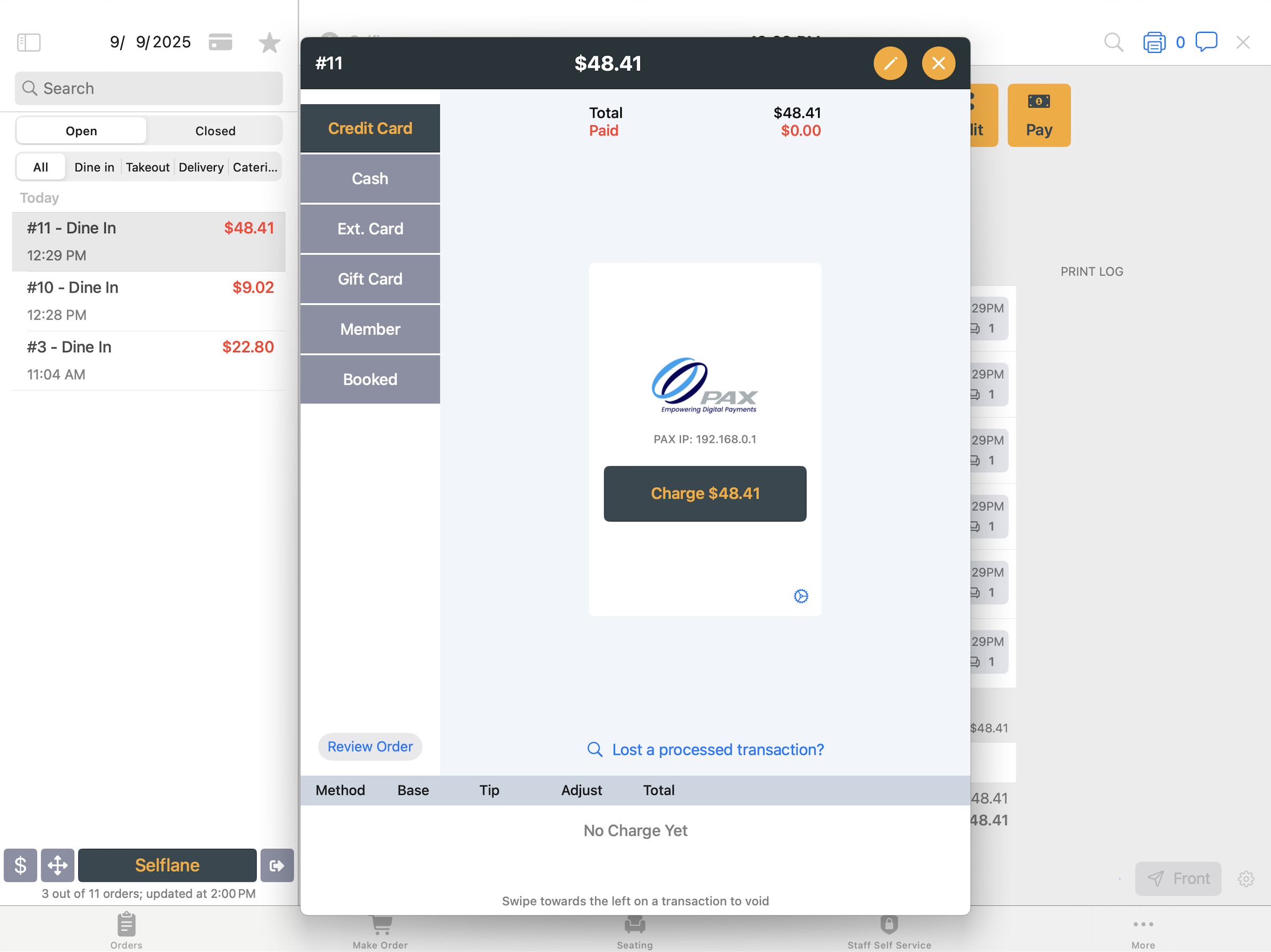
The payment screen on iPad
- Top bar: the order (or
check #N) and the amount to charge,Switch to Mewhen the order belongs to another server, a card icon to capture a tab when pre-authorization is on (not on third-party orders), a pencil icon for the Edit menu, andXto close. - Payment methods on the left, with
Review Orderbelow them to see the items. - Totals:
Auto Tipwhen there is one, your cash discount or surcharge line,Total, andPaid(red until the balance is paid). If more was collected than the total, you seeOverpaid! Please void extra transaction. - Payment list: each payment with its
Method,Base,Tip,Adjust, andTotal, orNo Charge Yet. On each row:- Tap the row to see the payment details.
- Swipe left to
Void Transaction. See Void a payment from this screen. - Tap the pencil to adjust the tip.
- Tap
FFon a card payment to send it to the customer display for the customer to add a tip. WithShow Rotating Tip Editoron, it opens the rotating tip editor on this device instead. - Tap the printer to print a
Restaurant Copy,Customer Copy, orBoth(credit card and Stripe payments), or aCustomer Copy(other methods). - Cash rows show what was received, the cash tip, and the change.
The pencil and FF don’t appear on kiosk orders. Once the order or check is fully paid, the method area shows only Text Messaging Receipt, to text the customer a receipt (not on third-party orders).
The payment screen on iPhone
The iPhone opens Create a payment:
- Check the amount due at the top. It includes any auto tip.
TotalandPaidare listed below it. - Under
How to charge, choose:Tap to Pay on iPhoneto take a card on the phone itself.Other Payment Methodsfor everything else: card readers, cash, gift cards, and the rest. It opens the same method list as on iPad.
- Tap
Next. With Tap to Pay, the customer taps their card on the phone.
The bottom bar also has Review Order and Edit. Under Payment History, long-press a payment for View Details, Adjust Tip, Send to Front Display, or printing, and swipe left to void.
The first time you use Tap to Pay, Next opens the Tap to Pay setup page. Tap Enable Tap to Pay, allow location services, and sign in with your Apple ID. When it shows Tap to Pay is enabled, close the page and tap Next again. If it shows Connection timeout. Please try again., check the connection and try again. Tap to Pay isn’t offered on iPhones that don’t support it.
Payment methods
The method list shows the methods your business accepts:
| Method | Shown when |
|---|---|
Credit Card | On by default. Charges on your PAX or MagTek reader. |
Stripe | Stripe is turned on in the Back Office. Charges on your Stripe reader. If Stripe is your default reader, it’s listed first. |
Debit Card | Debit is turned on in the Back Office. |
Cash | Always. |
Ext. Card | On by default. Records a card payment taken on a separate machine. |
Check | On by default. |
Gift Card | Always. |
Member | Your business has the Member add-on, on orders that aren’t third-party. |
Booked | Reservations are turned on. Applies a reservation deposit. |
| Custom methods | Each custom payment method set up in the Back Office. |
Turn methods on and off in the Back Office under POS settings. The method selected first is the default reader set in Payment Settings.
In Selflane POS 7.9.1 or later, the Back Office maximum card amount applies to PAX, Stripe readers, Tap to Pay, and MagTek. The POS checks the amount before tips, including any adjustment, before asking for the card. A charge above the limit is refused.
Credit CardandDebit Card: tapCharge $Xand have the customer insert, swipe, or tap their card on the reader. If pre-authorization is on,Open Tabstarts a tab on a credit card instead. The gear icon opens the reader settings.Stripe: tapCharge $X. If the reader isn’t connected, tapConnectfirst. If it needs an update, tapUpdate Reader Firmware.Cash,Check,Ext. Card, and custom methods: enter the amount on the keypad and tapPay <method> $X(forExt. Card, the button readsPay Excard $X). On iPad, cash also has quick buttons ($10, $20, $50, $100, and rounded-up amounts) that charge right away. ForExt. Card, choose the delivery platform if it applies, orNone.Gift Card: see Redeem Gift Cards.Member: opens the member lookup. Then tapUse Points, orUse Visit Rewardfor visit rewards. See Member.Booked: search by name or phone underAvailable Items, pick the deposit, and tapUse <name>. Each deposit shows itsDepositand remainingBalance.
Take a partial payment
To take part of the balance with one method, such as $10 cash before charging the rest to a card:
- For cash, check,
Ext. Card, or a custom method, type the smaller amount on the keypad. - For any method, open the Edit menu and tap
Other Tender. InModify Tender, enter theAmount(no more than the balance due) and theTipseparately, then tapSave.Resetrestores the original amounts.
For check, Ext. Card, and custom methods, anything entered above the total is recorded as tip.
In Selflane POS 7.9.1 or later, the next payment asks for the remaining automatic tip after earlier payments. For example, if the automatic tip is $20 and $10 is already recorded, $10 remains.
Change the order before payment
Open the Edit menu: the pencil icon at the top on iPad, or Edit in the bottom bar on iPhone.
Other Tender- change the amount and tip for the next payment. See Take a partial payment.Add Item/Voucher- add items or a voucher. It isn’t offered once the order or check has a payment, on evenly split or custom-amount checks, or on a split order as a whole.Apply Discount- change the order discount.Gift Card Discount- shown when the order qualifies for a gift card discount.Customize Auto Tip- change the automatic tip.
Kiosk orders and third-party orders paid at the store show only Other Tender.
Approval and limits:
Apply DiscountandCustomize Auto Tip: if your business uses manager roles, staff without one need a manager’s approval. See Job Roles.Apply DiscountshowsNot Allowedonce the order or check has a payment, and on checks split by amount.Gift Card Discount: appears only on an order that isn’t split and sold a gift card. A manager must always sign in to approve it, even when a manager is the one using the POS. Once the order has a payment, it showsNot Allowed.
Check the new balance before collecting payment.
Tips
How the customer adds a tip on a card payment depends on your settings:
- Before the charge: with
Enable Pre-Charge Tip Editoron in POS settings, a tip screen opens before each credit card, debit, Stripe, or Tap to Pay charge. TapCharge $Xto charge with the tip you enter, orSkipto charge with the order’s auto tip, if any. - On the PAX terminal: with
Tip Entered on PAX Terminalon in POS settings (set on each iPad), the terminal asks for a tip onCredit Cardcharges for orders with no auto tip. The panel showsPlease add tip, then insert/swipe/tap card, and the pre-charge tip screen is skipped. - After the charge: if a
Credit Card, Stripe, or Tap to Pay payment has no tip and the PAX terminal didn’t already ask, the POS opens the rotating tip editor whenShow Rotating Tip Editoris on. Otherwise it sends the payment to the customer display and showsSent to Front Face Display for Tip Adjustment.
When the rotating tip editor opens, the payment screen closes after the tip is saved, without Fully Paid.
In Selflane POS 7.9.1 or later, Close (X) on the pre-charge tip screen returns to payment without charging the card. Skip continues with the current tip. After the customer confirms, skips, or chooses no tip on that screen, the POS doesn’t ask for a tip again after payment.
To change a tip later, see Adjust Tip.
Finish the payment
Cash: the Cash Change alert shows the change due. Tap Print Customer Receipt, Close to leave the payment screen (once the order is paid), or Stay Here.
Other methods: when the order or check is fully paid, Fully Paid appears with print options (Print Restaurant Copy, Print Customer Receipt, and Print Both Copies for credit card and Stripe payments, or Print Customer Receipt for other methods) and Close. The screen closes on its own after 5 seconds, unless the order sold a gift card. Tap outside the panel to stay on the payment screen. Card receipts can also print automatically, depending on your printing settings.
If the order sold a gift card that failed to activate, Fully Paid shows Gift card issuing failed. Tap Retry Issuing.
Cash drawer: the drawer opens for cash and check payments when a receipt printer is set up and Auto open drawer in cash payment is on in the Back Office.
Pay & Send
With Only print to kitchen after payment (used in Pay & Send) on in the Back Office printing settings, Pay & Send holds the kitchen ticket until the order is paid. Otherwise the kitchen ticket prints right away and you pay as usual.
In Selflane POS 7.8.0 or later, while a held order is unpaid, you can’t swipe the payment screen away. Tapping X checks with the server first (Checking payment):
- If the order was paid, for example on another device, the screen closes with
Order is Paidand prints any kitchen ticket that hasn’t printed. - If it was canceled, the screen closes with
Order was canceled. - If a card payment is still being saved, the screen just closes.
- If it wasn’t,
Next Stepasks how to proceed:Print Now and Pay Later- send the ticket to the kitchen and collect payment later.Cancel Order- cancel the order. If your business requires a cancel reason, the cancel screen opens.Cancel- stay on the payment screen.
Cancel Order is refused when:
Void Charge First- the order already has a payment. Void it first.Card Charge Being Saved- a card payment is still being saved. Wait for it.Couldn't Confirm Payment- the server didn’t answer within 10 seconds. Check the connection and try again.
If the order is already paid when you tap Pay & Send (for example, a platform order that closes automatically), the payment screen doesn’t open and you see Order is Paid.
Switch the order to yourself
If you’re signed in and the order belongs to another server, tap Switch to Me, then Confirm and Proceed to make yourself the server. No approval is needed.
Void a payment from this screen
Swipe left on a payment and tap Void Transaction. Payments collected by a delivery platform can’t be voided here.
A confirmation shows the payment. Tap Void this Charge. For Stripe, the button shows Checking… while the POS looks up the payment, then reads Release Authorization (no processing fee) if the payment hasn’t been captured yet, or Refund Charge (processing fee applies) if it has. If your business uses manager roles, staff without one need a manager’s approval.
In Selflane POS 7.9.1 or later, cash, check, and Ext. Card payments taken within the Back Office void time limit void immediately, without confirmation or manager approval. The limit is in minutes: the default and maximum are 5. Set it to 0 to use the confirmation and normal approval rules for every void. Card-reader payments always follow those normal rules.
You see Charge voided when it’s done. For older payments and closed orders, see Void a payment and Refunds.
If a card is charged but the payment is still saving
In Selflane POS 7.8.0 or later, the POS keeps approved MagTek and Stripe payments and automatically retries saving them to the order.
If you see Card charged. Saving to order — don't charge again., or the orange banner Card charge of $X is still being saved to this order. Don't charge again., wait for the saved payment to appear in the payment list before taking another payment.
If you see Card charged, but it couldn't be saved to this order. Don't charge again — add the charge manually., ask a manager to reconcile the existing charge. Don’t take a second card payment to replace it.
Recover a PAX payment the order didn’t record
PAX payments aren’t part of the automatic retry. If the PAX terminal approved a card but the payment isn’t on the order, tap Lost a processed transaction? under the Credit Card or Debit Card panel. Recover a Credit Transaction asks the terminal for a sale made for this order or check and adds it. Use it on the same station that ran the sale, on the same day, while the order is still unpaid. The link isn’t shown when MagTek is your default reader.
Stripe asks about an earlier payment
If an earlier card payment is still being saved when you charge with Stripe or Tap to Pay, the POS shows A $X card payment is still being saved. and warns that charging again may charge the customer twice:
Keep itleaves the existing payment in place while saving continues.Cancel it & charge again, if shown, first tries to release the earlier payment. The POS charges again only after confirming that it can do so. It appears only when every earlier payment is a Stripe authorization that can still be released.Charge anyway (manager)can charge the customer twice. If your business uses manager roles, staff without one need a manager’s approval. Reconcile the earlier payment before using it.
If the earlier payment has already saved, you see The earlier card payment was saved to this order. Don't charge again. If cancellation fails, you see Couldn't cancel the earlier card payment. Try again when online, or a manager can charge anyway.
If another device cancels the order
In Selflane POS 7.8.0 or later, before each card charge, the POS checks the order with the server (Checking order). If the order was canceled on another device, the payment screen closes with Order was canceled once any payment in progress finishes. Return to the order list and check the order’s status before continuing.
What staff might see
| Message | What to do |
|---|---|
Overpaid! Please void extra transaction. | Void the extra payment from the payment list. |
Nothing left to pay. (visit reward) | The balance is already paid. |
No Balance (Booked) | The deposit is used up. Choose another method. |
Please insert/swipe/tap card in the PAX machine | Have the customer present their card on the PAX terminal. |
Please add tip, then insert/swipe/tap card | The customer adds a tip on the PAX terminal, then pays. |
Payment is short of $X | The terminal approved less than the amount. The approved amount is saved. Collect the rest with another payment. |
| Terminal hasn’t responded for 30 seconds | Tap Troubleshoot, or see PAX terminal troubleshooting. After 60 seconds you can Cancel. |
Payment was approved, but the tip could not be confirmed. (MagTek) | Don’t charge the card again. Check the payment, then adjust the tip. |
Pay from the Back Office
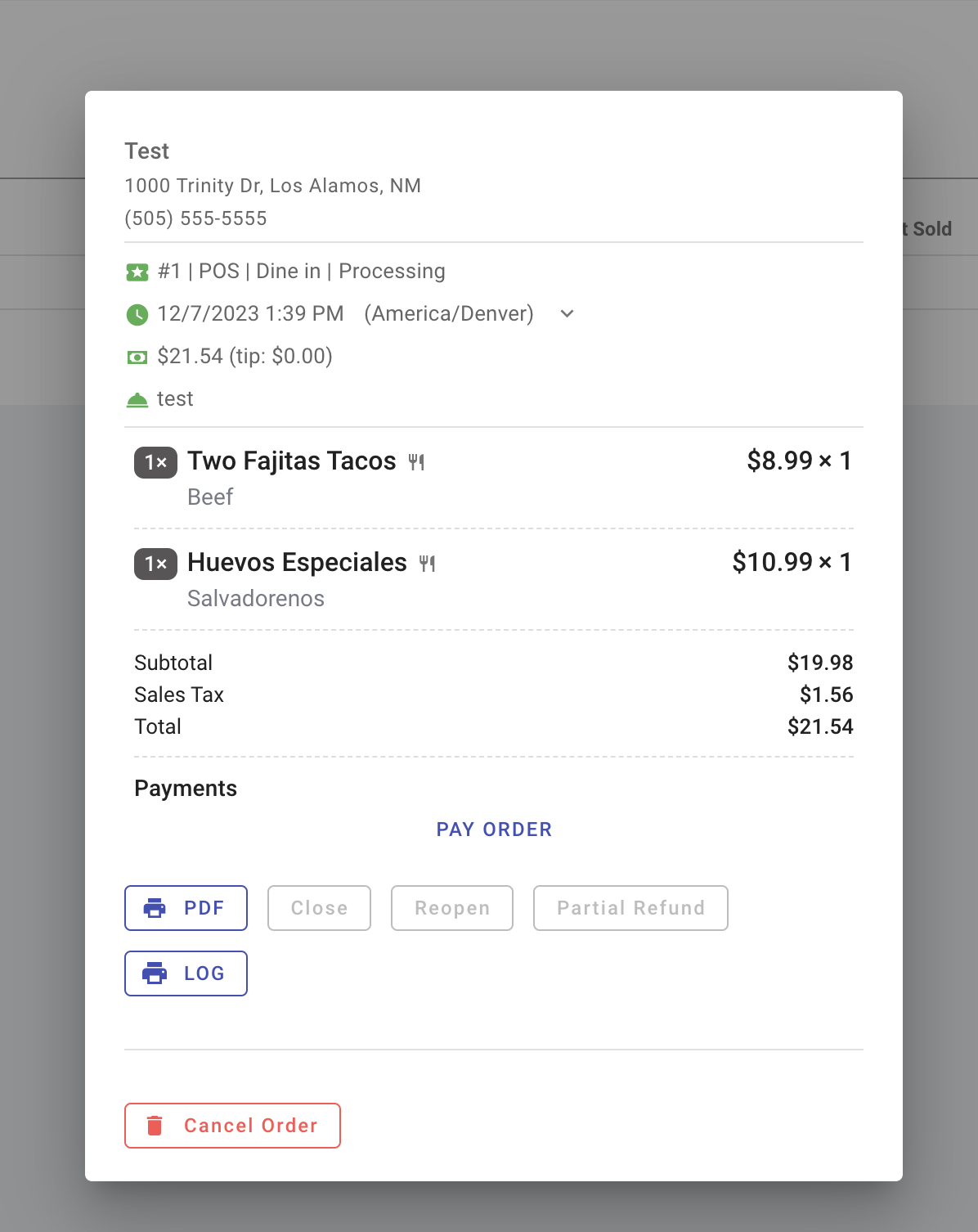
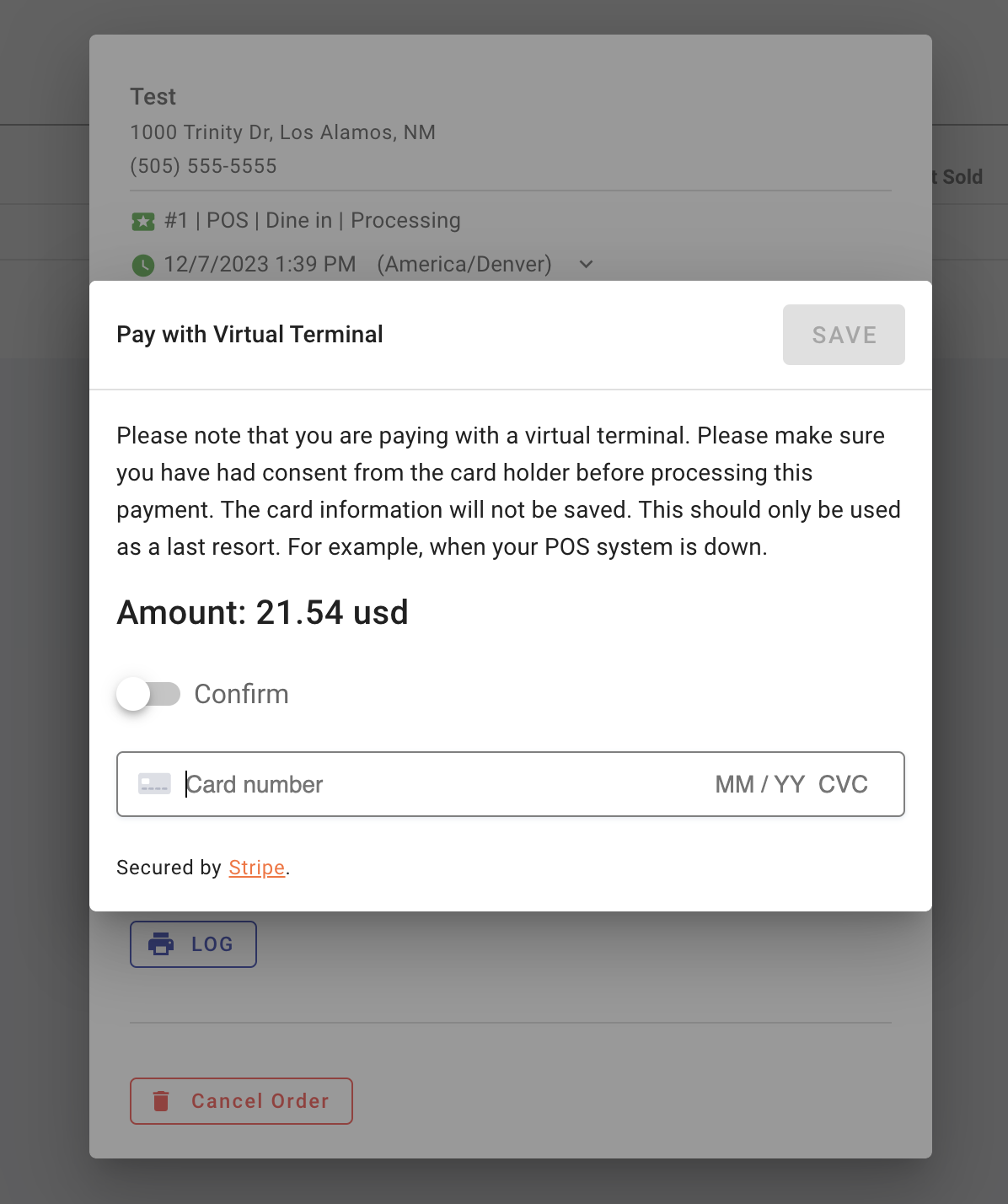
Use the Back Office payment option, sometimes called the virtual terminal, when you can’t take payment at the POS.
- Open the unpaid order in the Back Office.
- Click
Pay Orderand follow the payment prompts. - Confirm that the payment appears on the order before trying another method.
Manually entered card payments have different processing costs and chargeback risks. Use your normal POS reader when it’s available.
Related links
- Payment Settings - connect your card reader.
- Split and merge checks
- Adjust Tip
- Redeem Gift Cards
- Void a payment
- Refunds
- Event Ticketing - recover a paid ticket sale without charging again.