Timesheets
Timesheets shows who worked, for how long, and what it cost next to what you sold, so you can catch a missed clock-out or a heavy labor day before payroll. Each timecard is one shift that an employee clocked in and out of on the POS.
Open Employee > Timesheet in the Back Office . You need manager access to open it.
Choose a view
The page has two tabs:
- Day - one business day, with sales and labor by hour and the day’s first clock-in and last clock-out.
- Week - one payroll week, with head count, hours, and wages by day and by role.
Both tabs show the same cards: the sales and payroll summary, the charts, the Labor Report, and the Timecards list.
Week and day start
The top-left corner shows two settings that decide which hours fall in which day and week:
Week starts- the first day of your payroll week. Change it withStart dayin Point of Sale settings, orPayroll start dayon the Payroll page.Day starts- the hour your business day starts. Change it in Point of Sale settings. The hourly charts on theDaytab start at this hour.
Net sales, payroll, and labor percentage
The summary at the top of the charts card has three numbers for the day or week on screen:
Net Sales- your net sales for the day or week.Payroll- hourly pay, including overtime, plus salaries. Users without wage access see this total too.Labor %-Payrollas a share ofNet Sales. It turns orange above 50%.
Payroll and Labor % show — when the labor report hasn’t loaded.
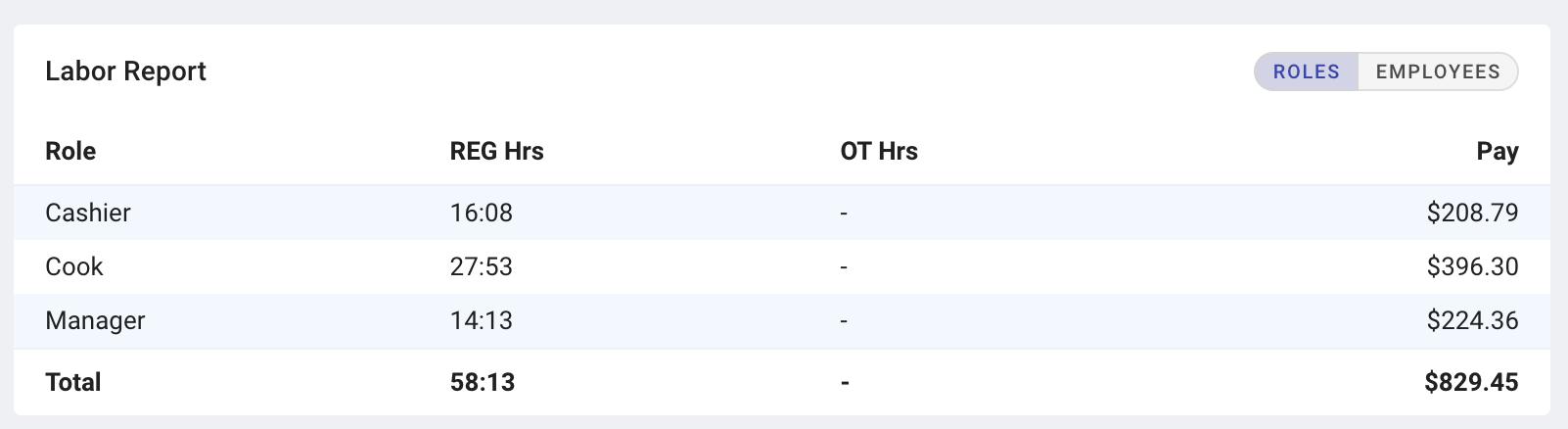
Labor Report
The Labor Report card totals hours and labor cost for the day or week. Switch its view in the card header:
Roles(the default) - one row per job role, sorted by most hours. If you use departments, a total row for each department follows, then the overallTotal.Employees- one row per employee who worked, sorted by name, with their roles, then theTotal.
Both views show Reg Hours and OT Hours. Overtime is hours over 40 in the payroll week, so on the Day tab, overtime shows from the day an employee passes 40 hours and on every later day that week. With wage access, Cost shows what those hours pay, including the overtime boost.
If you have salaried staff and wage access, the hourly total is labeled Hourly Total. Salaried staff follow it, then Total Labor, which adds salaries to hourly pay. Salaried hours are never overtime.
The 0:00 button switches hours in the Labor Report and the Timecards list between hours and minutes (7:30) and decimals (7.50). In decimal mode the button reads 0.00. Chart titles always use decimals. The PDF and CSV buttons download the Labor Report as shown.
Timecards
The Timecards card lists every timecard for the day or week, newest first, 20 to a page. Click a row to open it.
Filter the list
The buttons in the card header filter the list. Each shows a count. Buttons other than All show only when their count is above zero:
All- every timecard.Edited- timecards with an entry in their change log: added, edited, canceled, or restored in the Back Office, or with breaks fixed or approved by a manager.Long Hours- timecards over 10 paid hours.Canceled- canceled timecards.Not Synced- timecards not yet sent to 7shifts. Shows only when 7shifts is connected.
Read the columns
Date- the day the shift started.Server- the employee.Photo- the clock-in photo. Shows when any timecard has one.Role- the job role worked.Shift- clock-in and clock-out times. A shift still open ends with a dash.Hours- the whole shift, from clock-in to clock-out, including unpaid breaks. For a shift still open, it counts up to now.Break- unpaid break time. Shows when any timecard has an unpaid break.RateandWage- with wage access.Wageis paid hours times the rate, with no overtime, so it can differ from the Labor Report’sCost. A canceled timecard shows-.Cash Tip- cash tips a manager entered. Shows when any timecard has one.
Hours here includes unpaid breaks. The Payroll page’s Time Card Report subtracts them, so the two can differ for the same timecard.
Marks at the end of a row:
Sync- send this timecard to 7shifts now. Shows when 7shifts is connected and the timecard isn’t synced or canceled.- A green
7- the timecard is synced to 7shifts. - A warning triangle - the timecard has a change log entry, as in the
Editedfilter. Open the timecard to read the log.
The PDF and CSV buttons download the list as filtered.
Row colors
- Green - the employee hasn’t clocked out yet.
- Orange - over 10 paid hours. The employee may have forgotten to clock out.
- Red - the timecard is canceled.
The same key, with Reg for regular and OT for overtime hours, is at the bottom of the page.
Add a timecard
Add a timecard when an employee worked but didn’t clock in on the POS.
- In the
Timecardscard, clickCreate. - In the
Add Time Cardwindow, choose theServer. The list shows employees with a job role at this location. - Choose the
Role. This fills in the rate for that role. - With wage access, check the
Rate. - Set
Clock In. - Set
Clock Out. If the employee is still working, turn offHas Clock Out. Clock out must be after clock in. - Enter any
Cash Tipfor the shift. - Click
Save.
Clock In and Clock Out use your business’s time zone. To add breaks, open the timecard again after you save it.
Fix a timecard
Click a timecard row to open Edit Time Card. You can change the role, rate, clock-in and clock-out times, and cash tip, add or fix breaks, and cancel or restore the timecard. You can’t change the employee.
The steps are the same as on the Payroll page:
The charts, the Labor Report, and payroll recalculate after you save.
What you see without wage access
Owners see everything on this page. Other users see pay only if their login has Can access wage and edit timecards turned on in Users & Access. Without it:
- The
PayrollandLabor %totals still show. - The wage chart is hidden.
- The Labor Report has no
Costcolumn and no salaried rows. - The Timecards list hides
RateandWage, and the timecard window hidesRate.
Related links
- Payroll - pay-period totals, the payroll week, and the overtime boost.
- Team - job roles, wages, and salaries.
- 7shifts - sync timecards to 7shifts.
- Meal Breaks - how breaks are recorded on the POS.