Fix a POS that crashes when you open your business
Selflane POS keeps a local copy of your business data on the iPad so it runs fast. In rare cases, after long use, that copy gets corrupted and the app crashes when you open your business. Erasing the local data fixes it.
Erasing affects only this iPad. Your business data stays on Selflane’s servers.
If the app crashes as soon as it opens, reopen it at least four times, each within a minute of the last. The POS then erases its local data on its own. Updating the app also erases it.
Erase local data
- Open the POS and sign in. Stop at the business list. Don’t tap a business yet.
- At the bottom of the list, next to
Sign Out, tapMore Action. - Read the message and tap
Erase Local Datato confirm. - Wait for
Data cleared. Please proceed to your business. - Tap your business.
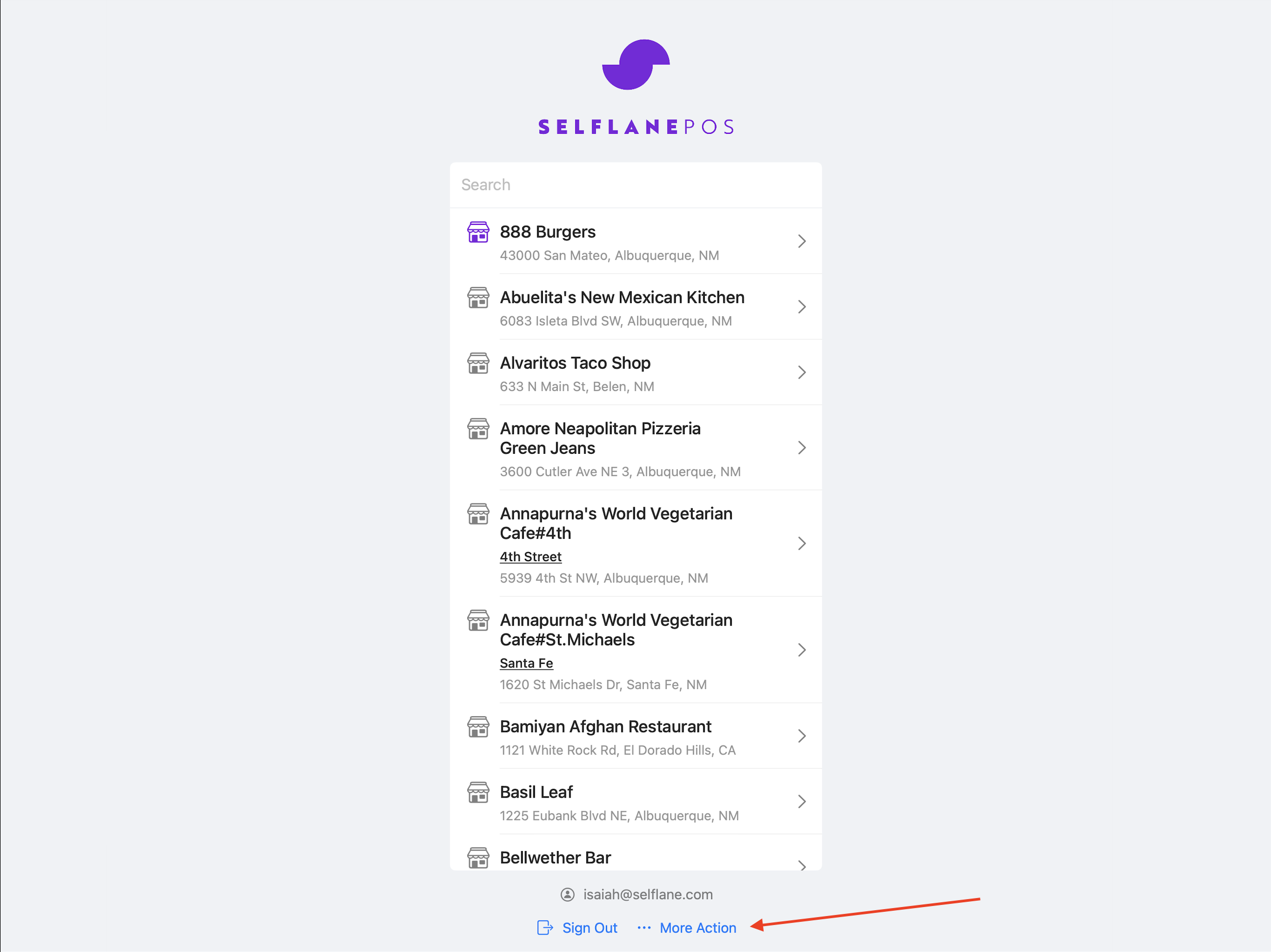
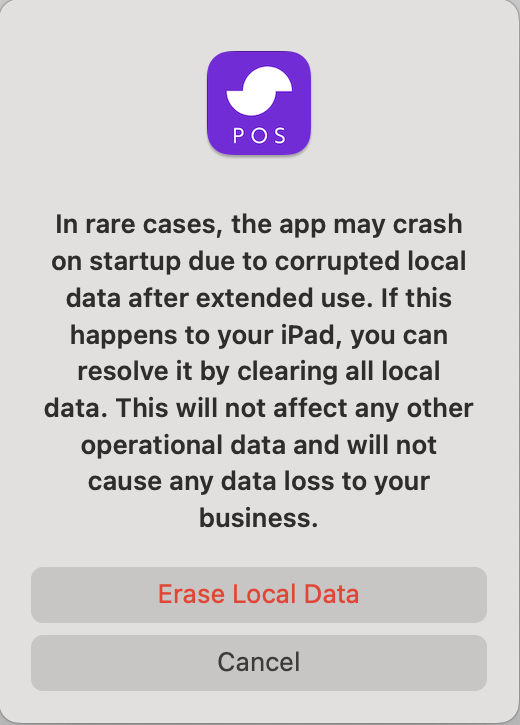
Erase Local Data is only on the business list you see after signing in. It isn’t under More > My Shops. If you’re already in a business, quit and reopen the app to get back to the business list. If Can't reach Selflane shows, fix the connection and tap Retry.
What’s kept
- Card payments and credit returns still waiting to upload. They’re stored separately and upload as usual.
- Printers. The POS reloads this iPad’s printers from Selflane when you open the business. If the iPad is offline then, open the business again once it’s back online.
- Settings saved on this iPad, such as the PAX terminal’s IP address.
The POS reloads orders, the menu, and other business data from Selflane when you open the business.
What’s cleared
The iPad’s whole local copy is cleared, including cached orders, members, and invoices. These come back from Selflane, because orders are always saved there. Two things don’t come back:
- Tickets still waiting to print.
- The iPad’s list of unconfirmed tickets.
Check the kitchen printer before you erase.