Modifiers
Modifiers let you customize dishes with options such as size, add-ons, and substitutions.
Key Fields
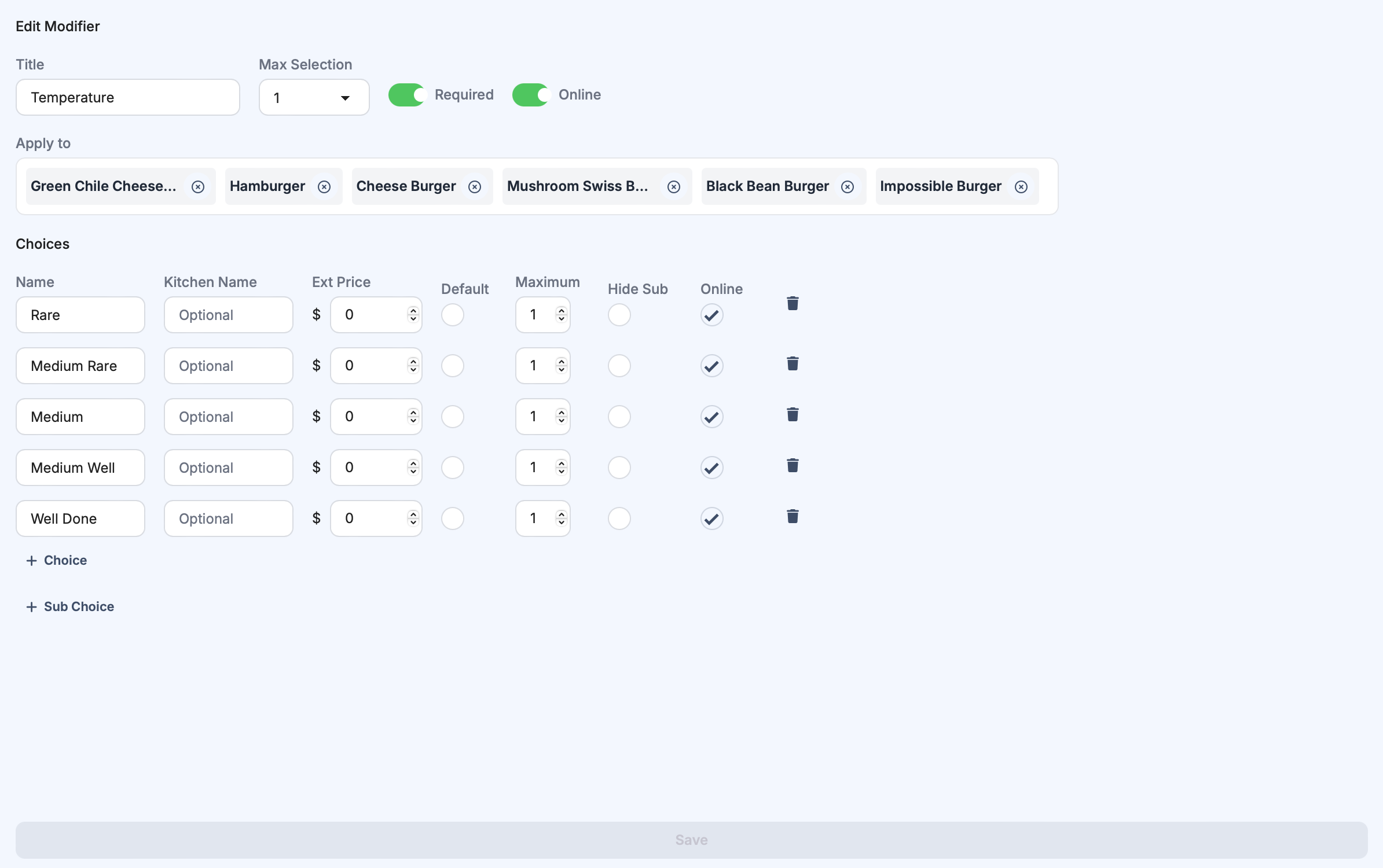
| Field | Purpose |
|---|---|
| Title | Modifier group name (internal grouping) |
| Max Selection | Maximum choices selectable |
| Required | Enforce at least one choice |
| Applied To | Assign modifier to selected dishes |
| Choice Name | Option label shown to staff/customers |
| Kit Name | Optional kitchen label |
| Ext Price | Additional price for a choice |
| Default | Preselected choice |
| In-store only | Hide modifier/choice from online ordering |
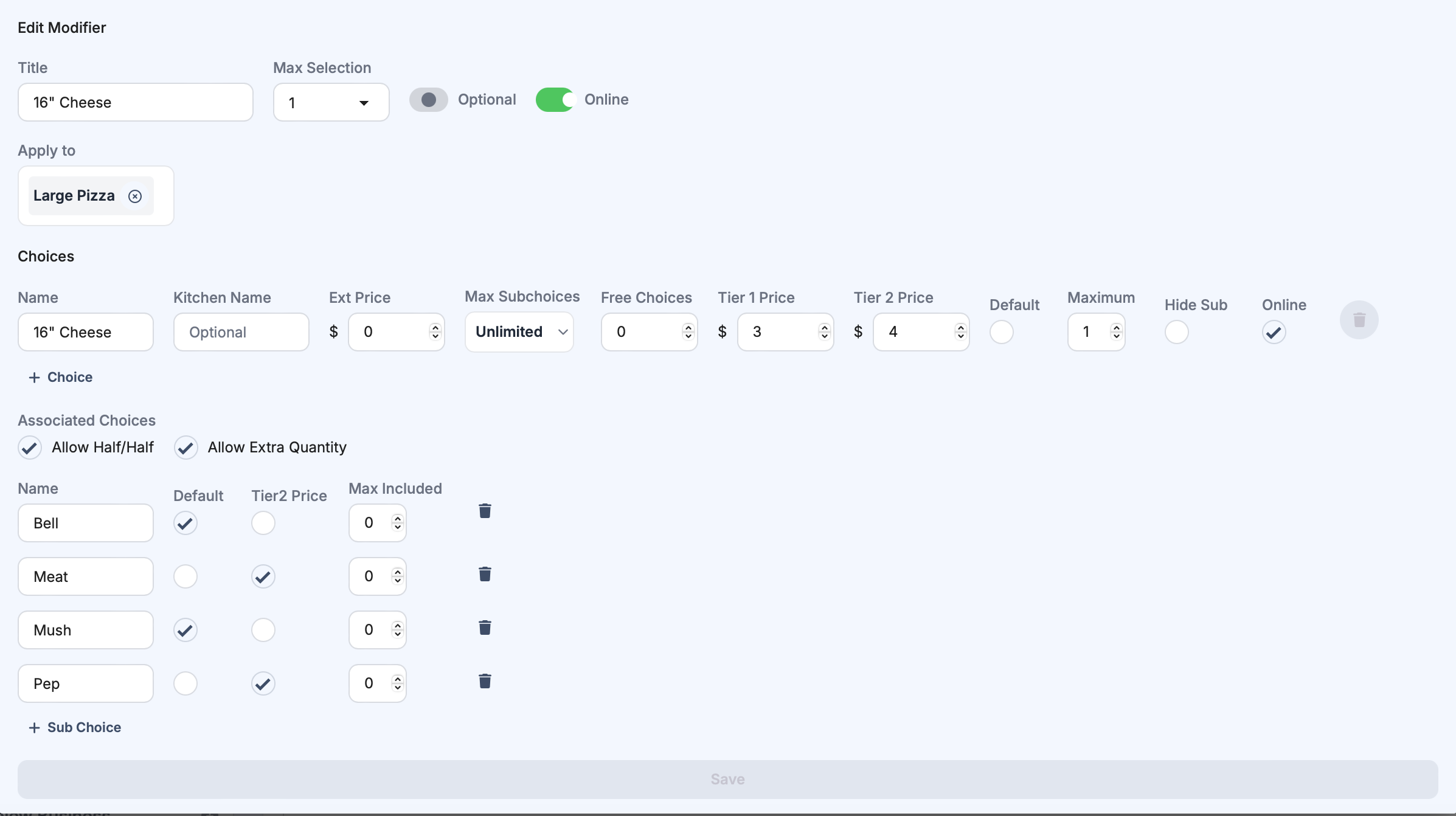
| Max (Sub Choice) | Maximum sub choices selectable |
| Sub Choice | Nested options for a choice |
| Allow Extra Quantity | Allow duplicate quantity of same sub choice |
| Allow Half/Half | Enable split selection behavior |
Allow separate completion in KDS | Let the kitchen complete this modifier group separately from its dish. Off by default. |
Create a Modifier
- Click
+ Modifier. - Enter title, max selection, and required setting.
- Assign dishes in
Applied To. - Add choices and optional kitchen names.
- Set extra prices and optional defaults.
- Optional: configure sub choices and advanced options.
- Click
Save.
Let the kitchen complete a side separately
Use Allow separate completion in KDS when a modifier group represents a separately prepared side, such as salad served with steak. You do not need to turn the dish into a combo.
- Open
Menuin the Back Office . - Create or edit the modifier group for the side.
- Turn on
Allow separate completion in KDS. - Assign the group to the dishes that offer it, then click
Save.
The group becomes one side row on the Kitchen Display. Everything selected in that group, including add-ons, completes together. To track salad and soup separately, create separate groups and turn the setting on for each.
Leave the setting off for ordinary instructions, such as cooking temperature. Staff and guests choose modifiers as before; enabling separate completion adds no ordering steps.
Turning the setting on or off affects items ordered after the change. Tickets already in the kitchen keep their existing behavior.
Sides print and route with their dish. You cannot send a side to a separate station. The Prep Display shows sides as ordinary modifiers. Orders imported through StreamOrder or Chowly do not have separate side controls.
See Complete a side separately for the kitchen steps.
Nesting Modifiers
Nested modifiers are useful for flows like:
-
choose size
-
then choose toppings
-
then apply tiered add-on pricing
-
Works for POS and Selflane online ordering.
-
Not recommended for third-party sync where nested modifiers may be unsupported.
-
For integration details, see Chowly Integration.
Sorting Modifiers
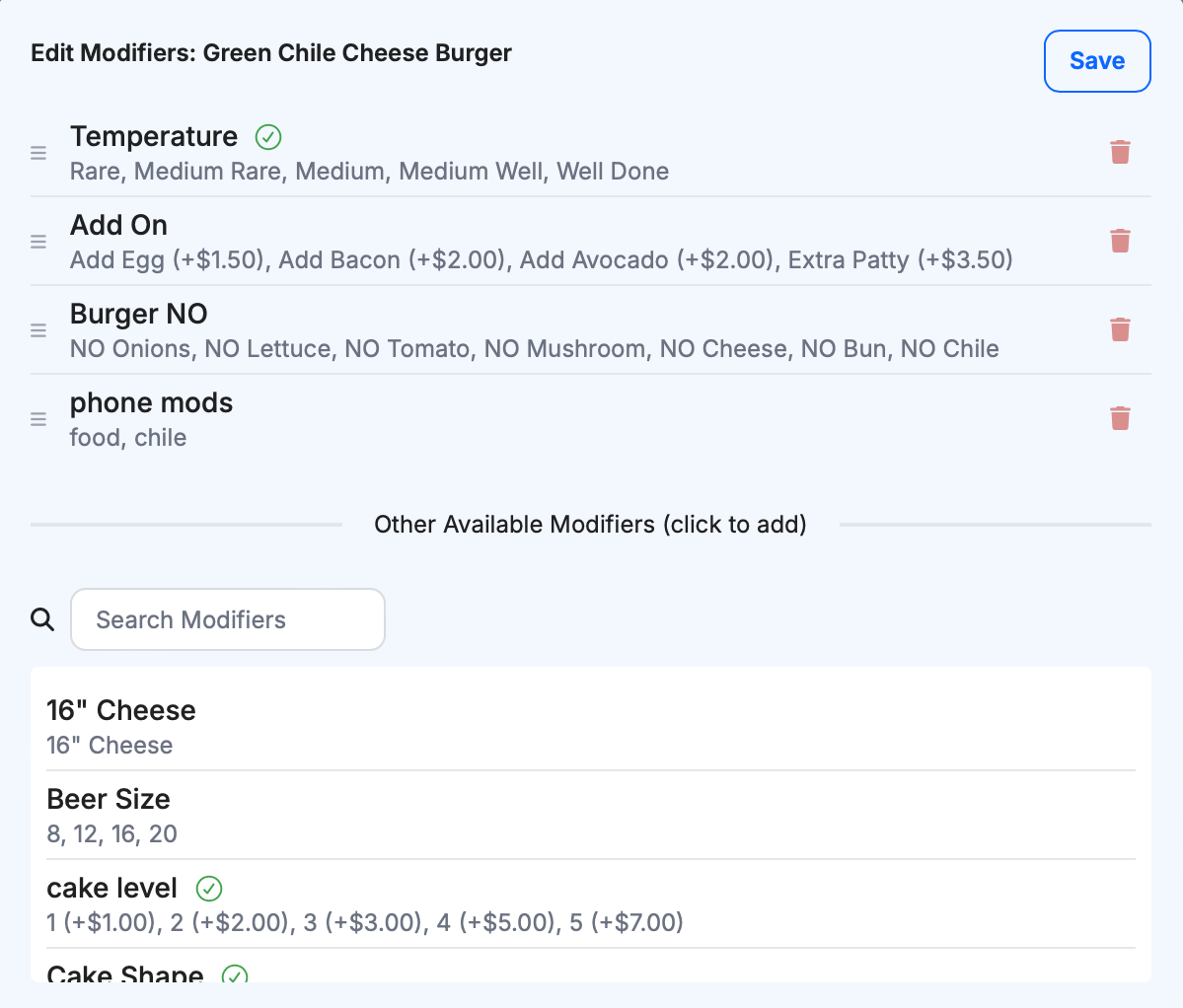
Use drag-and-drop to reorder modifiers when alphabetical sort is disabled.

Best Practices
- Keep modifier names customer-friendly.
- Use required selection only when truly needed.
- Limit deep nesting to avoid slowing checkout.
- Test modifier behavior in POS and online before publishing.
Related links
- Order Grid — complete and undo a side on the Kitchen Display.
- Manage your menu — assign dishes to menus and courses.