Stripe Readers
Use this page when a Stripe reader or Tap to Pay charge doesn’t go as expected. To connect a reader for the first time, see Payment Settings.
A normal charge
On the payment screen, choose Stripe and tap Charge $X. The Stripe panel shows each step:
Creating ...$XCollecting ... $X/Please Insert/Tap Card- the customer inserts, taps, or swipes their card. The panel also shows the reader’s own prompts, such as asking to retry or remove the card.Processing .../Please Remove CardProcess Succeeded- shown briefly, then the payment appears in the payment list.
In Selflane POS 7.5.5 or later, the reader’s screen shows “Pre-authorization” instead of “Total” for order payments. This lets the payment grow later if the customer adds a large tip.
In Selflane POS 7.9.1 or later, Cancel shows only while the reader collects the card. Tap it to stop collection. The panel reads Charge canceled once cancellation is confirmed. After the card is read, wait for the result.
In Selflane POS 7.5.9 or later, Stripe Dashboard payments are described as POS Order #12 | Dine in at <business> - Selflane (POS Order #12=3 for split check 3). Use this to find a payment when you need to check whether a charge went through.
Tap to Pay on iPhone
On Create a payment, choose Tap to Pay on iPhone and tap Next. Apple’s Tap to Pay screen handles the card. While it runs, the bottom bar shows Charging.... If the charge fails, the reason shows in red on the same page. If it’s canceled, you see Charge canceled. See Tap to Pay on iPhone for setup.
If a charge doesn’t go through
| Message | What it means | What to do |
|---|---|---|
Payment did not go through and the card was not charged., followed by Stripe’s reason | Stripe confirmed nothing was charged. | It’s safe to charge again or use another card. |
Payment did not go through, but the card may still be on hold. Check before charging again., followed by Stripe’s reason | The POS couldn’t confirm whether the card was charged. Nothing was saved to the order, so it isn’t in the payment list. | Find the POS Order #… payment in the Stripe Dashboard and check its status before charging again. Every attempt creates one. Uncaptured means the card is on hold: don’t charge again; ask a manager how to handle it. Incomplete means it hasn’t finished: wait a minute and check again before charging. Canceled or Failed means no hold, and you can charge again. A hold that’s never captured is released after 2 to 5 days, depending on the card brand. |
| A decline reason only, such as a card declined message | The card was declined. | Ask for another card or payment method. |
Failed to collect payment intent, or the reader’s own error | The card couldn’t be read, the reader timed out, or the reader reported an error. | Try again, or use another card. |
Reader is busy. Wait for the current operation to finish. (Selflane POS 7.6.1 or later) | The reader is still finishing something. | Wait a moment, then charge again. If it keeps happening, tap the gear and reconnect the reader. |
Reader is still processing the previous command | A charge is already running. | Wait for it to finish, then try again. |
No biz or No managed account | Your Stripe account isn’t set up for this business. | Finish Stripe account setup in the Back Office. |
In Selflane POS 7.8.0 or later, if Stripe reports an error but the card was actually authorized, the POS keeps that payment and shows Process Succeeded, so you don’t need to charge again. The “did not go through” messages are also in 7.8.0 or later. For a card payment that was approved but is still being saved to the order, see Pay Order.
Stripe readers don’t take payments offline. Without an internet connection, the charge fails.
The reader disconnects
Bluetooth readers (M2, Chipper 2X BT) usually try to reconnect on their own after a drop. The panel shows Start to reconnect reader (<reason>), where the reason may be low battery, lost signal, or Unknown, then Reader is reconnected when it’s back. In Selflane POS 7.8.0 or later, if the reader drops without trying to reconnect, the panel goes straight to a message telling you what to do, and you tap Connect.
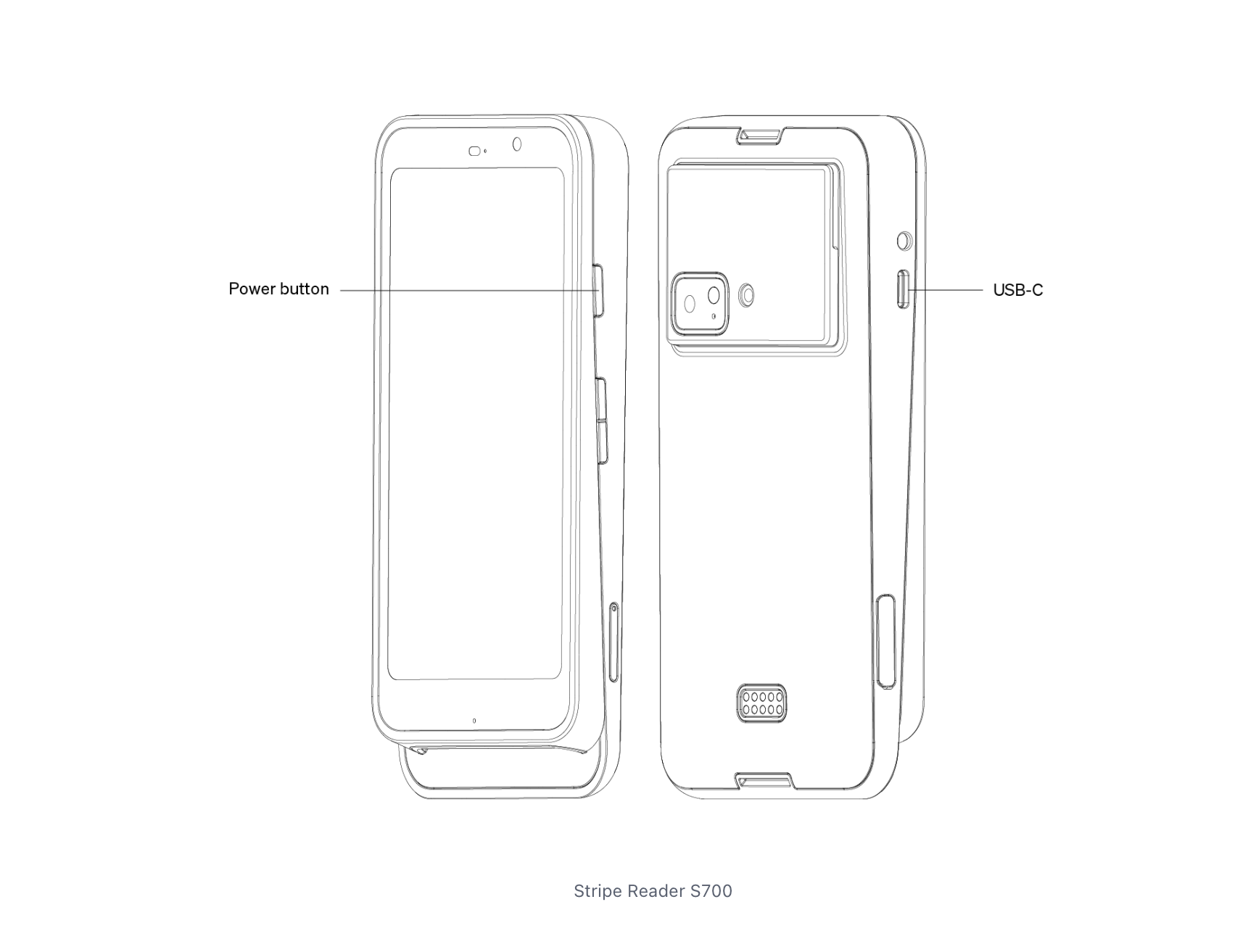
Internet readers (WisePOS E, S700) don’t reconnect on their own. Check the reader’s power and network, then tap Connect.
In Selflane POS 7.6.1 or later, the Stripe panel tells you what to do when the reader is gone. See the Stripe card status messages. For an Internet reader, about 15 seconds after it leaves the network, the panel usually shows Reader disconnected. Turn it on, then tap Connect. Charge $X comes back only once the reader is connected.
In Selflane POS 7.9.1 or later, Cancel appears only while the reader is waiting for the card. It doesn’t appear while creating the payment or after the card is read. After the card is read, wait for the result. To undo a successful payment, void the recorded payment. If you cancel before collection completes, wait for the cancellation result before trying again.
If the POS gives up reconnecting a Bluetooth reader, the reader sheet (the gear icon) shows Failed to reconnect reader. Follow the panel’s message, then tap Connect.
In Selflane POS 7.9.1 or later, reader errors such as a failed reconnect or firmware update also appear on the payment panel. If pairing was removed, forget the reader in the iPad’s Settings → Bluetooth, then tap Connect in the POS.
Large tips on a Stripe payment
Adjusting the tip on a Stripe payment captures it, and that’s final. See Adjust Tip.
In Selflane POS 7.5.5 or later, if the new tip takes the total more than 50% (or $50, whichever is larger) above the original amount, the POS asks Confirm large tip. It shows the base, tip, and new total. Confirm & Charge raises the card’s authorization to the new total, then captures it.
| Message | What to do |
|---|---|
This tip is too large to add to this card payment. Lower the tip, or charge the extra amount separately. | Lower the tip, or take the extra amount as a separate payment. |
This card payment could not raise its authorization for a tip this large. Lower the tip, or charge the extra amount separately., followed by Stripe’s reason | The card or bank refused the increase. The payment isn’t captured yet, so lower the tip and try again, or charge the extra separately. |
M2 and Chipper Bluetooth readers
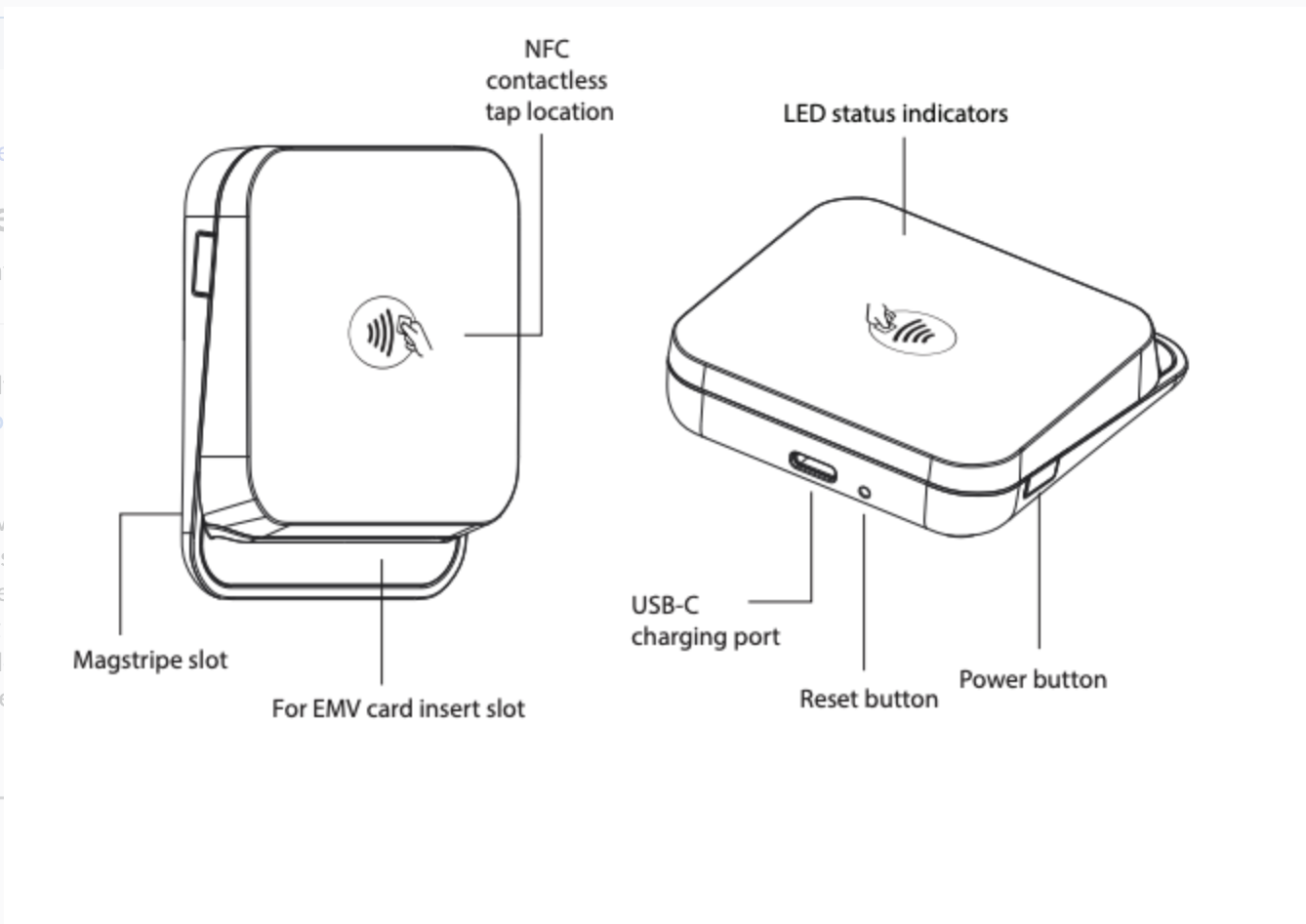
If the reader won’t connect:
- Power cycle: turn the reader off and on with the power button.
- Restart the app: fully close the POS app and reopen it.
- Location Services: turn on Location Services for the POS app in the iPad’s Settings.
- Bluetooth: make sure Bluetooth is on. If the reader is paired but won’t connect, forget it in the iPad’s Bluetooth settings, then connect it again from Payment Settings.
- One device at a time: a Bluetooth reader connects to only one iPad or phone. Disconnect it from any other device.
WisePOS E internet reader
Basic checks
- Power: make sure the WisePOS E is charged.
- Wi-Fi: the reader must be on a network with internet access. Check the network and signal in the reader’s
Settings> Wi-Fi. - Location: the reader must be registered to the same Stripe location you chose in Payment Settings.
Restart and reconnect
- Force restart: hold the WisePOS E’s power button for about 6 seconds.
- Reconnect: in Payment Settings, tap
Connect(orEdit) on the Stripe card. Choose theInternetreader type, tapDiscover Internet Readers, and tap the reader. If another reader is listed underConnected Reader, tapDisconnectfirst.
Related links
- Payment Settings - connect a Stripe reader.
- Pay Order
- Adjust Tip
- Stripe Terminal - reader hardware.