Discounts
All discounts described here are for in-store POS use. They are not applicable for patrons ordering online.
Special Pricing
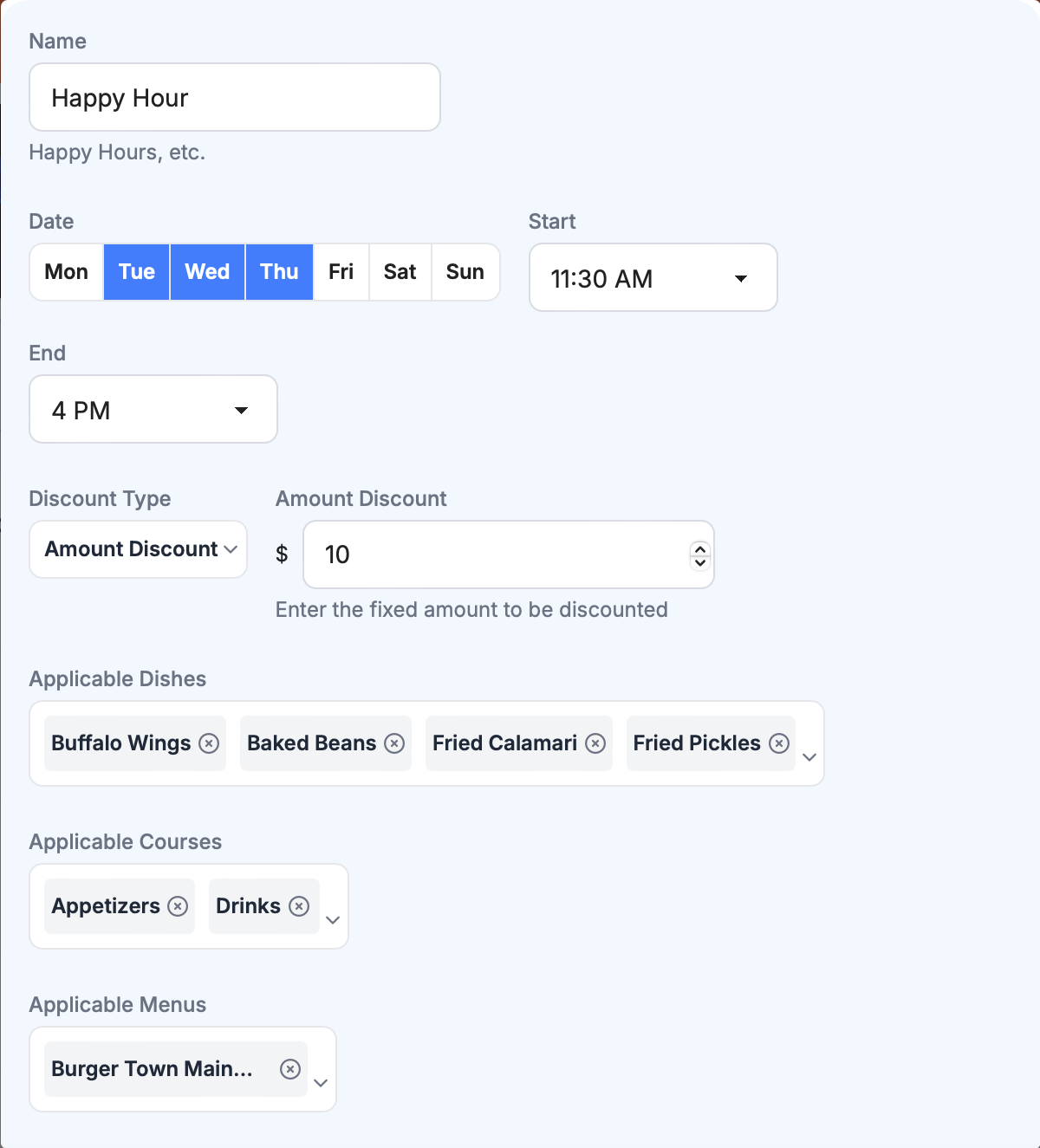
Special time-window discount. e.g., Happy Hours discounts.
Scheduled discount changes the price of dedicated menu/course/dish automatically at specified time. It only affects prices in-store.
Name Short label for this discount, e.g., “Happy Hours.”
Date Days of the week when the discount applies.
Start/End time Starting and ending time for the discount.
Applicable Menus Apply discounts to all items under selected menus.
Applicable Courses Apply discounts to all items under selected courses.
Applicable Dishes Apply discounts to selected dishes.
Discounts can be
- Set selected items to a fixed price. e.g., all beers are $3 in happy hour.
- Set selected items with a percentage discount. e.g., all dishes are 10% in happy hour.
- Set selected items with a fixed discount. e.g., all dishes are $1 off in happy hour.
To enter special pricing click + Add in the upper right of the screen.
- Highlight the days of the week when the pricing will be active.
- Choose the period the pricing will be active, by using the time dropdown menu.
- Choose the discount type.
- Fixed price – A price that will override the normal price.
- Percentage Discount – A percentage discount on the normal price.
- Amount Discount – A dollar off amount.
- Enter the discount amount.
- Choose the items by using the dropdown menus.
- Dish
- Course (Don’t select unless applying to an entire course)
- Menu (Don’t select unless applying to an entire menu)
Void forexcludes Pickup, Delivery, or Dine-in orders from the discount.
Voucher
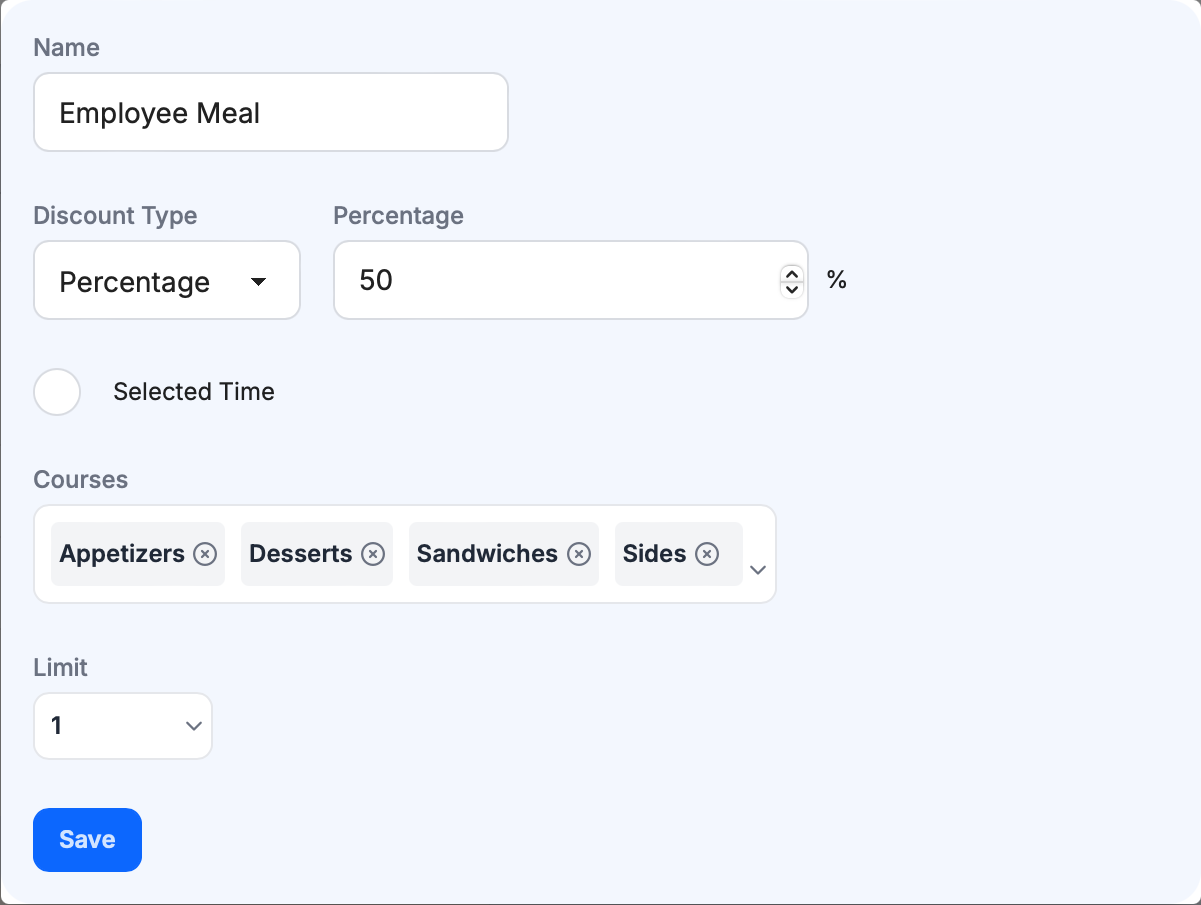
Named discounts based on percentages or amounts.
Name Name of voucher
Amount Discount Fixed amount off from check.
Percentage Discount Percentage off for entire check or items in applicable courses.
Selected Time Limits the voucher to selected days and times.
Courses Limits the voucher to selected courses.
Limit Choose Unlimited or allow 1, 2, or 3 uses.
To enter voucher (Coupon) discounts, click the + Add in the upper right of the screen.
- Name the voucher.
- Define the discount type.
- For Amount Discount select it from the drop down to set a flat dollar amount.
- For Percentage Discount select it from the drop down and set the percentage discount.
- If this voucher is for a limited time click selected time.
- Define the days the voucher is available by highlighting the days the voucher is honored.
- Define the time the voucher is honored by using the time dropdown menus.
- If it is honored any time do not slide the Limited time toggle.
- Applicable Courses.
- If the discount can apply to any menu item do not choose any course.
- If the voucher is limited to any course, choose the courses using the course dropdown menu.
- Choose the number of uses allowed from
Limit. - Once complete and reviewed click
Save