Add Item
Use Add Item when a guest orders more after the order is sent, such as another round of drinks or dessert. The POS adds only the new items to the order and prints a kitchen ticket for them.
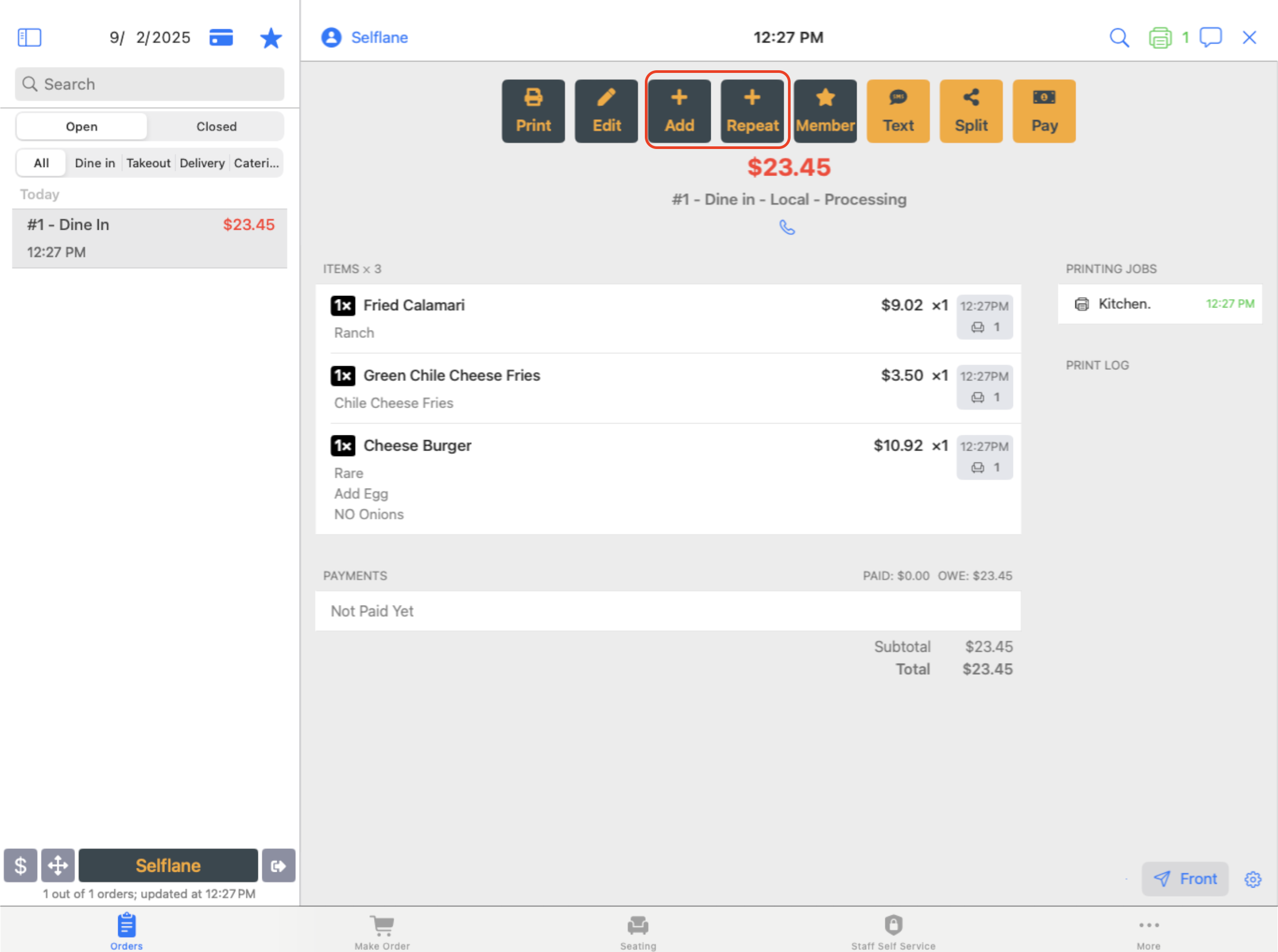
Where to add items
| Where | Tap | Notes |
|---|---|---|
An open order on the Orders screen | Add or Repeat | Shown for orders taken on the POS that have no payment, aren’t split, and aren’t closed. |
| The payment screen | The pencil icon on iPad, or Edit on iPhone, then Add Item/Voucher | Not offered once the order or check has a payment, on evenly split or custom-amount checks, or on a split order as a whole. See Pay an order. |
| A check on the split-check screen | + on the check | Adds items to that check only. See Split an order. |
| The Drive-Thru Display | The menu on the order card, then Add Item | See Drive-Thru Display. |
Online, kiosk, and Third-Party Ordering orders don’t offer Add or Repeat.
Add items from the menu
Add and Add Item/Voucher open the full menu. The title reads Add Items | followed by the order’s ticket name. On iPad, the new items are listed on the left. Items already on the order don’t appear there.
- Tap dishes in the menu, the same way as on Make Order. Use the bottom bar to add a voucher or sell a gift card.
- Check the list. Its header shows how many items you’re adding. Its footer shows the
Subtotalof the new items and gift cards, less any vouchers. - Tap
Submit.
To leave without adding anything, tap Cancel in the upper-left. If you added a gift card, delete it first. Otherwise you see Please delete gift cards first.
Change the new items
Each new item has these controls:
- Trash icon: remove the item. Removing any part of a combo removes the whole combo, and you see
The combo is removed. - Copy icon (iPad only): add another one of the item, or of the whole combo, with a quantity of 1.
- Tap the item: change its quantity, modifiers, or seat. On iPad a panel opens beside the list. On iPhone an editor opens.
- Drag: move the item up or down in the list. On iPhone, combo dishes can’t be moved.
Combo: shown on a dish that’s in the first group of a combo. Tap it to build a combo from the dish. See Combos.
Dish marker lines have only the trash icon.
On iPad, a combo shows as one row with a purple bar on its left, its quantity, and its items. Tap it to change the combo’s choices. On iPhone, each dish in the combo is its own line with a purple bar.
An item with a price of $0 or less shows in red.
Submit the new items
When you tap Submit, the POS:
- Checks daily limits and 86’ed dishes for the new items only. Items already on the order aren’t checked again. See Daily limits.
- Adds the items, vouchers, and gift cards to the order and closes the menu.
- Prints an
Add Itemskitchen ticket with only the new items.
The kitchen ticket doesn’t print right away in these cases:
- You opened the payment screen with
Pay & Send, and your business holds kitchen tickets until payment. The new items print when the order is paid. See Pay & Send. - The order is due later than the
Kitchen Printing Hold Timein POS settings. The ticket prints when it’s time to cook. If the order is due more than 6 hours from now, you also seeFuture OrderandWill print later.
If Submit shows an error, check the connection and tap Submit again. The POS won’t add the same items twice. If another iPad changed the order at the same time, the POS reloads the order first. Tap Submit again to add your items.
After a failed Submit, don’t change the list. Each retry sends the list as it was at the first Submit, so later edits aren’t added.
Add a gift card discount
In Selflane POS 7.6.0 or later, you can discount the gift cards on an order while you add items.
Gift Card Discount appears above Submit when the order has, or you’re adding, a gift card. The order can’t be split or have a payment. A manager must always sign in to approve it, even when a manager is the one using the POS.
- Tap
Gift Card Discount. - Pick a
Discount Rateand enter aReason. The card keeps its full balance. Only the price charged for it is lower. - Tap
Submitin the editor. Nothing changes on the order yet. - Tap
Submitunder the list. The POS adds the items first, then applies the discount.
The rate covers every gift card on the order. A discount row in the list shows where it stands:
| Row says | What it means |
|---|---|
Pending · on Submit applies to all gift cards, with the gift card total | You set this discount here. It applies when you tap Submit. If you set 0%, the row reads Clear Gift Card Discount, and Submit removes the discount. |
Applied · tap to change | The order already has this discount. |
Cards added now are not covered · tap to change | The order already has a discount, and the gift card you’re adding isn’t covered. Tap to set a new rate for every card. |
Applied to existing gift cards only · tap to set a rate for all | The order has a discount amount but no rate. Tap to set a rate for every card. |
If the discount fails, you see Items added. Discount not applied. If you added no items, you see Discount not applied. Tap Retry to try the discount again without adding the items twice, or Skip to close without it. The kitchen ticket for the new items prints after you choose.
The row also shows, grayed out, when the order already has a discount you can’t change here, such as on a split check.
Repeat items from the order
Use Repeat for another round of the same dishes without opening the menu.
- Open the order on the
Ordersscreen and tapRepeat. TheRepeat Itemsscreen opens. - On the left, under
Current Order Items. Click to add., tap each item to repeat. Each tap adds a new line with a quantity of 1. A combo is repeated with all of its items. Gift cards and vouchers aren’t listed. - On the right, under
New Items. Swipe to delete., change quantities or swipe an item to remove it. TapEditto reorder the list. - Tap
Submit. To leave without adding anything, swipe the screen down.
A repeated dish uses its current menu price, not the price on the original line. Dishes in a repeated combo keep their original prices. Daily limits and 86’ed dishes are checked when you tap Submit, the same as for new items. The POS then prints an Add Items kitchen ticket with the repeated items.