Discounts
Use a discount when you comp a meal, honor a staff or military discount, or make up for a problem with an order. On the POS, you can take a percentage off selected items, or add a voucher your business set up in the Back Office.
Vouchers
Vouchers are named discounts, such as “Staff Meal 50%” or “$5 Off,” that you set up in the Back Office. See Vouchers.
You can add a voucher while you create an order, or when you add items to an existing order. On the menu screen, tap the book icon at the bottom. If your business requires a manager to approve vouchers, staff without a manager role need a manager’s approval. See Manager Access Rules.

Percentage discounts
A percentage discount takes the same rate off each item you select, from 5% to 100% in steps of 5%. You also record a reason, which is saved with the order. An order keeps one reason, so a discount on a second split check replaces the reason from the first.
Before you start
- Manager approval: staff without a manager role need a manager’s approval to open
Set Custom Discount. If your business has no manager roles, any signed-in staff member can open it. If nobody is signed in on the POS, a manager signs in to approve. See Job Roles. - No payments yet: you can’t discount an order, or a split check, after a payment is taken on it. The POS shows
Not AllowedwithOrder has paymentorCheck has payment. Apply the discount before you take payment. - Reason buttons: the quick reasons come from
Custom Discountsin the Back Office. Without a list, the POS showsComp,Employee Meal,Military, andStudent. See Custom Discount Names.
Apply a percentage discount
- Open
Set Custom Discountin one of these ways:- From the order: open the order, tap
Edit, then tapApply Discount. - From the payment screen: tap the pencil on iPad, or
Editon iPhone, then tapApply Discount. - On a split check: open the order and tap
Payto openSplit Checks, then tap the percent icon on the check.
- From the order: open the order, tap
- Tap a reason button, or type a reason in
Reason. - Under
Discount Rate, tap a rate. The title changes to match, such asApply 20% Discount. The rate starts at0%, so always pick one. - Under
Select items to apply discount, tap each item to discount, or tapSelect All. Tap an item again to clear it, or tapUnselectto clear them all. - Tap
Submit.
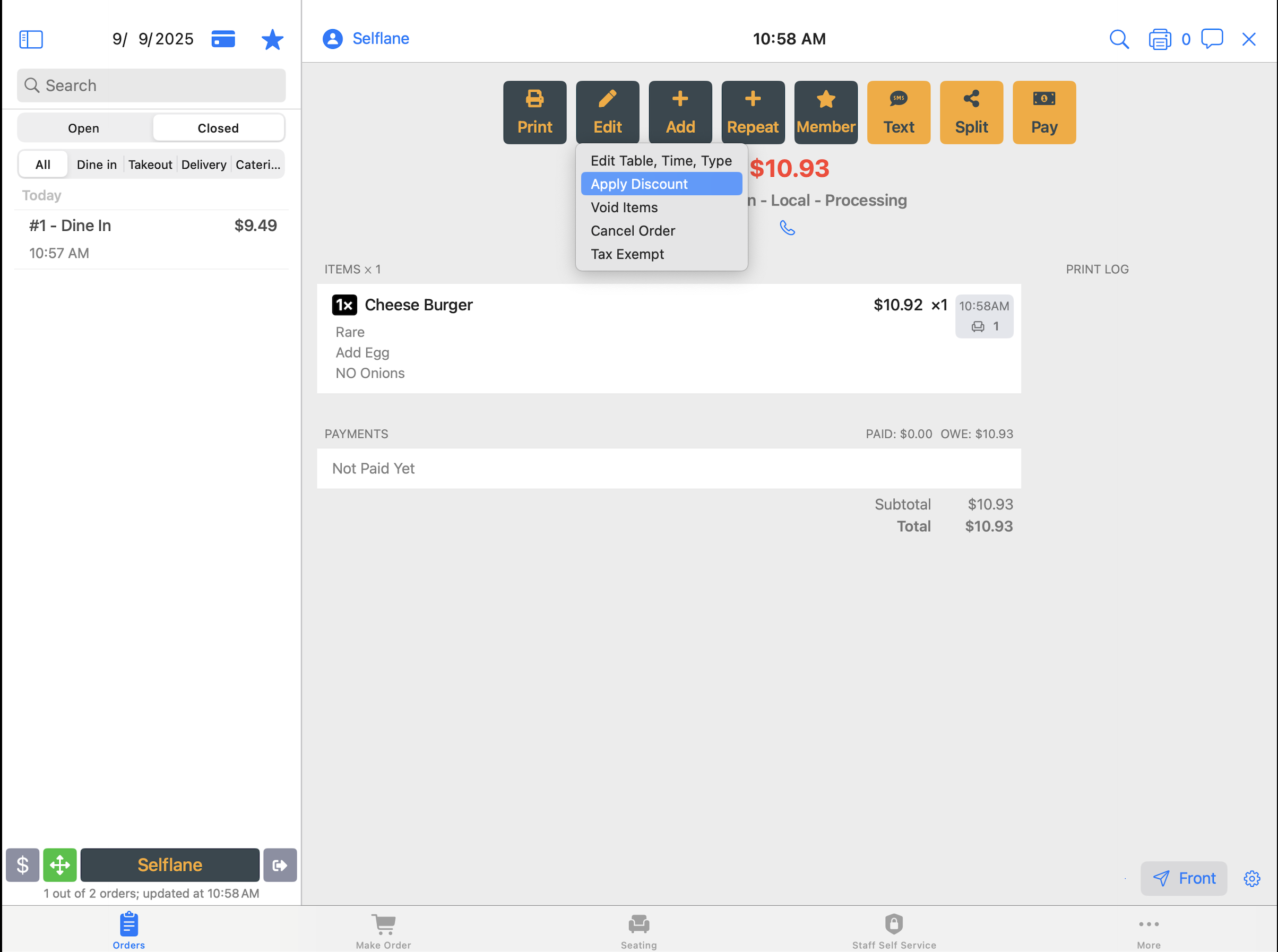
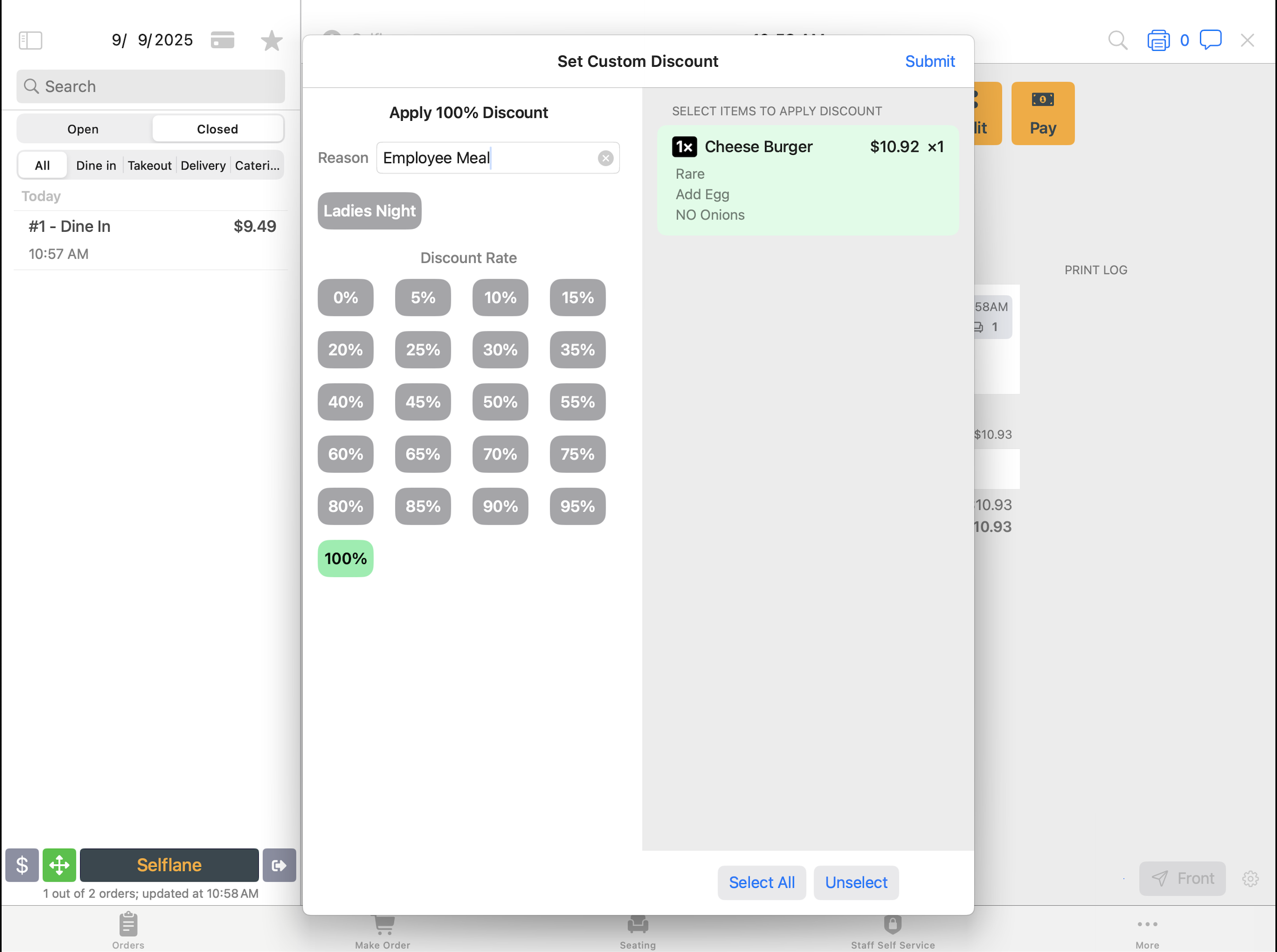
Each discounted item shows <rate>% off: -<amount> under it in red, and the order total updates. If the customer display is showing the order, it updates too.
Each submit sets the rate for every item on the order or check. Items you didn’t select go back to full price, even if they had a discount before. To discount more items at the same rate, select the already-discounted items again too. If you submit with the rate still at 0%, every discount on the order or check is removed.
To remove percentage discounts, open Set Custom Discount again, pick 0%, select any item, enter a reason, and tap Submit. Every item on the order or check goes back to full price.
Where you can apply it
| Where | When Apply Discount appears |
|---|---|
Order Edit menu | Open orders entered on the POS that have no split checks. Online, kiosk, and third-party orders don’t offer it. |
| Payment screen | Orders entered on the POS. When you pay one split check, the discount applies to that check only. |
Split Checks | The percent icon shows on a check split by item that has no payment yet. Checks split evenly or by amount don’t have it. |
See who applied a discount
The order’s Action Log records each discount as Apply <rate>% Discount, with Performed by <server>. When a manager signs in to approve it, the entry adds Approved by <name>. It doesn’t add this when the POS lets the staff member through without asking.
What staff might see
Please enter the reason.: pick or type a reason.Please select at least one item.: tap at least one item in the list.Not AllowedwithOrder has paymentorCheck has payment: a payment was already taken. Void the payment first, or leave the price as it is.Not AllowedwithCheck is split by funds: this check was split evenly or by amount, so it has no items to discount.