Menus
Menus are the top tier of your menu structure.
Examples:
- Main Menu
- Lunch Menu
- Dinner Menu
- Happy Hour Menu
Key Fields
| Field | Purpose |
|---|---|
| Name | Menu name shown internally and online |
| Description | Optional note for context |
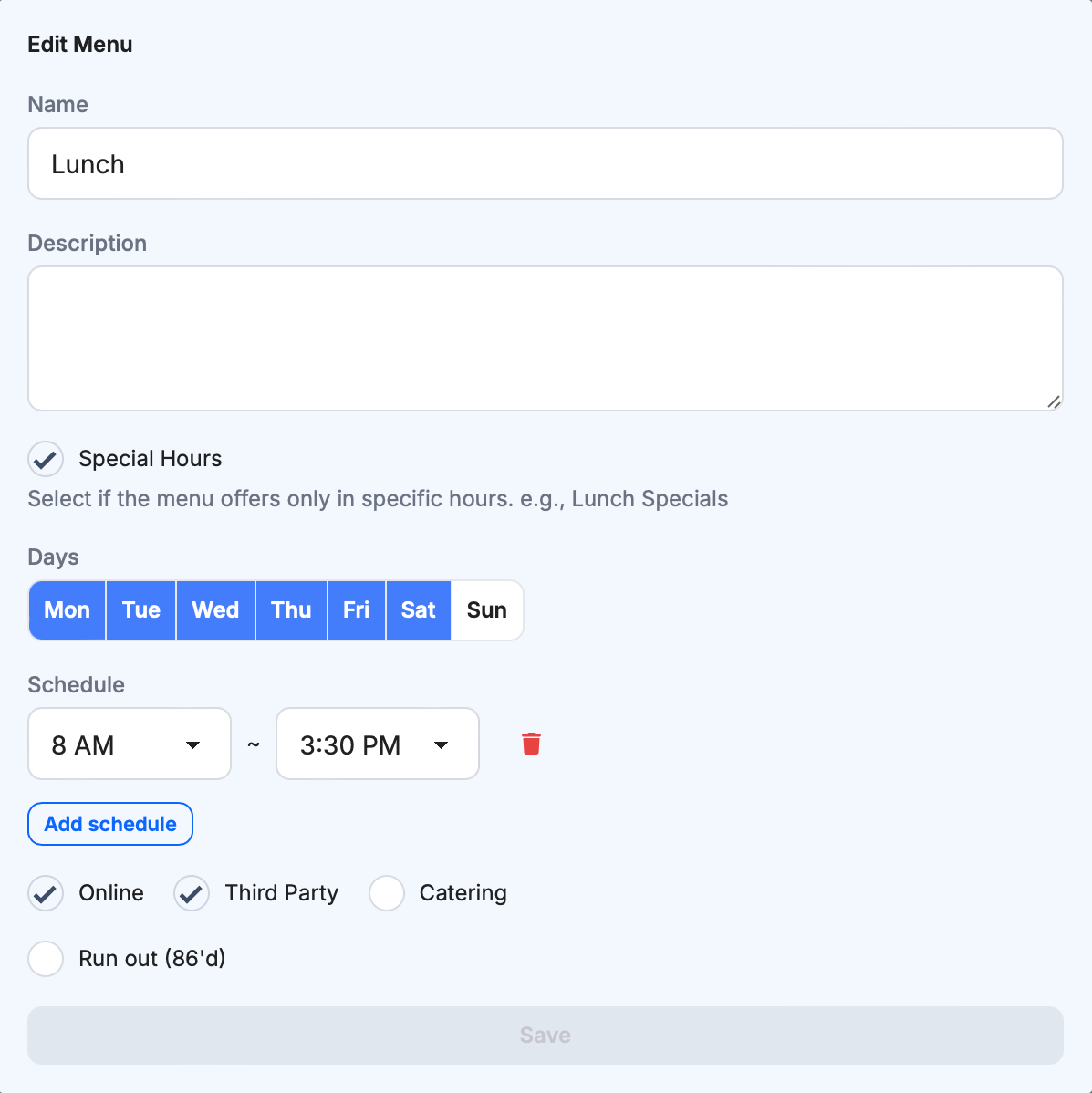
| Special Hours | Restrict menu to a specific time window (for example lunch hours) |
| Run Out (86’d) | Temporarily disable menu |
| In-store only | Hide menu from online ordering |
| Sync to Third Party | Publish to third-party channels (requires integration) |
| Catering | Show menu in online catering category |
Creating a Menu
- Click
+in the top-right area. - Enter a menu name.
- Optional: add description.
- Optional: set
Special Hoursif menu should only be available during selected times. - Set visibility and sync toggles as needed.
- Click
Save.
Editing and Sorting Menus
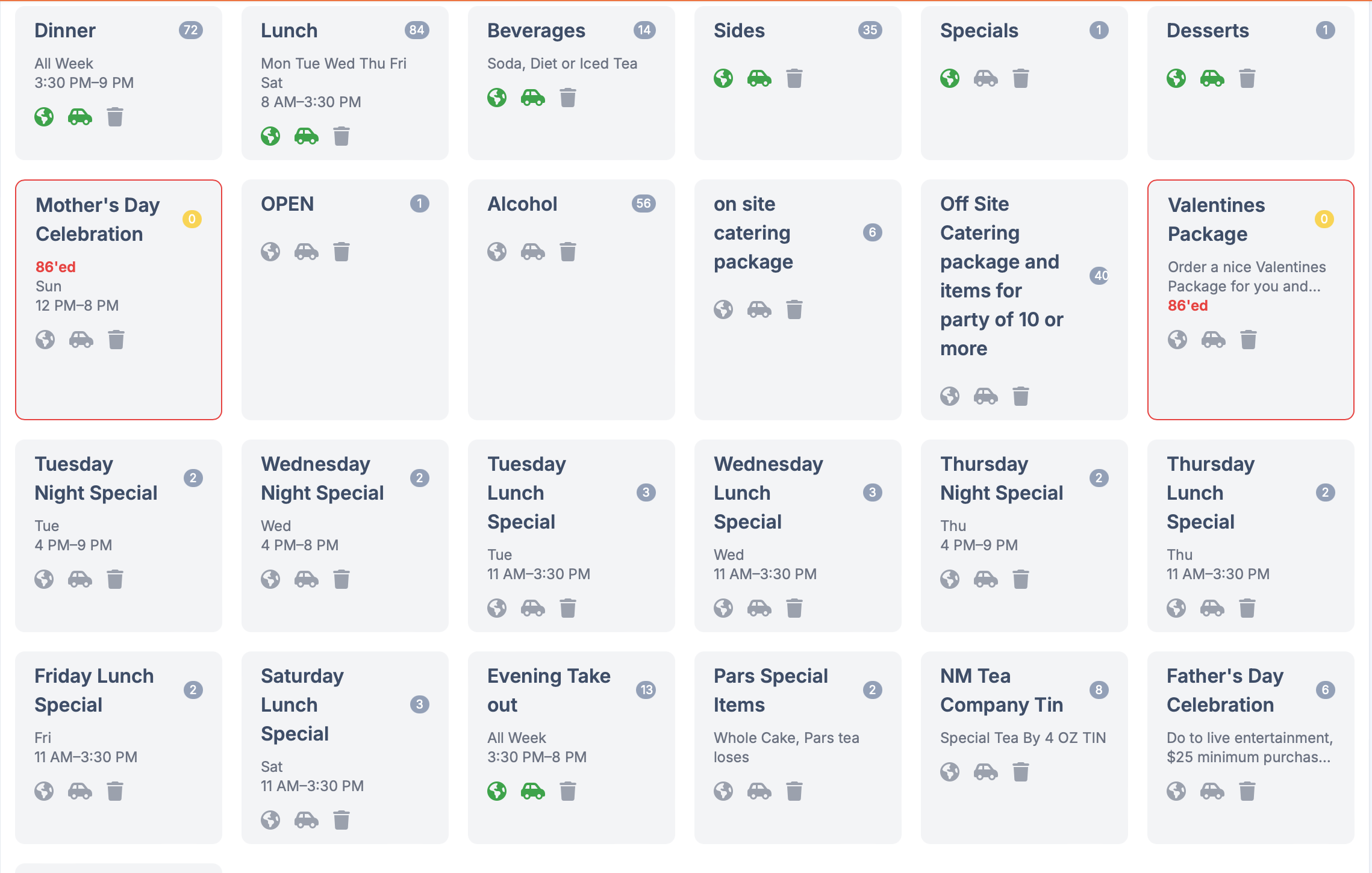
- Click any menu row to edit.
- Drag and drop rows to reorder when alphabetical sorting is disabled.
- Use status icons/toggles to control:
- online visibility
- third-party availability (if integrated)
- delete action
Best Practices
- Keep menu names simple and customer-facing.
- Use
Special Hoursfor time-based menus (Lunch, Happy Hour). - Review online visibility after each change.
- Keep only active menus published to reduce clutter.
Last updated on