Online Printing
Use these checks when an online order does not print or prints more than once.
Check printing time
In POS app setup, find Printing Time and check Kitchen Printing Hold Time. A scheduled order waits until its printing time; it does not always print when the customer places it.
Keep the auto-print iPad awake with Selflane POS in the foreground. It also checks for missed online tickets every five minutes. This catch-up check does not let a locked iPad print in the background.
No Auto Printing
Ensure that one POS device has auto printing for online orders turned on, preferably the main device used frequently. The device set up for auto print will keep the screen on by default to ensure timely printing. However, if the device is turned off or the screen is closed, the order won’t print automatically due to iOS restrictions that only allow foreground applications to access printers.
More than one Auto Printing
Verify that auto printing is enabled on only one device. If multiple devices have auto printing turned on, each will send receipts to the kitchen. To identify the original device, check the device ID at the bottom of the printed ticket and disable auto printing on unintended devices.
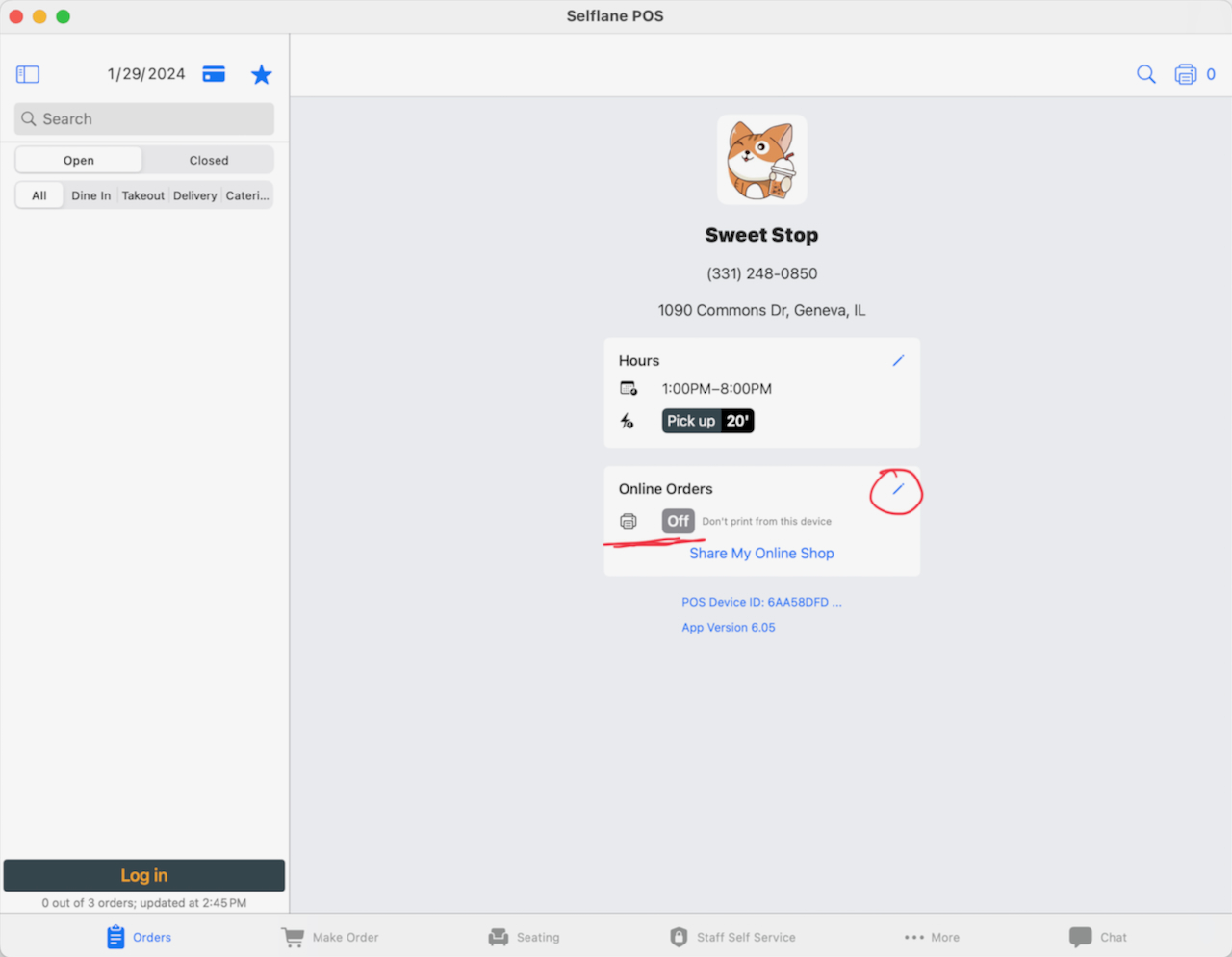
Customer receipt prints with every online order
By default, the auto-print device prints a customer receipt along with the kitchen ticket. To print only the kitchen ticket, go to Back Office › Settings › POS › Printing › Customer and clear Auto print receipt for online orders. The auto-print device needs Selflane POS 7.8.3 or later; earlier versions ignore this setting.
With the receipt off, an online order whose items don’t go to any printer on the auto-print device prints nothing. The POS still shows the Online Order Received notice.
Notification System Requirement
Our auto printing feature requires the notification system. If your device is not printing online orders promptly, check if notifications are enabled. To do this, go to the Settings app on your device, find the Selflane POS app, and ensure that notification setup is turned on.