Split & Merge
Use Split on an open in-store order when guests need separate payments. Choose a check split when everyone stays on one order, or split an order when part of the table leaves.
Split appears on an order only when it was created on the POS, has no payment, isn’t closed, and isn’t split yet. Online, kiosk, and Third-Party Ordering orders can’t be split.
Choose a split
Open the order and tap Split. The Split Options sheet has three check splits at the top.
| Split | How it works | Use it when |
|---|---|---|
Split Evenly | Divides the total into 2 to 50 checks of about the same amount. Checks can differ by a cent. | Everyone pays an equal share. |
Split Itemized Checks | Assigns dishes to separate checks. You can divide a dish across checks. | Each guest pays for specific items. |
Split by Amount | Creates checks for the amounts you enter, plus a final remainder check when needed. | Guests pay different dollar amounts. |
The bottom of the sheet has Split Order and Merge Orders. They work on whole orders, not checks. See Split an order and Merge orders.
Split evenly
Tap Split Evenly, then choose the number of checks, from 2 Checks to 50 Checks. The checks open right away. See Work with split checks.
Split itemized checks
Use Split Itemized Checks when each guest pays for their own dishes.
- Tap
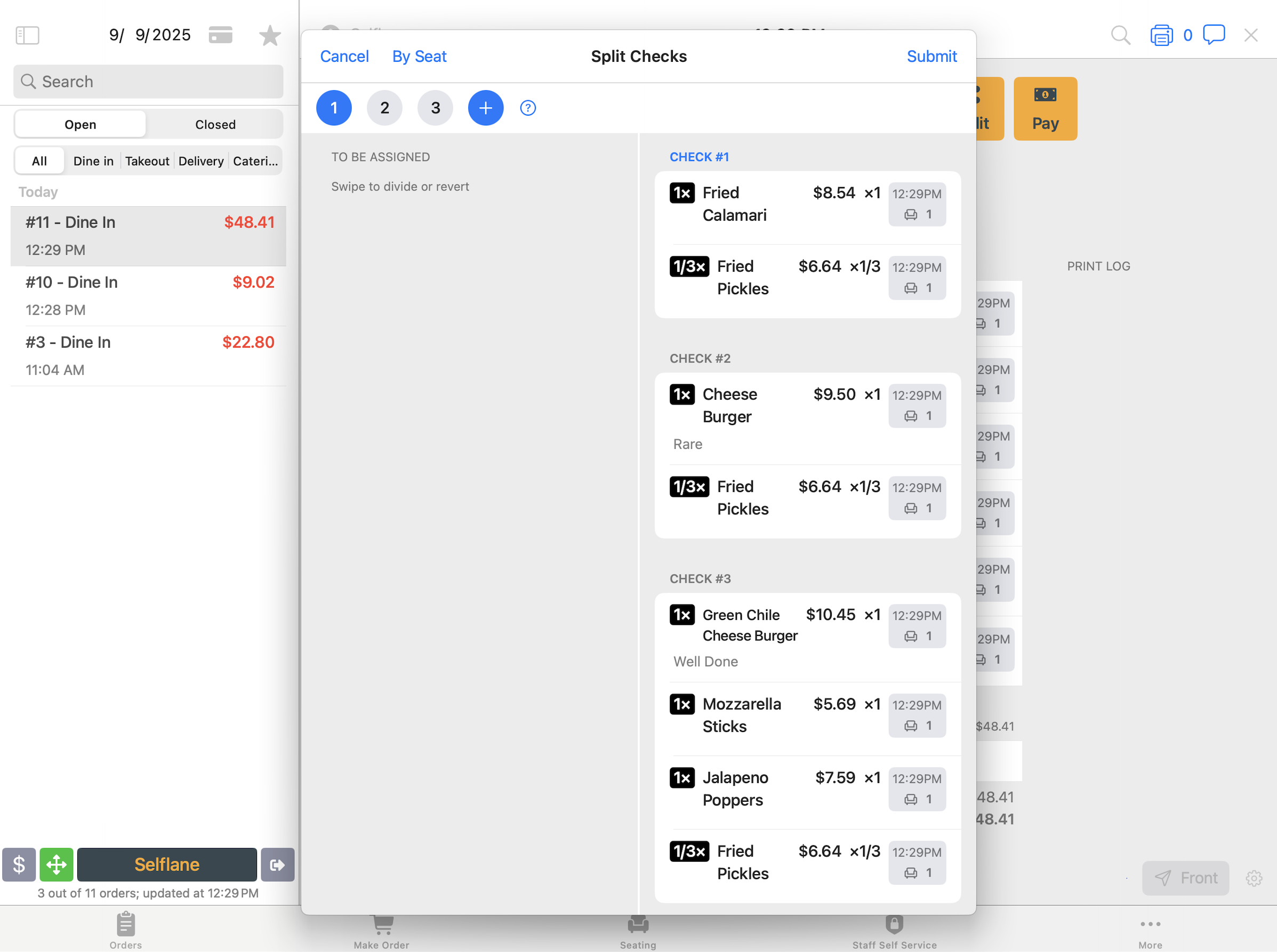
Split Itemized Checks. The left list,To be assigned, holds every item on the order. The right list showsCheck #1andCheck #2. - Tap a check number at the top to choose the check you’re filling. Tap
+to add another check. - Tap an item on the left to move it to the selected check.
- When every item is on a check, tap
Submit.
Assign every item, and fill at least two checks, or the split won’t save. Selflane drops any check with nothing on it when you submit. Tap Cancel to leave without splitting.
When a line has more than one of the same dish, you choose how many to move. Pick a number, or All, in Select Quantity.
To share one dish across checks, swipe left on it in To be assigned and tap Divide. Choose 2 to 5 parts. Each part then goes to a check like any other item. Swipe left on a divided part and tap Revert to put the dish back together.
If you can split the quantity evenly instead, the POS shows You don't need to divide in this way. Click to select quantity. For example, divide 1 order of wings into 2 parts. For 2 orders of wings, tap the item and move 1 to each check.
To take an item off a check, swipe left on it in the check list and tap Delete. It goes back to To be assigned.
Tap By Seat to build one check per seat. Each dish goes to its seat’s check, along with any discount tied to that seat. Gift cards on the order go on the first check. A discount that doesn’t match any dish’s seat stays in To be assigned, so tap it to place it.
If the order has a gift card discount, the POS shows Clear the gift card discount before splitting by items. Remove the gift card discount first, or use Split Evenly or Split by Amount.
Split by amount
In Selflane POS 7.5.0 or later, use Split by Amount when guests want to pay different amounts, such as $30, $30, and the rest of the bill.
- Tap
Split by Amount. - Enter an amount for each check. Tap
Add checkwhen you need another amount. - Enter at least two amounts, then tap
Confirm.
The screen shows Remaining (final check) as you enter amounts. Selflane creates that final check automatically. When your entered amounts equal the order total, the screen shows Exactly divided — no remainder check.
For example, on a $100 order, enter $30 and $30. Selflane creates checks for $30, $30, and $40. You cannot enter more than the order total.
Each entered amount is the final check total. Selflane divides tax, service items, discounts, fees, and any existing tip across the checks proportionally.
Work with split checks
After you split, the Split Checks screen opens. To come back to it later, open the order and tap Pay.
Each check is a card with its number, total, and the items on it. The card header color shows the payment status:
- Red: not paid.
- Yellow: partly paid.
- Gray: fully paid.
The colored number tiles at the bottom show the same status for every check at a glance.
Checks made with Split Evenly or Split by Amount show Split by Fund instead of an item list.
Pay a check
Tap Pay on a check to take payment for that check only. See Pay Order.
If a check shows Check is Over Paid. Please Void Extra Payment!, it has more payment than its total. Void the extra payment. See Void Payment.
Print checks
Tap the printer icon on a check to print that check. Tap Print All at the bottom to print every check.
Edit a check
Checks split by item, with no payment yet, have four icons in the header:
| Icon | What it does |
|---|---|
+ | Adds items to this check. |
| Pencil | Voids items on this check. If your business uses manager roles, staff without one need a manager’s approval. See Job Roles. |
% | Applies a discount to this check. See Discounts. |
| Branch | Splits this check in two. |
These icons don’t appear on checks split evenly or by amount, or on a check with a payment.
To split one check in two, tap the branch icon. Items start in Check 1. Tap an item to move it to Check 2, and tap it again to move it back. Tap Save when both checks have at least one item.
Merge checks
- Tap
Mergeat the bottom ofSplit Checks. - Tap two or more checks under
Unpaid checks. A green check mark shows each one you pick. The items on the picked checks appear below. - Tap
Merge.
Checks under Paid checks have a full or partial payment and can’t be picked. If you pick fewer than two, the POS shows Must select two or more unpaid checks.
Reset split checks
Reset when you want to start over with a different split.
- Tap the trash icon at the top right of
Split Checks. - Tap
Reset TheminReset Split Checks.
Every check merges back into one order. If any check has a payment, the POS shows Not Allowed. Void the payments first, then reset.
Split an order
Use Split Order when a guest leaves the table early and needs their own order. Use a check split when every guest stays on the same order.
- In
Split Options, tapSplit Order. - Every item starts under
Original Order. Tap an item to move it toNew Order, and tap it again to move it back. - Tap
Submit.
Both orders need at least one dish. Otherwise, the POS shows Empty list of dish is not allowed. Tap Edit to reorder the items in each list.
Merge orders
Use Merge Orders when guests at separate tables want to pay together.
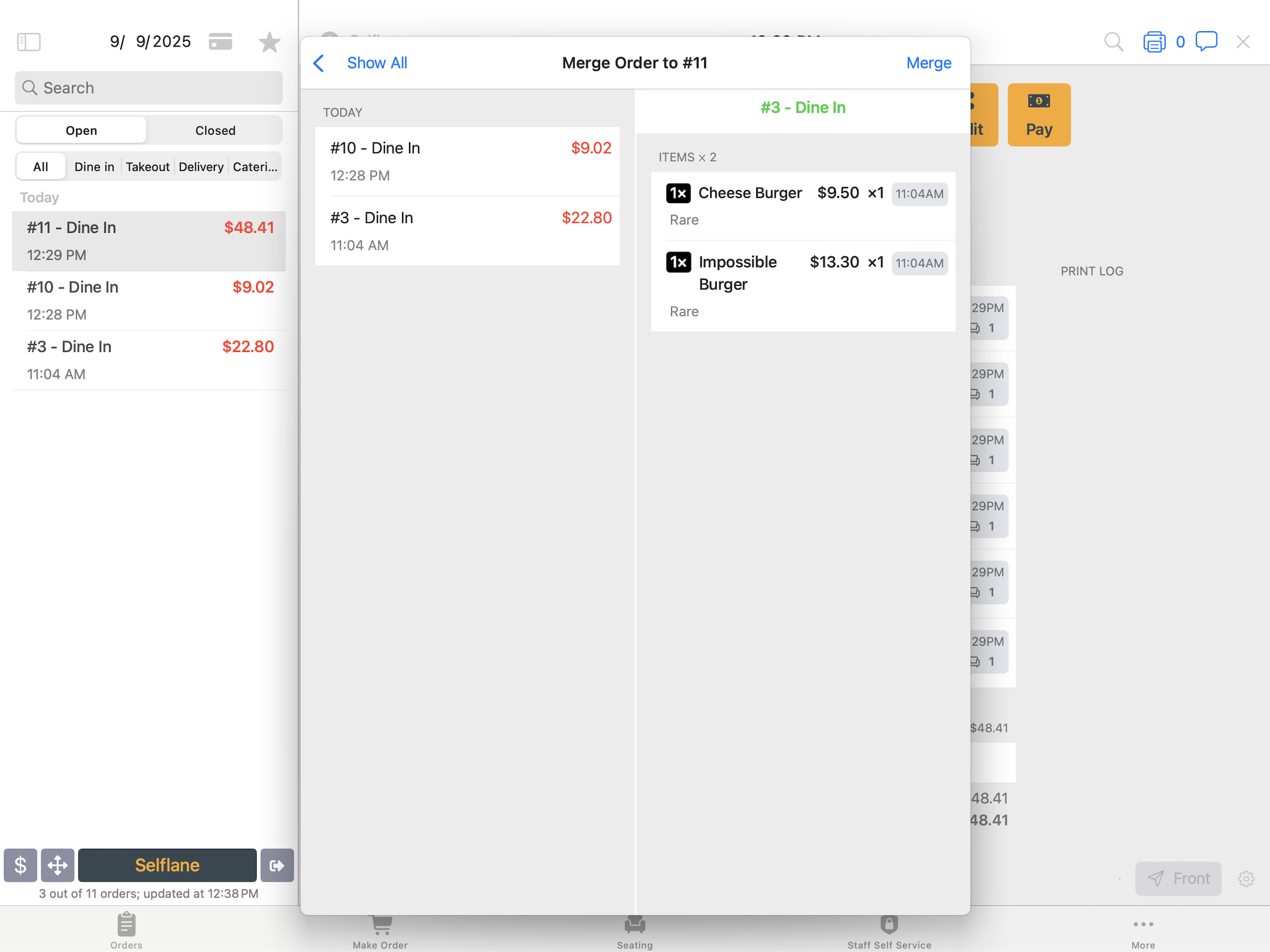
- Open the order you want to keep, tap
Split, then tapMerge Orders. The screen title shows that order’s number. - Tap the other order in the list. Its items appear on the right.
- Tap
Merge.
The other order’s items move to the order you opened, and the other order closes with a note that it was merged. Its table is freed.
The list shows today’s open orders created on the POS. Online, kiosk, and Third-Party Ordering orders don’t appear. Neither order can have a payment or split checks.
It shows only your own orders. Staff with Full Access can tap Show All to include other staff members’ orders. See Team.
Related links
- Pay Order — take payment after splitting an order.
- Void Payment — void a split-check payment before changing the split.
- Void Item — remove items from an order or check.
- Discounts — discount an order or a single check.