Event Ticketing
Sell tickets for an event or fundraiser at the counter. Set up the event and its ticket types in the Back Office first. On the POS, tap More > Event Ticketing.
Choose an event
The first time you open Event Ticketing, the POS shows Select Event. Each row shows the event name, its start and end time, the short description and the poster. Events are listed by start time, earliest first. Pull down on the list to refresh it.
Tap an event to open it. The POS remembers it and opens the same event next time. To switch events, tap Events at the top right.
Don’t switch events while a paid sale is waiting for its tickets. Choosing an event clears the cart and the charge with no warning, and the customer stays charged with no tickets. Finish or resolve the paid sale first.
If the screen says No Events Available. Please create them first in the back office., create the event in the Back Office. Pulling down doesn’t refresh this screen, so leave Event Ticketing and open it again.
Sell tickets
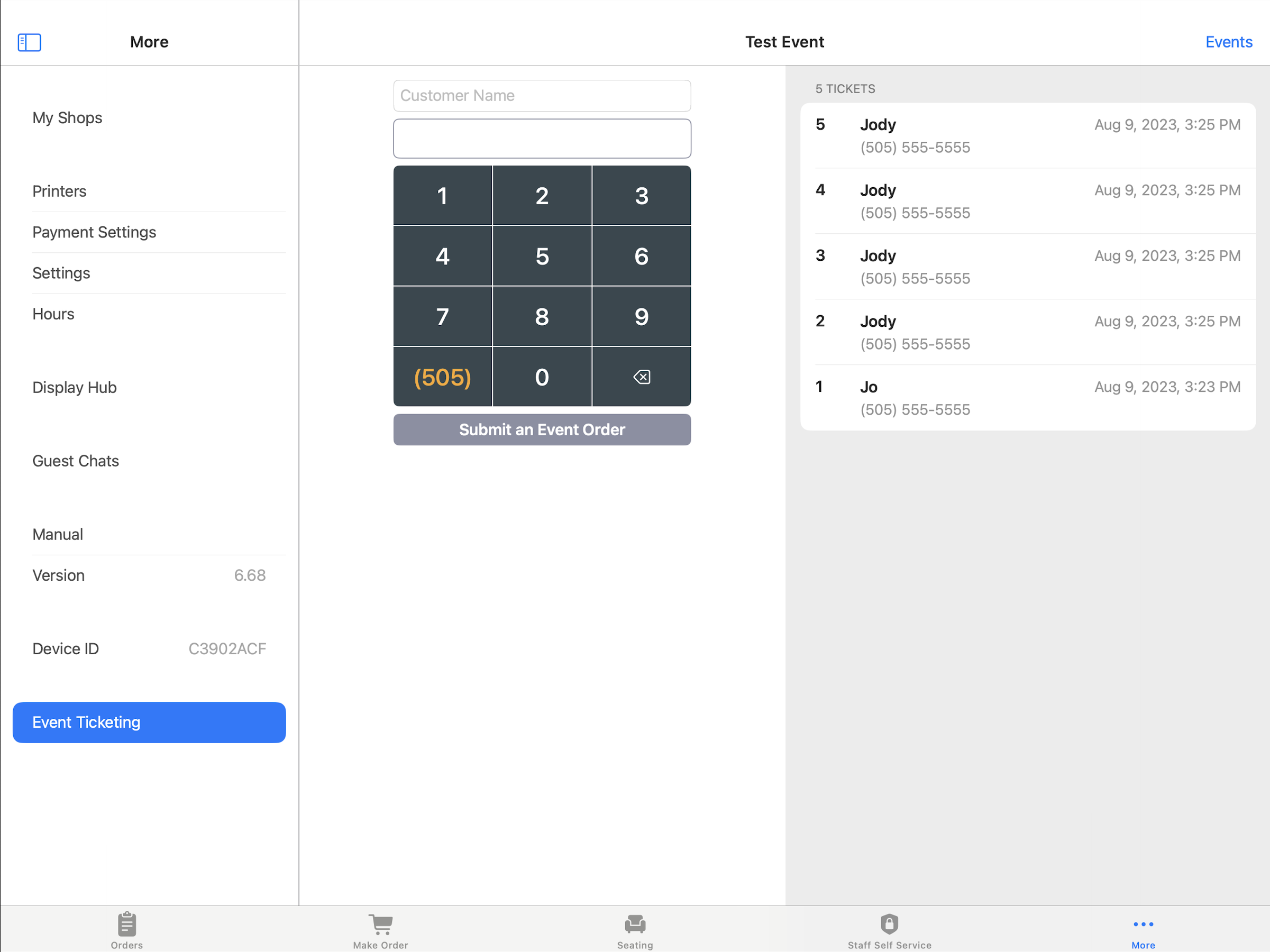
- Enter the customer’s name in
Customer Nameand their 10-digit phone number on the keypad. - Tap
Submit an Event Order.Purchase Event Ticketsopens. - Check each ticket type’s quantity and change it with
-and+. Check the total, which includes the event’s tax. - Choose a payment method on the left and collect the full total.
- Wait while
Creating Ticketsshows. The screen closes when the tickets are created, and the new tickets appear in the ticket list.
The customer gets a text message with their ticket numbers and a link to their tickets.
The quantities aren’t reset after a sale. The next customer starts with the previous customer’s tickets, even if you leave Event Ticketing and come back. The first ticket type starts at 1 only after the app restarts or you choose an event.
Payment methods
The ticket screen offers Cash and Credit Card (unless Credit Card is turned off), plus Stripe, Debit Card and Ext. Card when they’re turned on in the Back Office. If this iPad’s default payment is Stripe, Stripe is listed first. Check, Gift Card, Member, Booked and custom payment methods aren’t available for tickets.
Credit Cardalways charges on the PAX terminal, even when MagTek is this iPad’s default reader. If no PAX terminal is set up, it showsSet up. When pre-authorization (Tabs) is on,Open Tabalso shows. Don’t use it: it does nothing for a ticket sale.Stripecharges on the connected Stripe reader.Cash: tapPay Cashwith nothing entered to take the exact total, or enter the amount received to give change. An amount below the total is refused withEnter at least <total>.Debit CardandExt. Cardonly record the amount. They don’t run a card reader, so charge the card on its own device first. An amount above the total is recorded as a tip.Ext. Cardalso shows an optional tag picker.
One payment must cover the full total. You can’t split a ticket sale across payments. The ticket quantities lock once the card starts charging.
A ticket sale needs a total above zero. With a $0 total, no payment panel shows and you can’t submit the sale.
In the Stripe Dashboard, a ticket charge is described as POS Event Tickets | <event> at <business> - Selflane.
In Selflane POS 7.8.3 or later, each ticket sold on the POS is recorded under its ticket type, even when two ticket types share a name. It counts toward that type in the event’s Ticket Report in the Back Office. With earlier versions, Selflane matches each ticket to its type by name and price.
Look up tickets sold
The event screen lists every ticket sold for the event, newest first, under <number> Tickets. Each row shows the ticket number, the customer’s name, phone number and email, and when the ticket was sold. Ticket numbers count up across the whole event. Pull down to refresh the list.
On iPad the list is to the right of the customer form. On iPhone it’s below it.
The POS has no way to void a ticket sale. To cancel a ticket order, use Cancel an order in the Back Office, within 14 days of the sale and only if no ticket has been redeemed. It cancels the tickets and refunds a Stripe reader payment for you. For a card or debit payment on a PAX terminal, refund it on the payment device first, then confirm the refund when you cancel. For cash or another payment taken at the POS, refund the customer yourself.
If payment succeeds but tickets are not created
In Selflane POS 7.8.0 or later, the POS keeps the paid sale on screen and shows Charged <amount>. The tickets were not created yet.
- Check the charged amount.
- Tap
Retry Creating Tickets. - Wait for the tickets. Retry creates the tickets without charging the customer again.
Don’t start a second sale for the same tickets while the paid sale is on screen.
If the charged amount does not match
The POS shows Paid <amount> before tip, but the order total is <total>. and The amounts don't match, so no tickets can be created. Retry Creating Tickets isn’t offered. Ask a manager to reconcile the charge.
Before discarding a charge
Discard Charge asks Discard this charge? and then clears the ticket sale from this screen. The customer stays charged and has no tickets. Discarding doesn’t void or refund the payment.
Get a manager before you tap Discard. The ticket sale has no order, so the POS can’t refund it later. The manager must void or refund the charge on the payment device or with your card processor.
What if…
| Problem | What to do |
|---|---|
Name is required | Enter the customer’s name, then tap Submit an Event Order again. |
A 10 digit phone number is required | Enter the full 10-digit phone number. The text with the tickets goes to it. |
| The PAX terminal approved the card, but the POS didn’t record the charge | Don’t charge again. Lost a processed transaction? doesn’t work on the ticket screen yet. Ask a manager to check the terminal’s recent sales. If the sale is there, the manager voids it on the terminal, and then you sell the tickets again. |
An error shows after the charge and Retry Creating Tickets also fails | Check the iPad’s internet connection, then tap Retry Creating Tickets again. Don’t discard the charge until a manager decides. |
| A ticket sold on another device isn’t in the list | Pull down on the ticket list to refresh it. |