Cancel Order
Cancel an order the customer no longer wants, or one entered by mistake. The canceled order stays on the daily report with its reason. Canceling an online order also refunds the customer’s online payment in full.
Before you start
- If your business uses manager roles, staff without one need a manager’s approval to cancel from the
Editmenu or the order’sCancel Orderbutton. See Job Roles. - Void any payment taken in the restaurant first. A POS, kiosk, or pay-at-store order with a payment shows
Order has charge. Please void it first.See Void Payment. - You can cancel an order only within 24 hours of its due time.
- Split orders, closed orders, and Third-Party Ordering orders have no
Editmenu.
Cancel an order
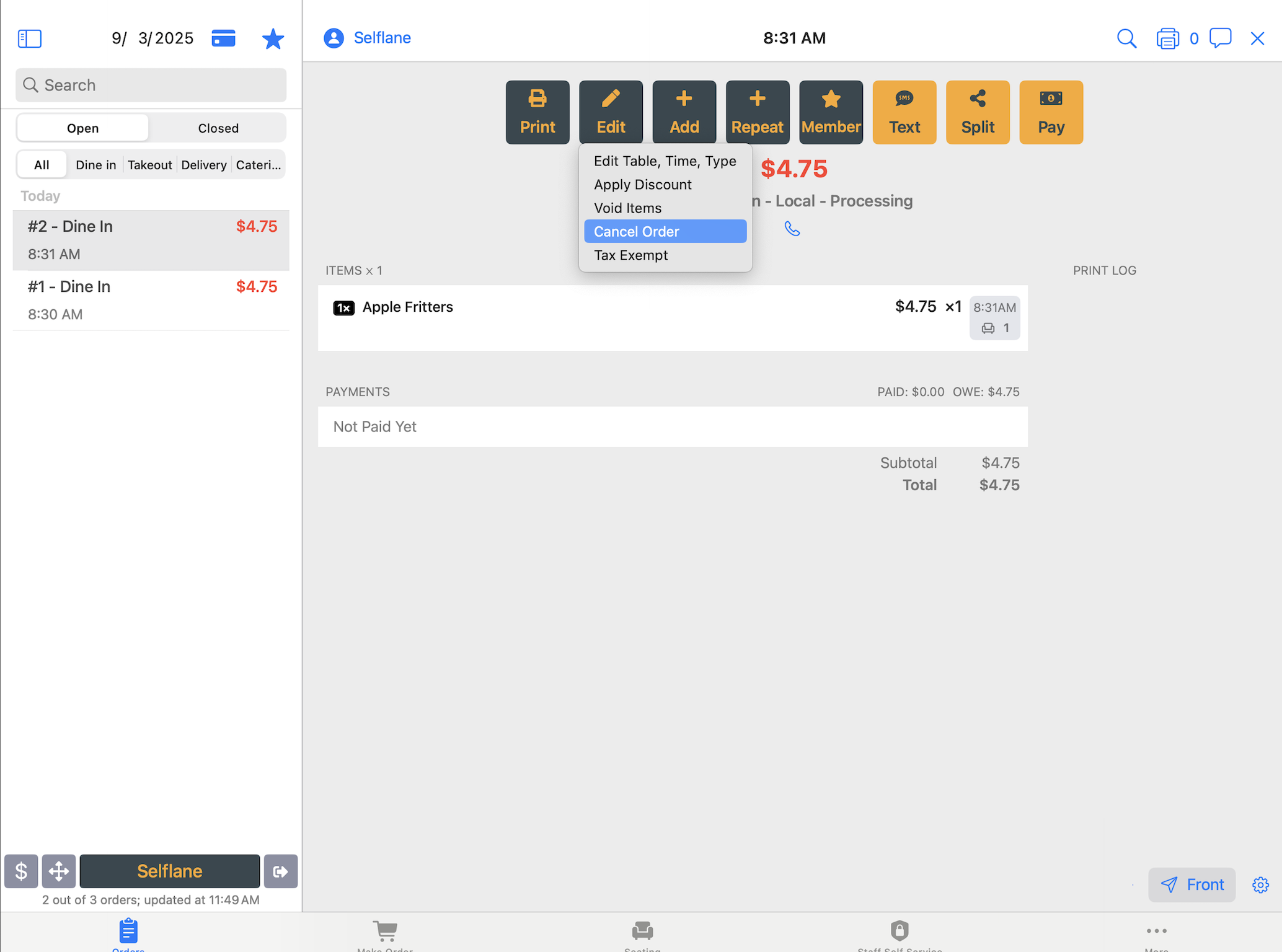
- Open the order and tap
Edit. - Tap
Cancel Order. On an online or kiosk order, it’sCancel Order (Full Refund). - Tap a reason, type one, or both. See Reasons.
- Tap
Submit.
In Selflane POS 7.2.9 or later, the POS prints a cancel ticket on the receipt printer with the reason, the server, and the time. If the order had a reservation, the reservation closes. The order also leaves the customer display.
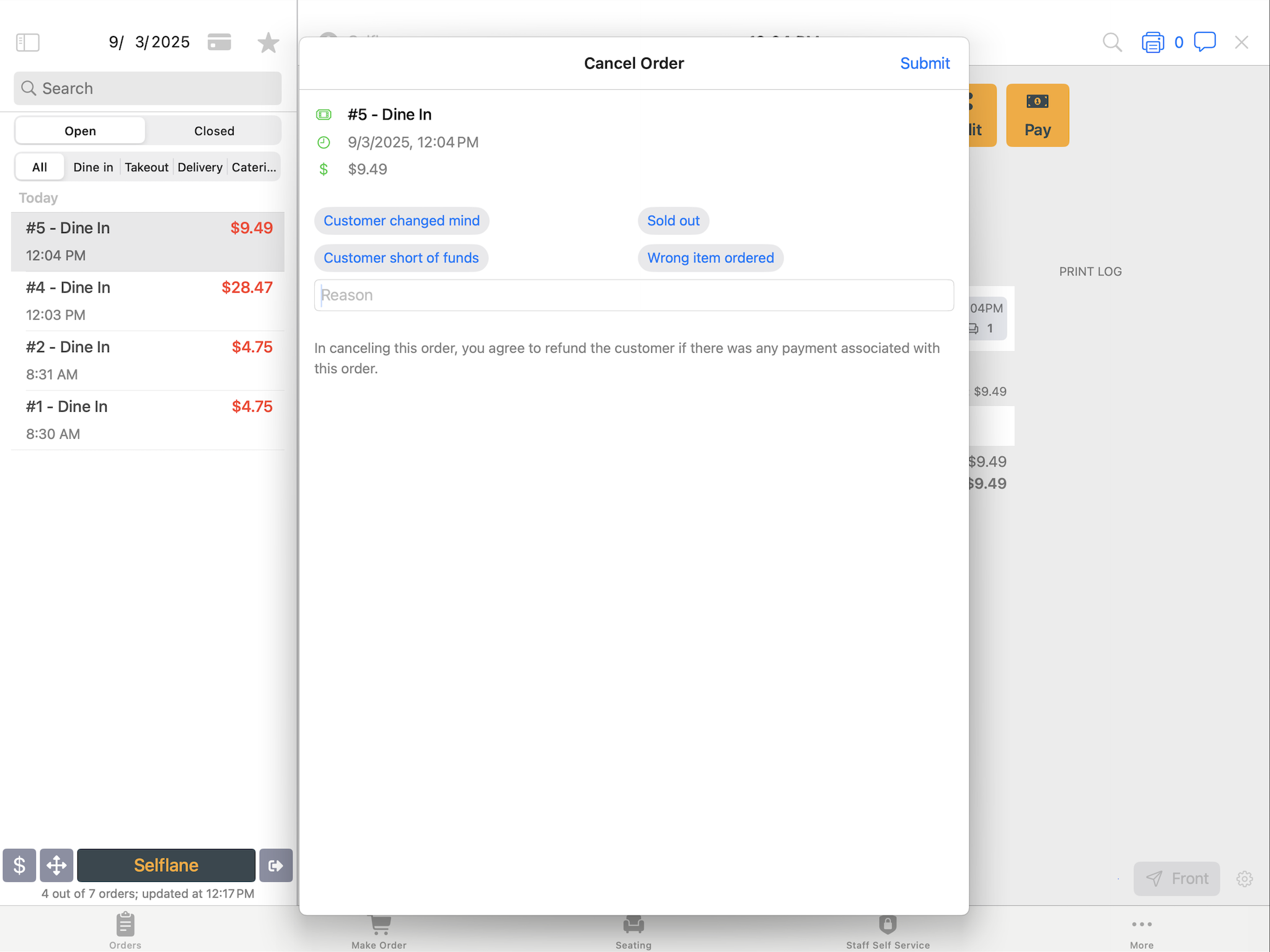
You also reach this screen when you void the last item on an order, and from the payment screen’s quick cancel when your business requires a reason from a list.
A Third-Party Ordering order that the customer pays for in the restaurant shows a Cancel Order button on the order while it’s open and has no payment.
Cancel an online order
Canceling an online order issues a full refund to the customer’s online payment. Once it’s canceled and refunded, Selflane can’t charge the payment again. Talk to the customer first, and make sure the owner allows staff to do this.
A kiosk order also shows Cancel Order (Full Refund), but canceling doesn’t refund it. Void its payment first with the order’s Void button. See Order Details.
If the owner allows online orders to be canceled only in the Back Office, the screen shows The owner has set to only allow cancel online order from the back office. Please ask the owner to cancel this order and refund customer.
To refund part of an online order instead, use Partial Refund.
Cancel a delivery order
When a Third-Party Delivery courier carries an online order, what canceling costs your restaurant depends on how far the delivery got. The customer always gets a full refund.
| Where the delivery is | Can you cancel? | What your restaurant pays |
|---|---|---|
| Waiting for a driver | Yes. Selflane calls off the courier. | Nothing for the delivery |
| A driver is assigned and on the way to you | No. Contact Selflane support. | — |
| The driver picked up the order, or delivered it | Yes | The delivery fee and the courier tip, plus card processing on the refund |
After pickup, Selflane has already paid the courier, so your restaurant pays for the delivery. Selflane takes the amount from your Stripe balance before it refunds the customer. Selflane’s service fee is refunded to the customer and isn’t charged to you.
For example, a $51.19 order with a $9.50 delivery fee, a $4.65 courier tip, and a $3.67 service fee is canceled after delivery. The customer gets $51.19 back. Your restaurant pays $14.15 for the delivery, plus card processing on the $51.19 refund.
If the food never reached the customer because of the courier, don’t cancel the order. Contact Selflane support instead, and your restaurant doesn’t pay for the delivery.
If the delivery charge can’t be taken from your balance, the cancel stops with a message that starts with The delivery charge to the restaurant's account did not go through, so nothing was refunded. Try the cancel again. Nothing changed on the order. Try again, and contact Selflane support if it keeps failing.
Reasons
The screen shows reason buttons. If your business set up cancel reasons in the Back Office, you see those. Otherwise you see Customer changed mind, Sold out, Customer short of funds, and Wrong item ordered.
In Selflane POS 7.6.4 or later, your business can require a reason from its list. When it does, the text field is labeled Note instead of Reason. A reason can also require a note.
| Message | What to do |
|---|---|
Please provide a proper reason. | Enter at least 3 characters, or tap a reason. |
Please pick a reason from the list. | Tap one of the reason buttons. |
Please add a note for "<reason>". | That reason needs a note. Type one in Note. |
The note is too long. Please keep it under 500 characters. | Shorten the note. |
When an order can’t be canceled
The screen shows Not Qualified with the reason:
| Message | What to do |
|---|---|
Order has charge. Please void it first. | Void the payments on the order, then cancel. |
Order has passed 24-hour window. Partial refund is only available from Owner's App or by contacting Selflane | Ask the owner, or contact Selflane. |
Order has already been canceled. | Nothing to do. |
The owner has set to only allow cancel online order from the back office. Please ask the owner to cancel this order and refund customer. | Ask the owner to cancel it in the Back Office. |