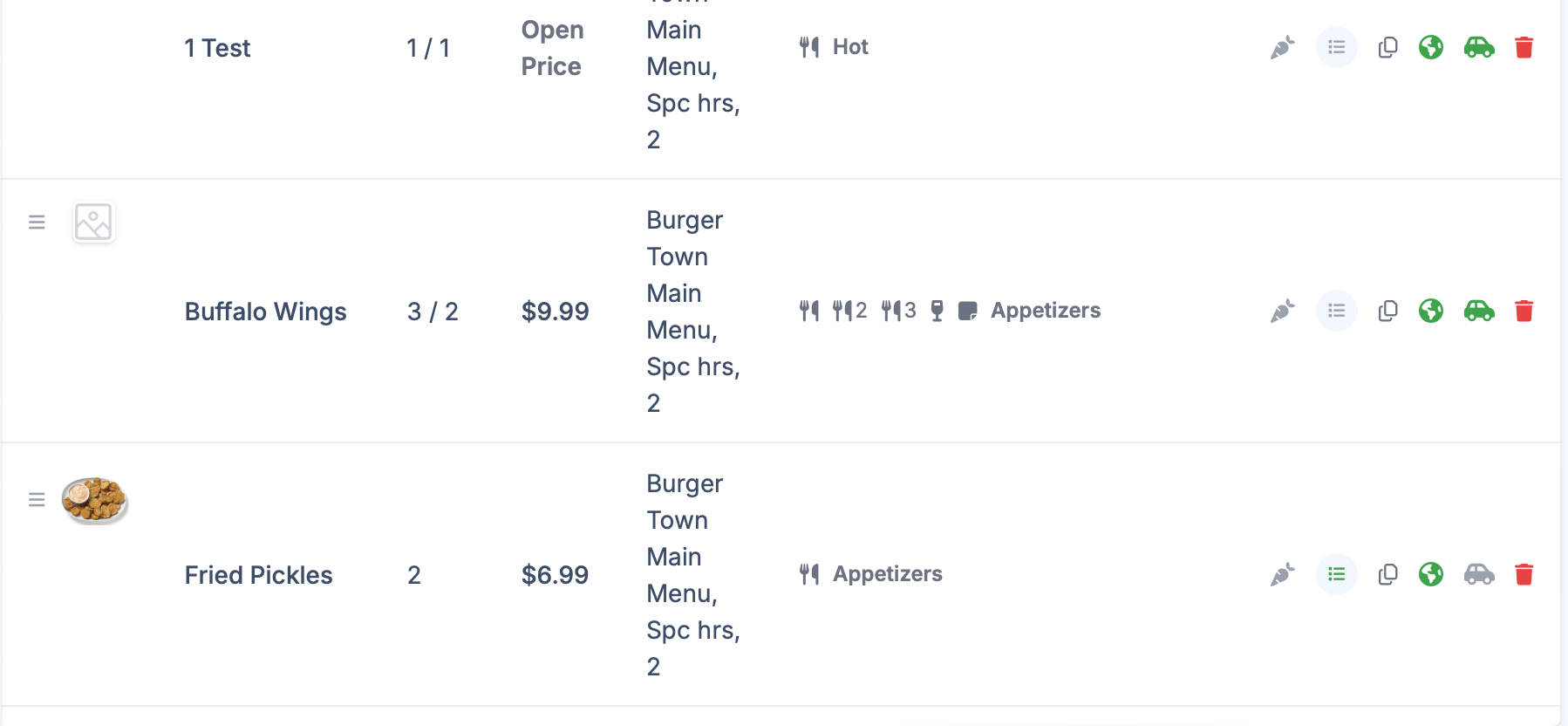
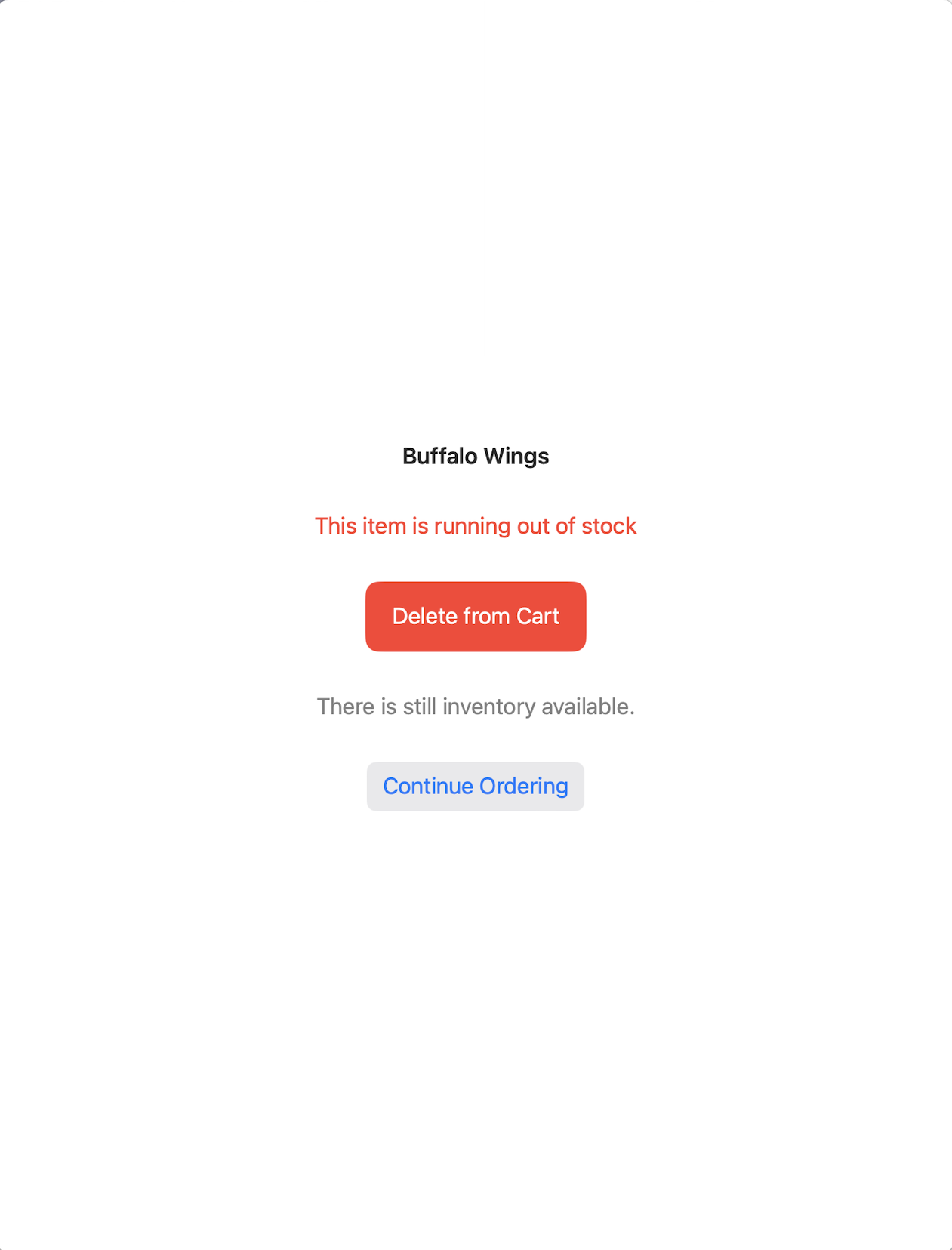
Dishes
Dishes are the sellable items customers order. They are assigned to one course and one or more menus.
Core Fields
| Field | Purpose |
|---|---|
| Name | Customer-facing item name |
| Kitchen Name | Optional short/internal kitchen label |
| Price | Base item price |
| Online Upcharge | Optional online-only price increase |
| 3rd Party Upcharge | Optional third-party channel price increase |
| Description | Optional customer-facing details |
| Menu | Assign to one or more menus |
| Course | Assign to one course |
| Printer | Assign to one or more print stations |
| Tags | Labels such as spicy, gluten free, vegan |
| Run Out (86’d) | Temporarily disable item |
| In-store only | Hide from online ordering |
| Sync to Third Party | Publish to third-party channels (requires integration) |
| Priced by weight | Enable weight-based pricing (lb, oz, kg, g) |
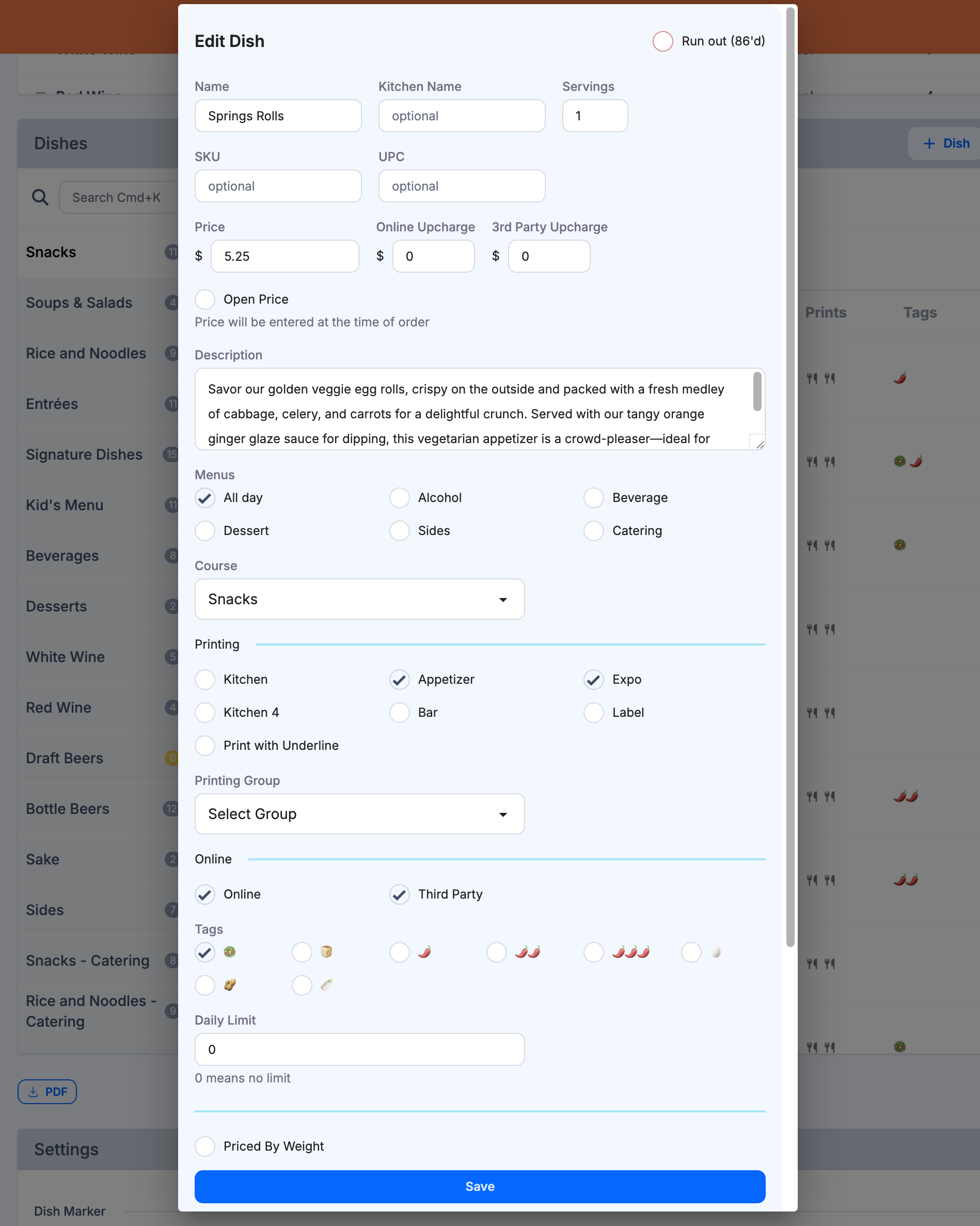
Create a Dish
- Click
+ Dish. - Enter dish name and base price.
- Assign one course and one or more menus.
- Assign printer stations if needed.
- Set visibility and sync toggles.
- Click
Save.
Sort Dishes
Use drag-and-drop to reorder when alphabetical sort is disabled.
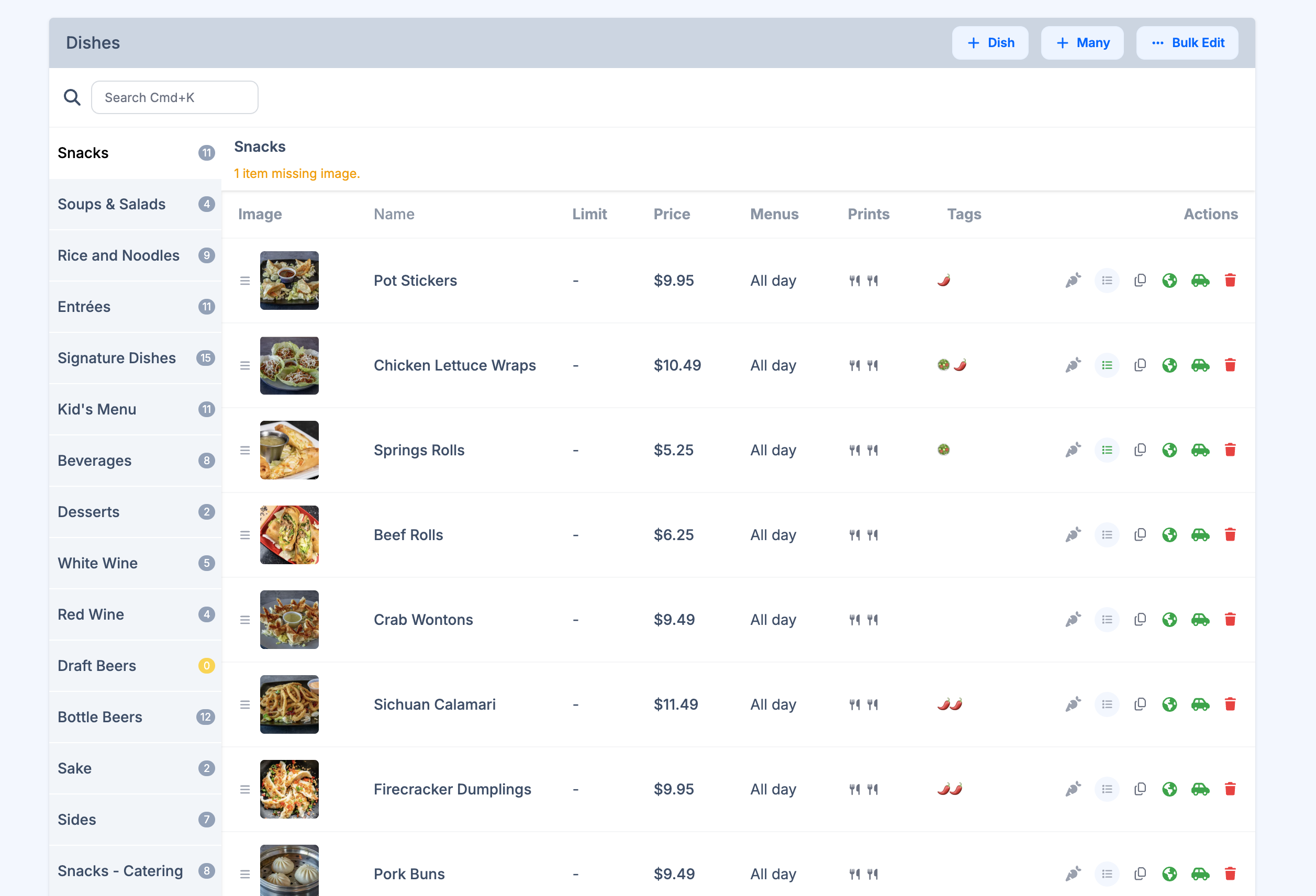
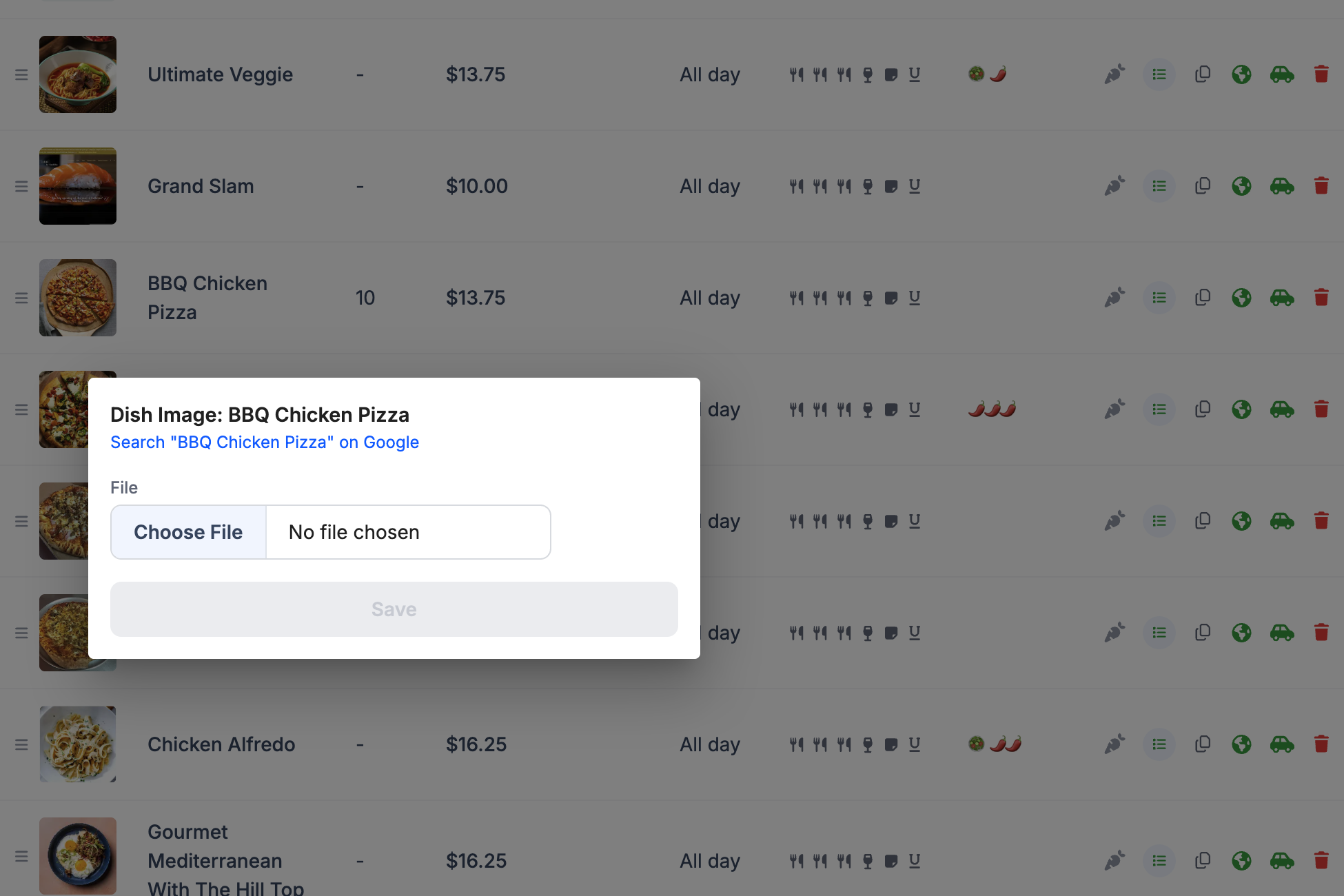
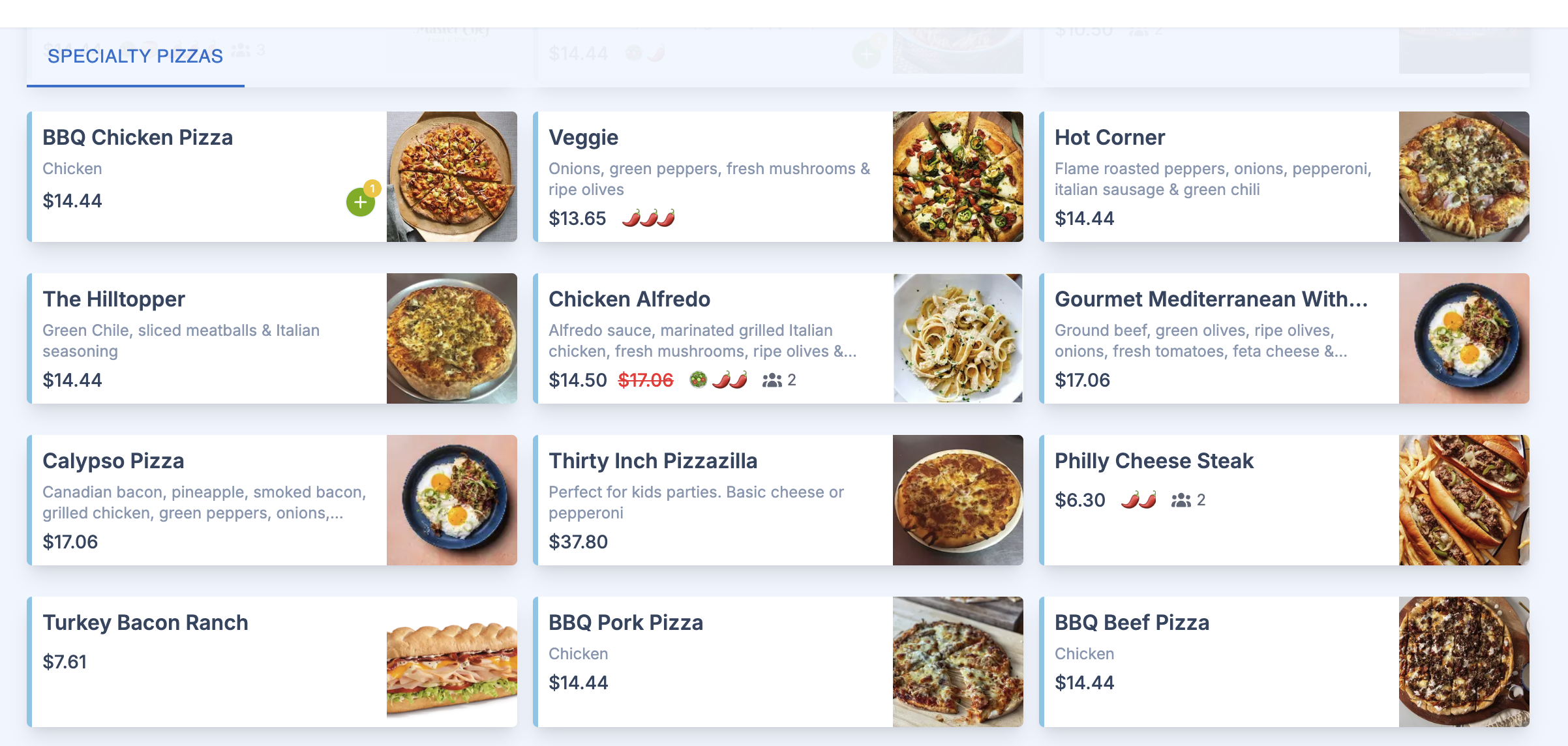
Add Pictures
High-quality photos improve online conversion and reduce ordering confusion.
Tips:
- Use clear, well-lit photos.
- Keep style consistent across items.
- Prefer real menu photos over generic stock images.
Print Groups
Use print groups to prioritize specific items at the top of kitchen tickets.
- Open
Printing Group. - Click
+ Group, name it, and assign a printer. - Save groups.
- Assign dishes to groups from dish settings.
Dish Tags and Markers
Tags
Use tags for customer-facing labels (for example spicy, gluten free, vegan).
Dish Markers
Dish markers are kitchen notes with no price and no customer receipt impact.
To manage dish markers:
- Open
Edit Dish Marker. - Add or remove markers.
- Save changes.
Dish Recipe (Ingredient Tracking)
If you track raw materials:
- Create ingredients in Ingredients.
- Return to dishes and open recipe assignment.
- Add ingredient quantities per dish.
- Save.
Add or Edit Modifiers
Attach existing modifiers or create new ones from the dish editor.
For full modifier configuration, see:
Duplicate Dishes
Use Duplicate to clone a dish quickly.
- Rename the new dish (duplicate names are not allowed).
- Update only changed fields (price, modifiers, visibility, etc.).
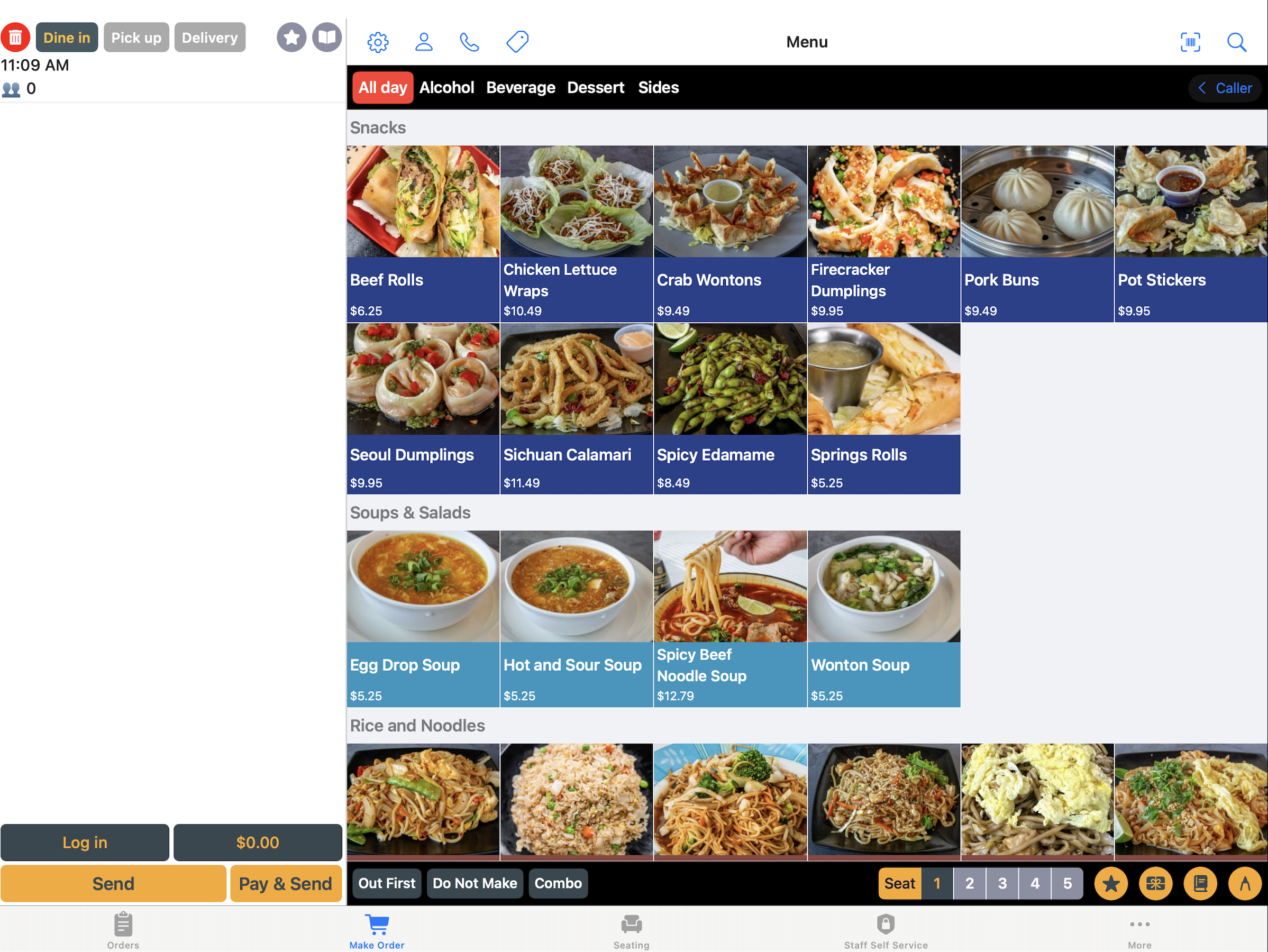
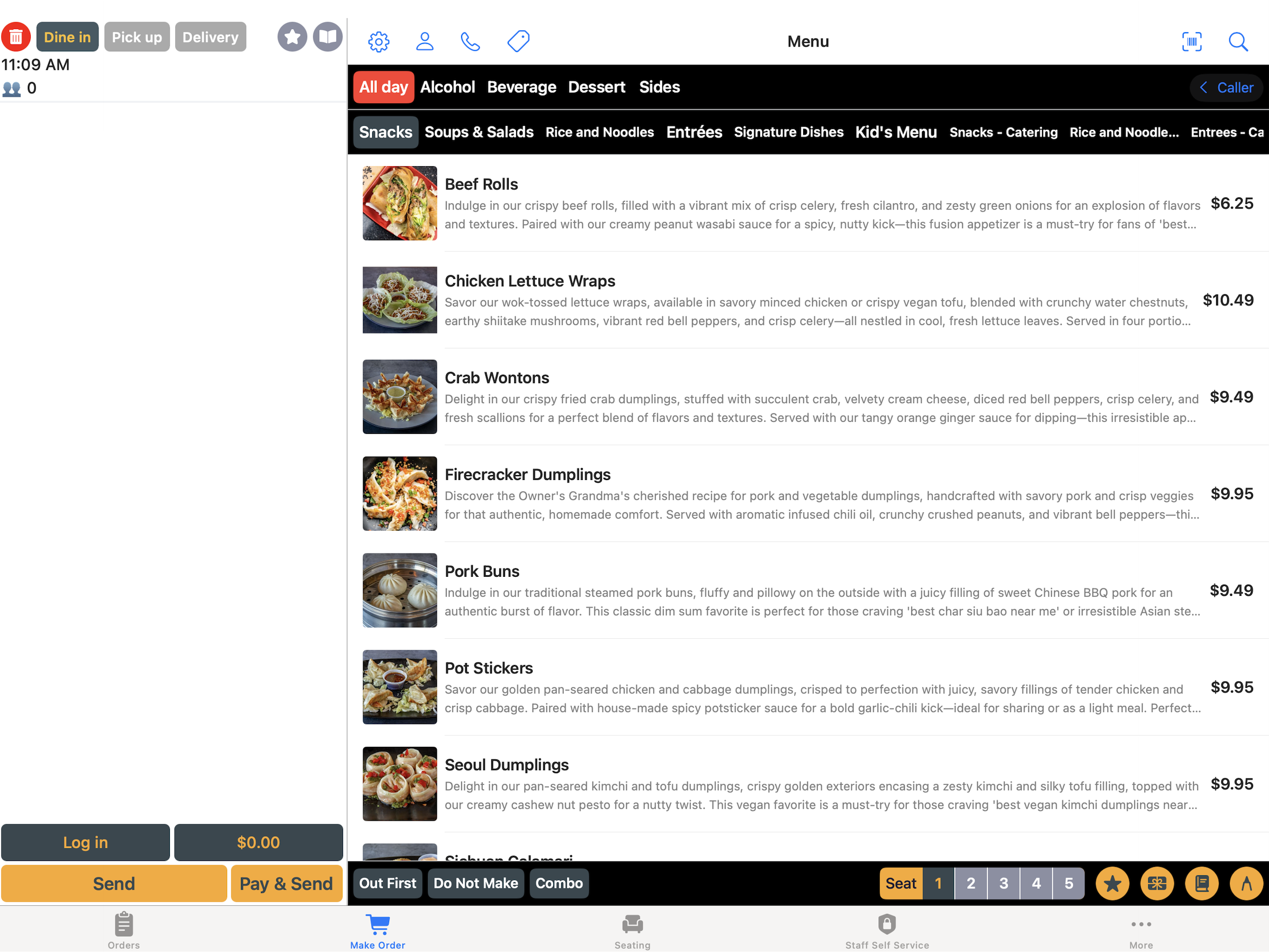
Online Visibility
Item visibility online depends on:
- Online availability toggle.
- 86’d status.
- Valid pricing (including required modifier pricing).
- Menu/course visibility context.
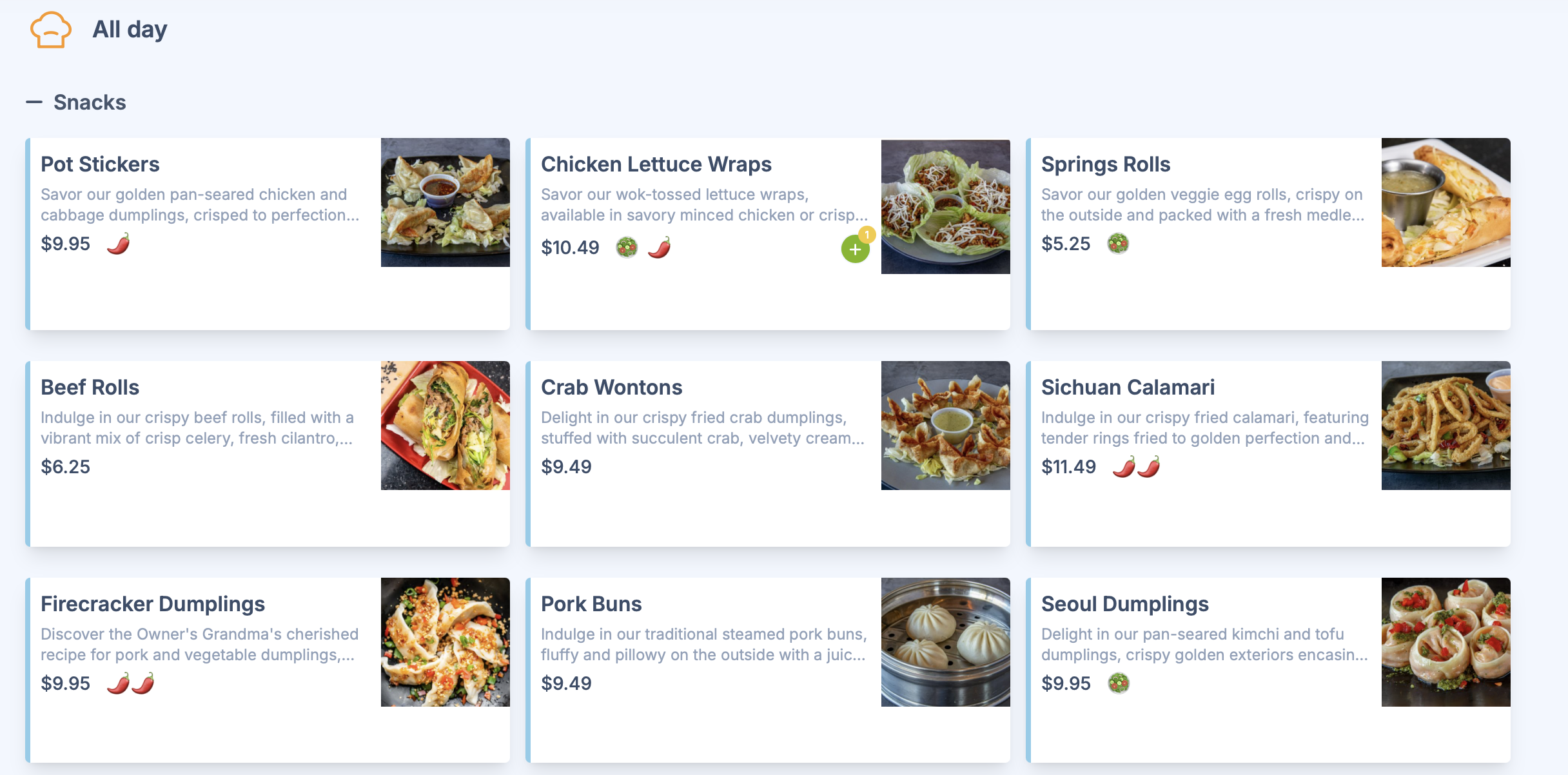
Examples
Daily Item Limits
Set a daily limit per dish to avoid overselling high-demand items.
How it works:
- Default is unlimited.
- System tracks item counts in real time from POS and online orders.
- Once limit is reached, item becomes unavailable for the day.
- Future-date orders can still be placed if that date has available quantity.