Setup & Installation
Install Selflane Displays and choose a kitchen or packing screen for this device. Use iOS 15.1 or later, or Android 7.0 or later.
Download the app
iOS
Download Selflane Displays from the App Store .
Android
Download the latest Android build from selflane.com/apps .
Since the Android version is distributed outside of the Google Play Store, you will need to allow installation from unknown sources:
- Download the APK file from the link above
- Open the downloaded file on your Android device
- If prompted, go to Settings > Install unknown apps and allow your browser or file manager to install apps
- Follow the on-screen prompts to complete the installation
Sign in
- Open the Selflane Displays app
- Continue to the hosted sign-in page and use your Selflane account, Google, or Apple sign-in.
- Select the business you want to display orders for.
- Choose
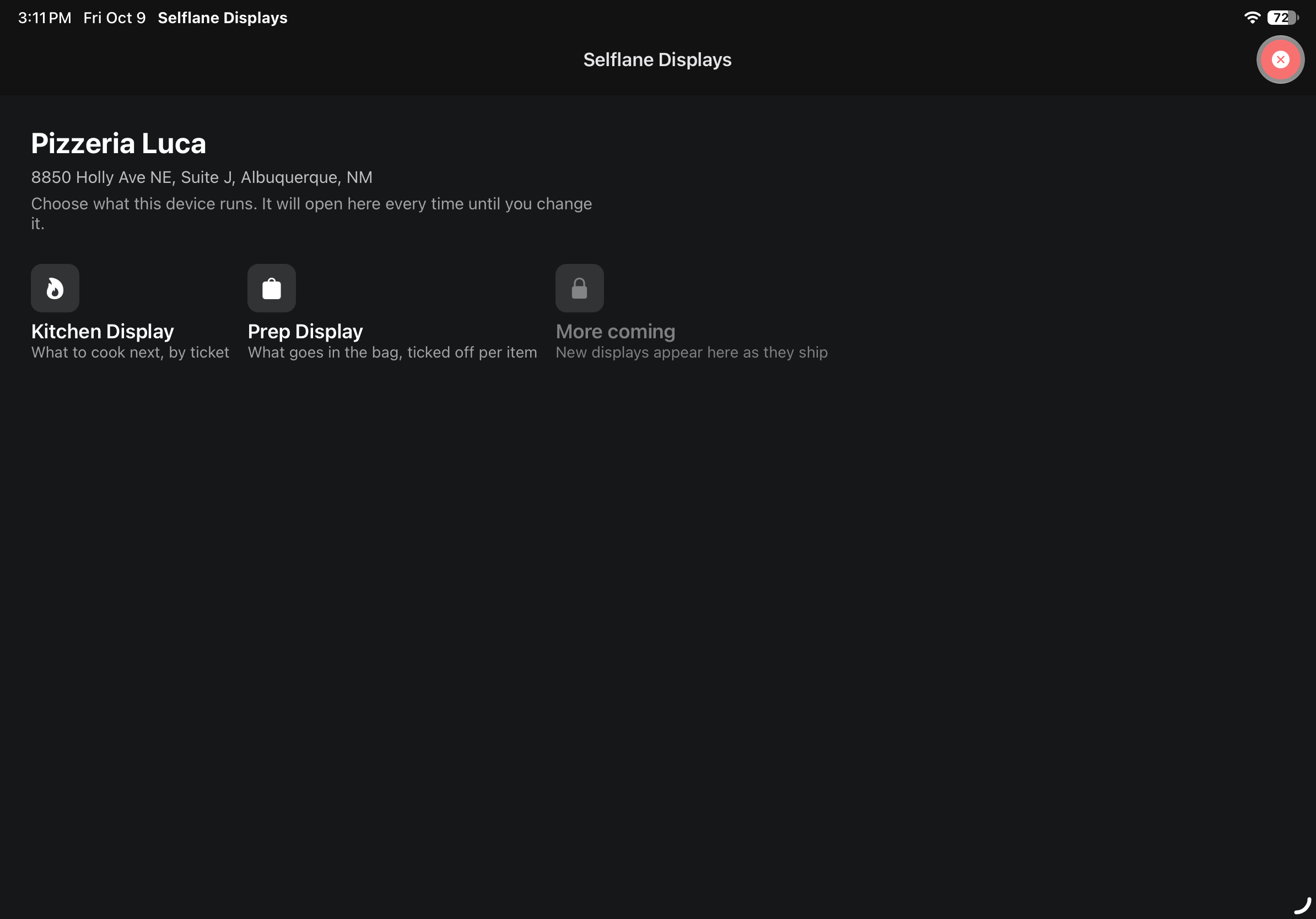
Kitchen DisplayorPrep Displayin the display picker. UseChange displayto return to the picker later.
Subscription requirement
Selflane Displays requires an active KDS subscription. If your subscription is not active, the app will show a subscription prompt instead of the order grid. An owner can manage access in the Back Office : open Plan & Billing → Manage Plan → Add-Ons and review Displays access.
Recommended hardware
Selflane Displays works on supported iOS and Android versions, but for the best kitchen experience we recommend:
- Tablet — a 10” or larger screen for comfortable viewing at a distance
- Mounting — a wall or shelf mount to keep the display visible and out of the way of food prep
- Power — keep the device plugged in, as the always-on display will drain battery quickly
Before you start
Make sure the following are configured in your Back Office or POS settings:
- Station numbers — assign station numbers to your POS devices so orders can be filtered by station on the display
- Print targets — set up kitchen printer targets (Kitchen, Kitchen 2/3/4, Bar, Label) so dishes route to the correct display
- Order types — ensure your order types (Dine In, Pick Up, Delivery, Drive-Thru, Curbside, and QR Code) are configured, as the display color-codes orders by type