Settings
Set up the display so staff can read and act on the right tickets. Tap the gear icon to open the settings panel. Settings are saved per device.
Language and sound
Choose Language to use English, Spanish, Simplified Chinese, or Japanese. Menu items and notes keep their original text.
Choose Sound to select Chime, Bell, or Beep for arrivals. Use the sound control on the display to mute or adjust volume.
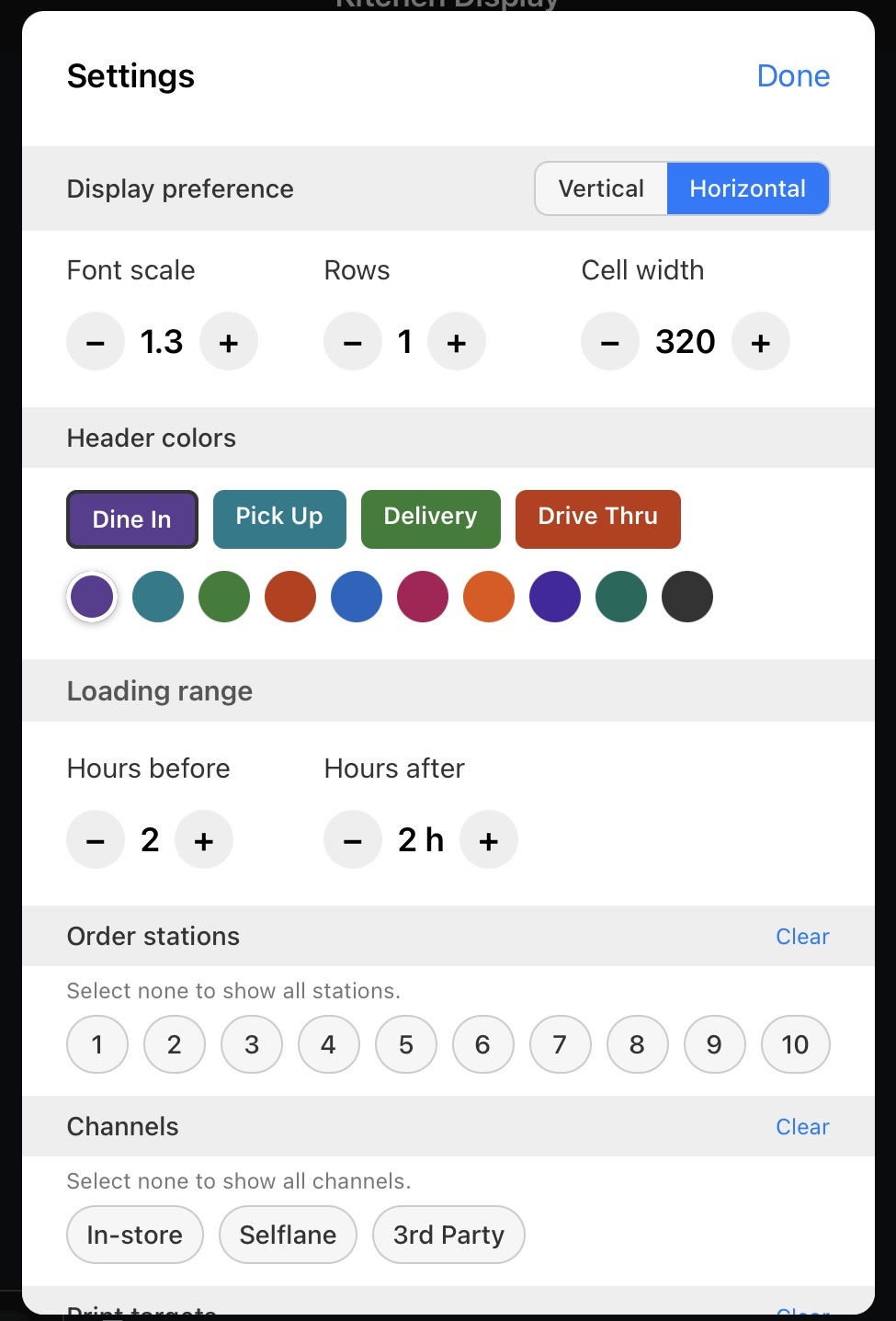
Display preferences
Layout
Switch between Vertical and Horizontal layout modes using the toggle at the top of the section. See Order Grid — Layout Modes for details on each mode.
Font scale
Adjust the text size across all order cards from 1.0 to 1.3 (in 0.1 steps). Increase the font scale for better readability at a distance.
Columns (vertical layout)
Set the number of columns in the order grid from 1 to 6. Fewer columns means larger cards; more columns fits more orders on screen.
Rows (horizontal layout)
Stack up to 2 rows of order cards in horizontal mode.
Row gap (vertical layout)
Adjust the spacing between rows from 6 to 24 pixels. Hidden when using horizontal layout with a single row.
Cell width (horizontal layout)
Set the width of each order card from 200 to 500 pixels. Only available in horizontal layout mode.
Header colors
Customize the color of order card headers by order type:
- Select an order type tab:
Dine In,Pick Up,Delivery,Drive Thru,Curbside, orQR Code - Choose from 10 color presets
- Use the
Resetbutton to restore default colors
Default colors:
- Dine In — purple
- Pick Up — teal
- Delivery — green
- Drive-Thru — orange
- Curbside — blue
- QR Code — deep purple
Held and added items
Held items: chooseHideto omit held items until the hold ends. This does not delay printing.Added items: chooseSame ticketto keep additions on the original ticket, orNew ticketto give them their own queue position.
Order warning and priority time
Set Order warning to show yellow and red warnings once a ticket is past its ticket time. Choose Yellow after, Red after, and whether to animate the warning.
Acknowledging a warning affects this device. Priority time moves selected order types earlier in the queue by the minutes you choose. It does not change ticket times or warning thresholds.
Prep list panel
Turn Prep list on to show the list beside the kitchen tickets. Choose its left or right position, width, and sorting by Quantity or A–Z.
This panel is part of the kitchen screen. Use the separate Prep Display for packing orders.
Loading range
Control how far back and forward in time orders are loaded:
Hours before— load orders from 2 to 12 hours ago (default: 2)Hours after— load future orders from 20 minutes to 48 hours ahead (default: 2 hours)
Increase the range if you need to see older orders or plan ahead for future orders. Keep it narrow during busy periods to reduce clutter.
Order source filters
Order stations
Select which POS station numbers to display orders from. Choose from stations 1 through 10 using the chip selectors. Leave empty to show orders from all stations.
Order types
Choose Order types to filter Dine In, Pick Up, Delivery, Drive-Thru, Curbside, or QR Code orders. Leave the selection empty to show all types.
Print targets
Filter orders by kitchen print target. Available targets depend on your POS configuration:
Kitchen(primary kitchen printer)Kitchen 2,Kitchen 3,Kitchen 4(names come from your POS config)BarLabel
Leave empty to show orders for all print targets.
Other ticket items
When you filter by print target, turn on Show other ticket items to see what other stations owe on the same ticket. These rows are read-only and do not count toward your station’s completion.
Set Rows shown from 1 to 20 to limit this extra context.
Device info
The bottom of the settings panel shows:
Device ID— unique identifier for this device, useful for supportFCM Token— push notification tokenOTA Update— last update time and IDChangelog— tap to view recent app changes