Member Marketing
Member Marketing emails your members at the moments that bring them back: when they join, on their birthday, after a visit milestone, or when they haven’t visited in a while. Set a campaign up once and it sends on its own. You can also schedule a one-time or yearly send to a chosen audience.
Open Member > Marketing in the Back Office . Marketing needs the Premium plan or the Active Marketing member add-on. See Plans.
How campaigns are organized
The campaign list has one row per trigger event. Each row holds that event’s campaigns, and an Add button to create one.
Some events allow only one campaign: New Member, Birthday, Anniversary, Spouse Birthday, Points Expiring, and First Visit Thank You. Once that campaign exists, the Add button goes away. If an event has more than one campaign anyway, a warning reads Multiple promos for this event — only the highest-priority one will send.
Campaigns from older versions of Back Office that don’t match an event appear under Other.
Trigger events
| Event | When it sends |
|---|---|
Scheduled | On the Send Date you choose, once or every year. |
New Member | When a customer joins the Member Program. |
Birthday | Before the member’s birthday. |
Anniversary | Before the member’s anniversary. |
Spouse Birthday | Before the member’s spouse’s birthday. |
Lapse Win-back | When a member hasn’t visited for the number of days you set. |
Visit Milestone | When a member reaches a visit count you set, such as 5, 10, or 25. |
Spend Milestone | When a member’s spending reaches an amount you set, such as $100, $500, or $1000. |
Points Expiring | When a member’s points will expire within the number of days you set. |
Tier Upgrade | When a member moves up to the tier you name. |
Tier Downgrade Warning | When a member is about to drop out of the tier you name. |
First Visit Thank You | After a member’s first visit. |
Create a campaign
- Click
Addon the row for the event you want. - Fill in the
Create Campaignform. The fields are described below. - Leave the status at
Activeto start sending, or set it toDisabledto save it as a draft. - Click
Save.
Trigger
Trigger Event- the event that sends the campaign. It starts on the row you clicked.
Some events ask for one more setting:
Days Since Last Visit(Lapse Win-back) - send to members who haven’t visited in this many days. Required.Days Ahead to Warn(Points Expiring) - send when points expire within this many days. Required.Days-Ahead Window(Birthday,Anniversary, andSpouse Birthday) - send up to this many days before the date. The default is 7.Visit Count Thresholds(Visit Milestone) - visit counts separated by commas, such as5, 10, 25. Required.Spend Thresholds ($)(Spend Milestone) - dollar amounts separated by commas, such as100, 500, 1000. Required.Tier Key(Tier UpgradeandTier Downgrade Warning) - the tier’s key, such assilverorgold. Required.
For Scheduled campaigns:
Send Date- the day the campaign sends.Recurrence-One-time, orAnnuallyto send on the same date every year.
Audience
Click Audience to narrow who gets a campaign. These filters apply only to Scheduled campaigns and to campaigns you send with Send. Automatic campaigns go to every member who meets the trigger. Leave a filter at 0 or blank to ignore it.
Tiers- include only members in these tiers. Leave blank to include all tiers. Appears only if your program has tiers.Min Lifetime SpendandMax Lifetime Spend- include only members whose total spending falls in this range. The maximum must be at least the minimum.Min Visits- include only members with at least this many visits.Visited Within Days- include only members who visited in the last this-many days, to reach active members.Not Visited In Days- include only members who haven’t visited in this many days, to reach lapsed members. If you also setVisited Within Days, this number must be smaller.Member Locations- include only members who joined at these locations. Appears only when several locations share the program.Sample Size- send to this many qualifying members. 0 sends to all of them.Require Email- skip members without an email address.
Message
Title- the campaign name. Up to 50 characters. Required forScheduledcampaigns, and optional for the rest.Email Subject- the email’s subject line, up to 150 characters. Leave blank to use the event’s default subject.Content- the email body. Up to 1000 characters, with formatting.
Offer
Expiry Days- how many days the offer lasts after the email sends, from 0 to 365. 0 means it doesn’t expire.Specify Businesses- the locations where the offer can be used. Leave blank for every location in the program. Appears only when several locations share the program.Use Code- give each member a unique 8-digit redemption code. Only campaigns with a code can show redemptions in Campaign Performance.
Advanced
Cooldown (days)- the minimum days before the same member can get this campaign again. 0 uses the event’s default.Priority- when several automatic campaigns qualify for the same member, the higher number sends.
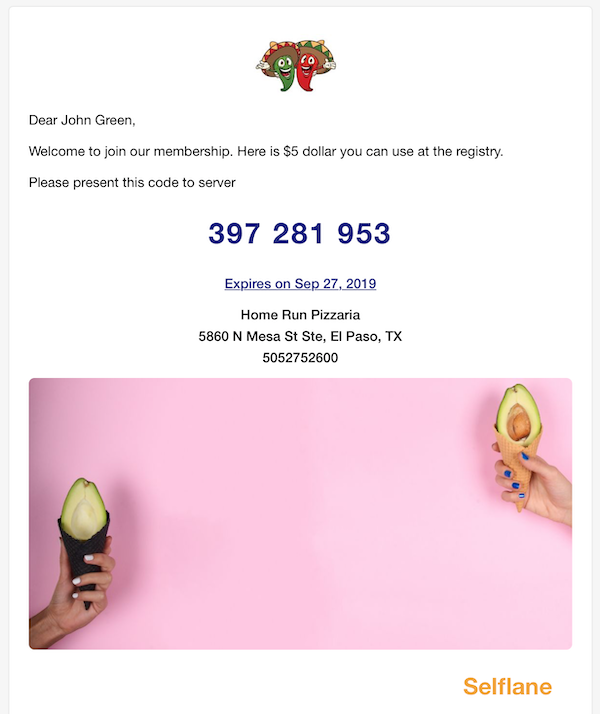
Add images
Each campaign card has two image slots:
Header- a logo at the top of the email. Square works best. Selflane scales it to a maximum height of 200px.Banner- an optional picture in the email. Landscape, square, and portrait all work. Selflane scales it to a maximum side of 600px.
Click a slot to upload an image.
Preview, send, and edit a campaign
Each campaign card shows its title, trigger settings, subject, and status (Active or Off). Disabled campaigns have a red background.
Preview- see the email as members get it.Send- preview the email, then clickConfirm Sendto send it now to all matching members. A message confirms how many members it reached.Edit- change the campaign.- Delete button - remove the campaign after you confirm.
Send emails every member who matches the campaign’s audience, right away. Preview the email and check the audience filters first.
To send a campaign to one member, use Send on their row in Manage.
Track results
Email Marketing chart
The Email Marketing chart shows emails sent each day of the month, with one color per trigger event. Use the month selector to look back up to two years.
Campaign Performance
The Campaign Performance table shows results for each campaign over a date range. It starts with the last 90 days. Use the date selector to change it.
Campaign- the campaign title and its trigger event.Last Sent- the date it last sent.SentandFailed- emails sent, and emails that couldn’t be sent.Opened,Clicked, andRedeemed- counts, with the rate in parentheses.
The All campaigns row totals every campaign.
Open and click rates are upper limits. Email security scanners and image proxies open links and images without a person reading the email. A dash means nothing could be counted. For example, only campaigns with Use Code turned on can show redemptions.
Campaign tips
- Start with
New MemberandBirthdaycampaigns. They send on their own and need no upkeep. - Add one
Lapse Win-backcampaign to bring back members who stopped coming. - Turn on
Use Codeand setExpiry Daysso you can see which offers members redeem. - Check Campaign Performance a few weeks after each change.