Google Business Profile
Customers check Google for your hours, phone number, and reviews before they visit. Connect your Google Business Profile to the Back Office to keep that listing correct and to answer reviews without leaving Selflane.
With the connection you can:
- Edit your description, hours, special hours, website, and phone, then publish them to Google.
- Post “closed” or “closing early” for a single date, so Google Search and Maps show it.
- Read your Google reviews and reply to them.
- Create posts, send photos, and publish your Selflane menu to Google.
- Manage order and reserve buttons and restaurant attributes.
- Review Google Search and Maps performance and search terms.
Owners and managers can use the Google Business Profile card. POS and custom staff roles can’t see or change it. It is free, and no plan is required.
Running a shift and need to close early? Follow Close early on Google.
The Google tab has two cards. Google Maps links your business to its place on Google Maps. Google Business Profile connects the Google account that manages your listing, so you can change it.
Link your Google Maps place
The Google Maps card tells Selflane which Google Maps place is your restaurant. It only reads from Google; it can’t change your listing. Your Selflane online pages use it to show your restaurant on the map and in directions links, and the Business Profile card uses it to mark your matching listing.
Anyone who can open Settings > Profile, including custom roles granted it, can change this card.
- In the Back Office , open
Settings>Profile>Google. - In the
Google Mapscard, clickFind on Google Maps. - Type your business name in
Search for your businessand pick it from the list. Search covers businesses in the US and Canada. - Check the name and address, then click
Confirm. To pick again, clickCancel.
The place must be within 300 m of your business address in Selflane. If Confirm shows a distance error, pick the right place, or fix your address first.
Once linked, the card shows View on Google Maps, which opens your place on Google Maps. Open the ... menu beside it to Change the place or Delete the link. Deleting asks you to confirm, and your map falls back to showing your street address.
Open Rating, hours & reviews to see what Google shows for the place: rating and review count, address, website, phone, status, price, services, and hours, plus recent reviews. Selflane refreshes this copy on Mondays and Thursdays, so a new link shows Waiting for the first sync until then. If it says Google can’t find the listing, link the place again.
To edit what Google shows, connect your Google Business Profile below.
Before you start
- You need a Google account that manages your listing. It must be an owner or manager of your restaurant’s listing in Google Business Profile.
- If you don’t manage the listing, ask the person who owns it to add you as a manager in Google Business Profile. Then connect with your own Google account.
- Selflane does not create, claim, or verify listings. If your restaurant has no listing on Google yet, create and verify it in Google Business Profile first.
Connect your Google account
- In the Back Office , open
Settings>Profile>Google. - Find the
Google Business Profilecard on theGoogletab. Before you connect, it lists what the connection adds. - Click
Connect Google Business Profile. - Sign in with the Google account that manages your listing.
- On Google’s permission screen, tick the box that lets Selflane manage your Business Profile. Then continue.
Google sends you back to the Back Office with “Google account connected.” The card shows Connected as with your Google email.
If you leave the Business Profile box unticked, the connection fails with “Business Profile access wasn’t granted.” Click Connect Google Business Profile again and tick the box.

Choose your listing
After you connect, the card lists every listing your Google account manages.
- Find your restaurant in the list. Labels help you pick the right one:
Matches this business on Google Maps— the listing at the same Google Maps place as this business. This is usually the one you want.Linked to another Selflane business— another Selflane business already uses this listing.Not verified — edits may not go live— Google hasn’t verified the listing yet. Google may hold your changes.Temporarily closedorPermanently closed— the listing is marked closed on Google.
- Click
Selectnext to your listing.
The card shows Linked Google listing with your choice. To pick a different listing later, click Change.
Each Google listing links to one Selflane business only. If you run several locations, connect each Selflane business to its own listing.
If your account manages a very large number of listings, the list may not show them all. Connect the Google account that owns your listing directly. If the linked listing no longer appears for this account, the card says so; selecting another listing replaces it.
Edit and publish your listing
Once you select your listing, the card shows the available Google sections. Click View and edit beside Google listing to open your listing details.
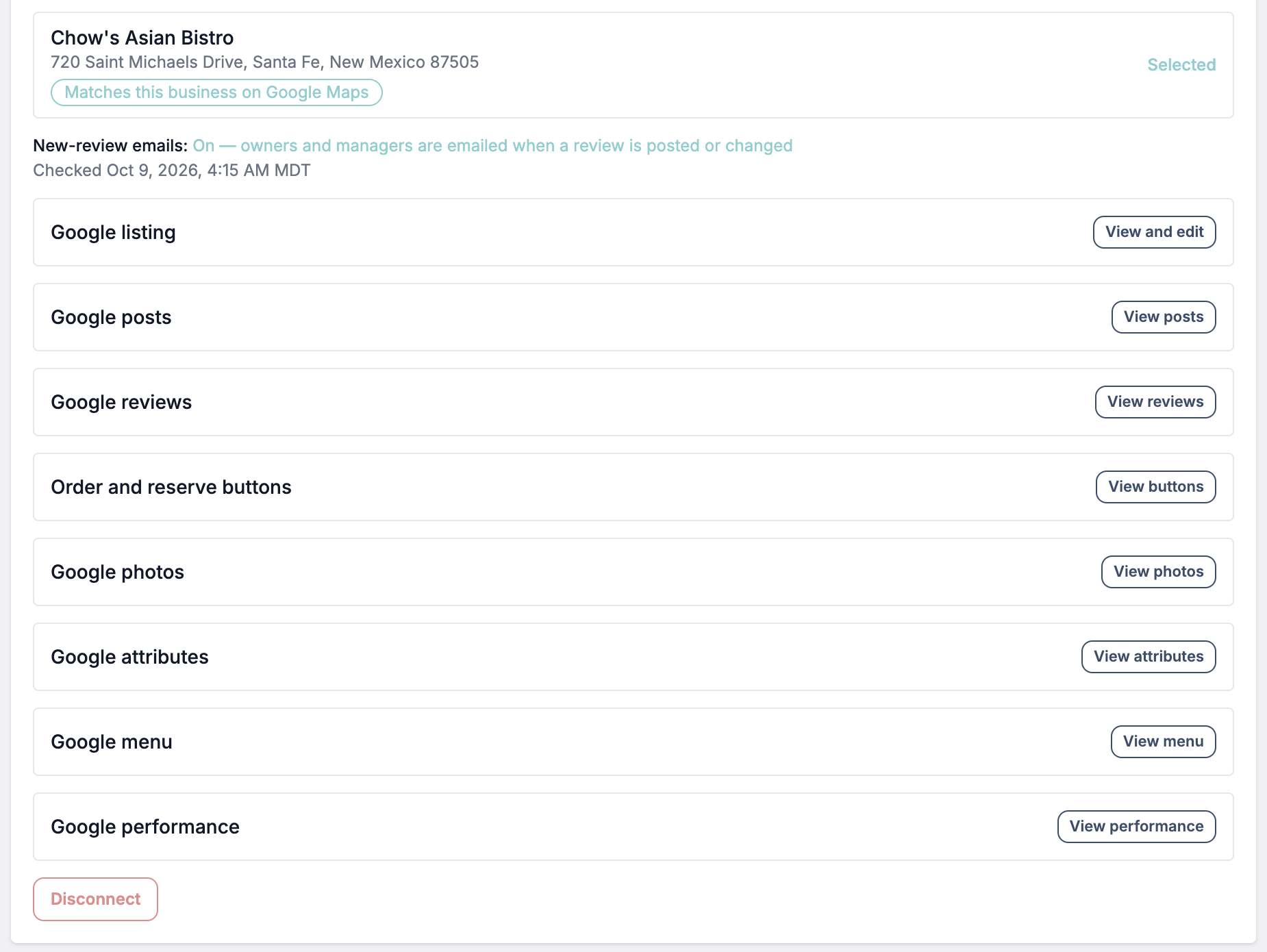
The Google listing section shows what Google shows today next to your draft. Only the fields you change are sent to Google. The rest of your listing stays as it is. The section notes when it last read your listing; click Reload from Google to read it again.
What you can edit
- Description — up to 750 characters.
- Hours — your regular weekly hours.
- Special hours — one-off dates, such as holidays or closing early. See Special hours.
- Website — the link Google shows for your restaurant.
- Phone — the number Google shows.
The business name is read-only here. Change it in Google Business Profile.
Publish a change
- In the
Google listingsection, clickView and edit. - Click
Editnext to the field you want to change. - Enter the new value. To copy a value from your Back Office settings instead, click
Use Selflane's. For example, this fills Hours from your Back Office hours. - Click
Check with Google. Google checks your change but doesn’t publish it yet. - Review the screen.
Google nowshows the current listing, andAfter publishingshows what customers will see. - Click
Publish to Google.
The card shows Published. Google now shows: with the updated listing. To go back without publishing, click Back to editing.
Changing hours in the Back Office does not change Google. Every change reaches Google only when someone publishes it here.
Special hours
Special hours override your regular hours on one date. Google uses them to show “Closed” or “Closes soon” in Search and Maps. Use them for holidays, private events, weather closures, and closing early.
- In the
Google listingsection, clickView and edit. - Click
Editnext toSpecial hours. - Click
Add a dateand pick the date. - Choose one:
- Clear
Closed all dayto show the time fields, then enter the hours you’ll be open that day. - Leave
Closed all daychecked if you won’t open that day.
- Clear
- Click
Check with Google, review the change, and clickPublish to Google.
To remove a date you added by mistake, click Remove next to it, then check and publish again.
Example: closing early today
Your restaurant normally closes at 9 PM, but you need to close at 3 PM today.
- Click
Editnext toSpecial hours, thenAdd a date. - Pick today’s date.
- Clear
Closed all dayto show the time fields. - Enter your opening time and
3:00 PMas the closing time. - Click
Check with Google, thenPublish to Google.
Google shows the 3 PM closing for today only. Tomorrow, your regular hours return.
Reply to Google reviews
- In the
Google reviewssection, clickView reviews. The first load can take up to 20 seconds. - Use
Sortto showNewest,Lowest rating, orHighest ratingfirst. The top of the list shows your average rating and review count. - Click
Replyunder a review. If you’ve already replied, clickEdit reply. - Write your reply.
- Click
Review reply.
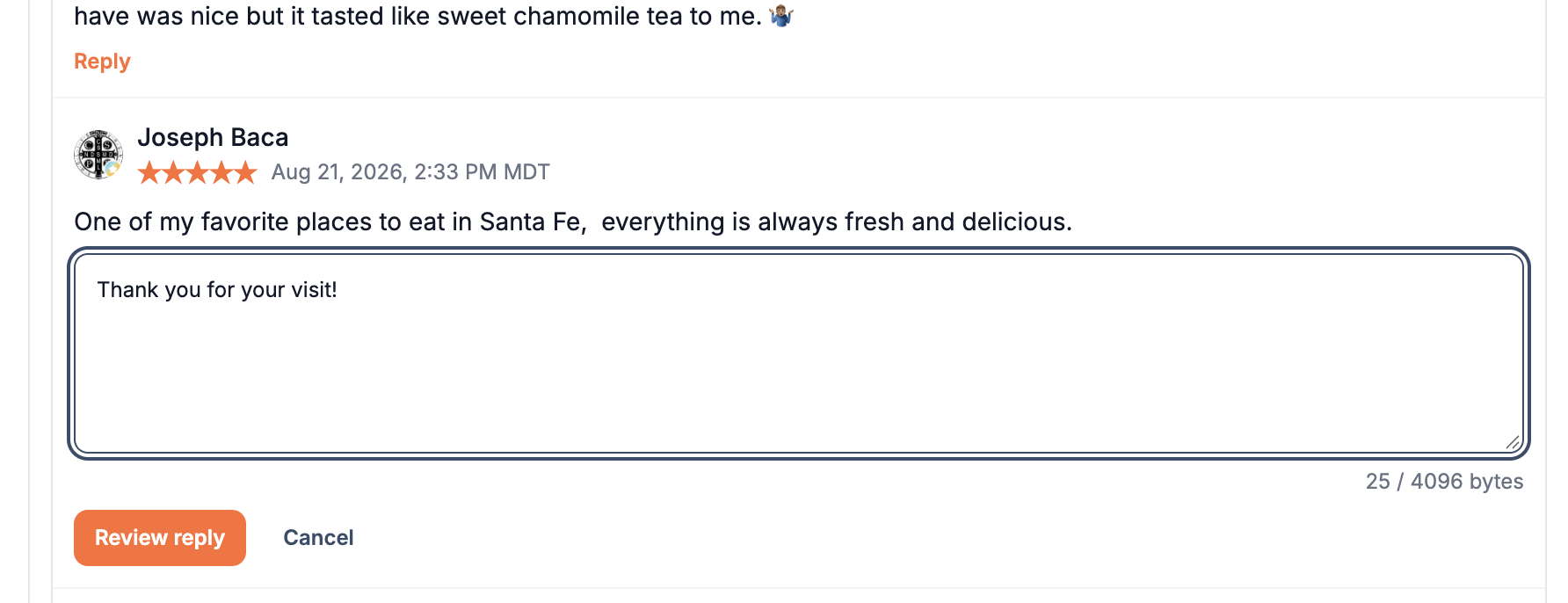
On the confirmation screen, check the text. Click Back to editing to change it, or Post reply to publish it.
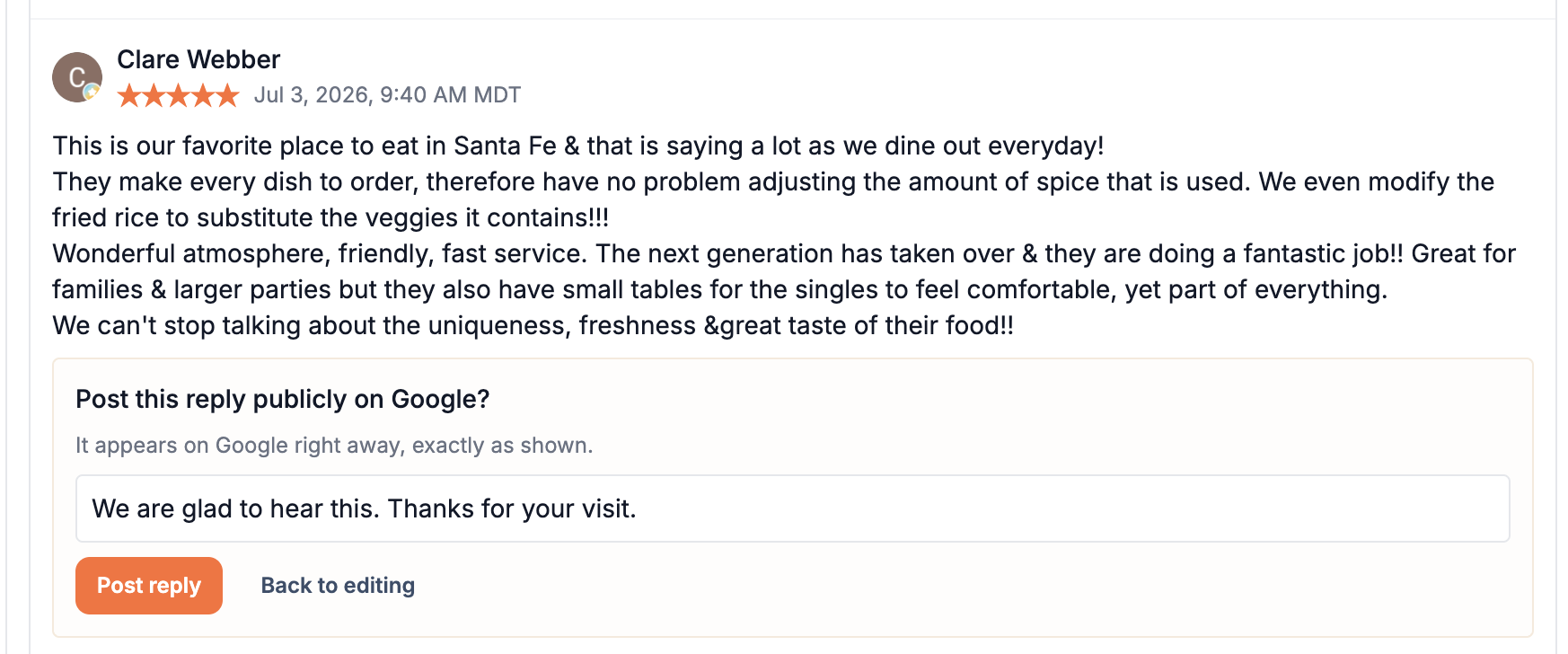
Your reply appears on Google right away, under your business name, exactly as shown. It replaces any earlier reply to that review.
Replies can be up to 4,096 bytes. The counter under the box shows how much you’ve used. Non-Latin text, such as Chinese or Japanese, uses more bytes per character, so it fits fewer characters.
New-review emails
Once a listing is linked, Selflane asks Google to report new reviews. Owners and managers then get an email when a review is posted or changed, with a link back to your reviews. There’s nothing to turn on. The card shows the status beside New-review emails:, with the time Selflane last checked:
On— emails are being sent.Being set up— Selflane is turning them on. The daily check finishes it.Not set up— not on yet. This is normal right after you pick a listing. It also shows when Google won’t share the listing’s reviews, usually because the listing isn’t verified. Selflane checks again every day.Off — Google refused— usually because the connected account manages the listing but not the Google account it belongs to. Selflane tries again every day. Connecting the account that owns the listing usually fixes it; you then choose the listing again.Off — this Google account already sends its notifications to another app— Google sends one account’s notifications to only one app. Selflane tries again every day.
Posts, photos, menu, and performance
Open the matching section in the connected card:
| Task | Button | Guide |
|---|---|---|
| Share news, events, or offers | View posts | Post updates on Google |
| Add your logo or dish photos | View photos | Add photos to Google |
| Replace Google’s menu with your Selflane menu | View menu | Publish your menu to Google |
| Review views, customer actions, and search terms | View performance | Review your Google performance |
Posts and photos need Google’s review before appearing publicly. Menu publishing replaces the whole Google menu; review the comparison before confirming.
Add order and reserve buttons
Use Order and reserve buttons to send customers to your Selflane ordering or reservations pages. Turn on the matching service in Selflane first.
- Click
View buttons. - Under
Add a button, choose an available button and check the page it opens. - Choose
Make it the preferred buttonif needed, then clickAdd. - Review the confirmation and click
Add button.
Google keeps one preferred button per type. Making yours preferred removes that preference from another button of the same type.
For an existing editable Selflane button, use Make preferred, Unmark preferred, Point at current page, or Remove. Review and confirm each change.
Buttons for other providers are read-only here. Change them in Google Business Profile. These buttons link to Selflane pages; they do not enroll your business in Order with Google.
Update restaurant attributes
Attributes describe services and amenities, such as takeout, Wi-Fi, and payment types. Google decides which attributes your listing supports.
- Click
View attributesbesideGoogle attributes. - Use
Filter attributesto find a detail and change its value. - Review any values marked
Suggested by Selflane from your order types. - Click
Review changes, check the changed values, and clickSend to Google.
Suggestions are drafts until you confirm. Only changed attributes are sent; the other values stay as they are. Use Discard or Discard all changes to remove draft edits.
Reconnect or disconnect
Reconnect
If the card says “Google needs you to sign in again,” click Reconnect Google and sign in again. This happens when:
- Someone removes Selflane’s access in their Google account settings.
- No one uses the Google features in the Back Office for about 6 months.
If you never reconnect, Selflane deletes its stored Google access after 90 days. You can still connect again later.
Disconnect
- Click
Disconnectat the top of the card. - Confirm.
Selflane’s access is removed at Google. Your Google listing doesn’t change. It keeps everything you already published. The card shows Last connected as with the Google email, so you know which account to use if you connect again.
Troubleshooting
| Message | What it means | What to do |
|---|---|---|
| ”This Google account doesn’t manage any Business Profile listings.” | The Google account you connected isn’t an owner or manager of any listing. | Disconnect and connect the Google account that manages the listing, or ask the listing owner to add you as a manager in Google. |
| ”That Google listing is already linked to another Selflane business.” | Another Selflane business already uses this listing. | Pick the correct listing for this business. If the other link is a mistake, change the listing on the other business first. |
| ”Google won’t let this account edit the listing right now.” | Google has suspended the listing or is reviewing it. | Open the listing in Google Business Profile and fix what Google reports. Then publish again. |
| ”Google isn’t responding.” or “Google didn’t respond, so your change may or may not be live.” | Google didn’t answer in time. | Wait a minute and try again. Publishing or posting again is safe: it won’t apply twice. |
| ”Google needs you to sign in again.” | Selflane’s Google access stopped working. | Click Reconnect Google. See Reconnect. |
| ”Business Profile access wasn’t granted.” | The permission box on Google’s screen was unticked. | Click Connect Google Business Profile again and tick the box. |
| ”Google connection was cancelled.” | You closed or declined Google’s sign-in screen. | Click Connect Google Business Profile and finish signing in. |
| ”You no longer have manager access to this business.” | Your Selflane login lost owner or manager access while you were signing in to Google. | Ask an owner to restore your access, or have an owner or manager connect. |
| ”Google couldn’t complete the connection.” or “Google returned an error.” | Google’s sign-in didn’t finish. | Click Connect Google Business Profile and try again. |
| ”Google won’t show this listing’s reviews to the connected account.” | The listing usually isn’t verified yet. | Verify the listing in Google Business Profile. |
FAQ
Does the Back Office update Google when I change my hours in Selflane?
No. Google changes only when someone clicks Publish to Google. Use Use Selflane's to copy your Back Office hours into the draft, then publish.
Can I change my business name on Google from here? No. Change the name in Google Business Profile. Google may review name changes.
Can staff on the POS use this? No. Only owners and managers can see the card.
What happens to my listing if I disconnect? Nothing. The listing stays exactly as it is on Google. Selflane can no longer edit it or reply to reviews.
Can I delete a review? No. Google decides which reviews appear. You can reply, or report a review in Google Business Profile.