Pack orders with Prep Display
Track what goes in each bag so staff can hand off complete orders. Choose Prep Display after signing in to Selflane Displays and selecting your business.
Pack an order
- Find the order’s ticket and check its items.
- Tap the dishes you have packed.
- Tap
Packto mark the selected items packed. To pack every outstanding item, clear the selection and usePack All. - Use the
Packedview to review orders whose items are all bagged.
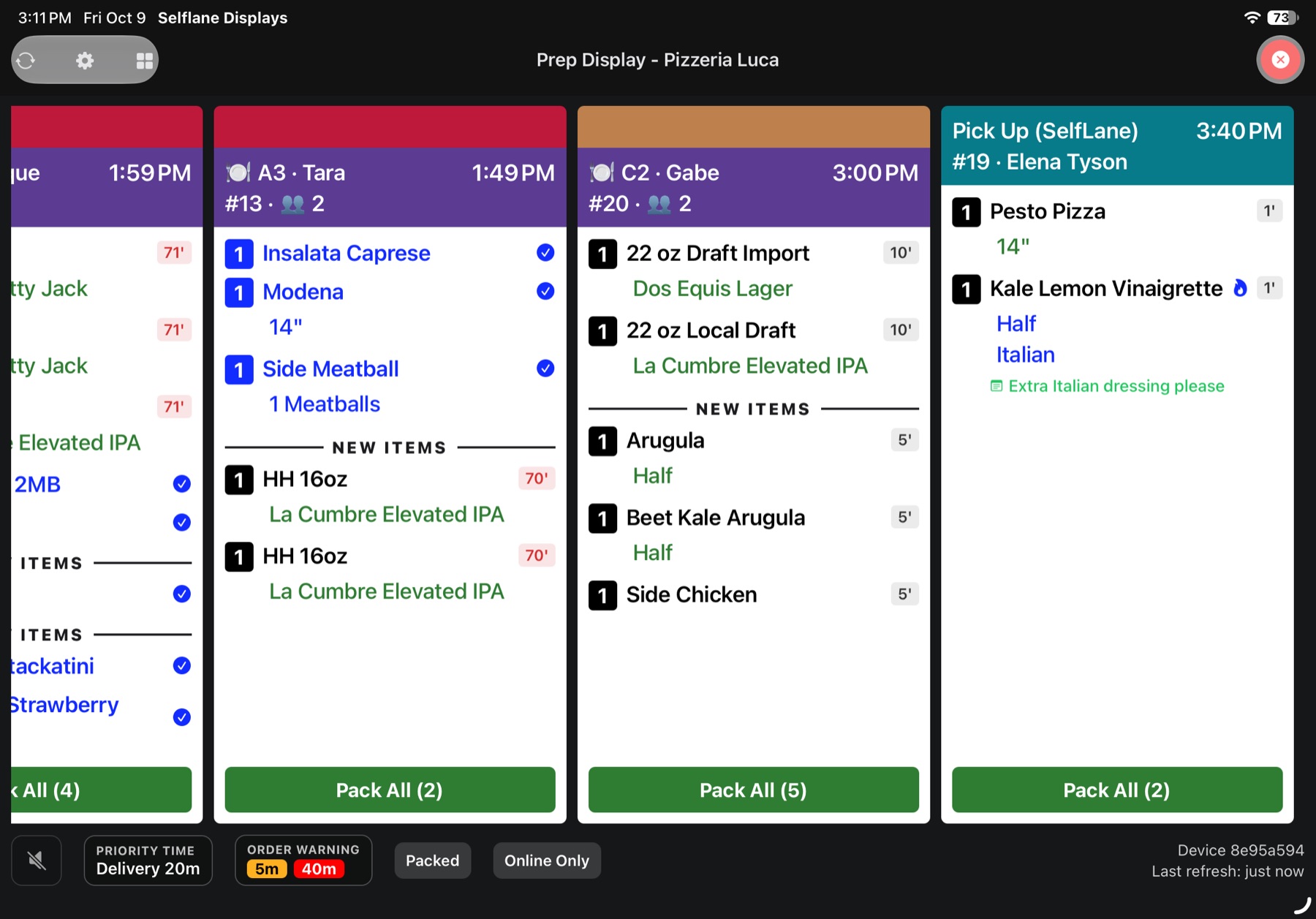
Packing and kitchen readiness are separate actions. Check Packing clears the kitchen before you start if your team uses packing to mark food cooked too.
Set up the packing screen
Tap the gear icon to open Prep Settings.
- Choose the language, arrival sound, row count, and card width.
- Use
Packed itemsto show or hide bagged items on unfinished tickets. ThePackedview always shows them. - Use
Added itemsto keep additions on the same ticket or give them a new packing ticket. - Set the loading range, order types, and print targets for this packing station.
- Use
Items with no print targetto include or hide items such as drinks. - Adjust
Priority timeandOrder warningfor your queue.
When Packing clears the kitchen is on, packing also marks the items cooked. No prep speed is recorded for that action. Unpacking does not undo the cooked status.
What if something is wrong?
- An item was marked packed by mistake. Within 20 minutes of packing, press and hold the packed item, then confirm
Undo Pack. - You cannot find an order. Check order-type filters, print targets, and the loading range. Refresh the display.
- Packing fails. Refresh the order and check whether it was changed or cancelled before trying again.
Related links
Last updated on